Mac Left vs Right Command Key: The Hidden Shortcut Layer
Mac left right command key modifier can be treated as two separate keys. Here's how to build 18 direct-access app shortcuts using both Command keys.
You have two Command keys — a left Command and a right Command — on your keyboard. Right now, they both do the same thing. That’s a waste.
macOS exposes the left and right Command keys as distinct modifier inputs at the API level. A handful of tools can read that distinction and treat Left Cmd+1 and Right Cmd+1 as completely different shortcuts. Most developers have no idea this capability exists — and no idea how many shortcuts they’re leaving on the table.
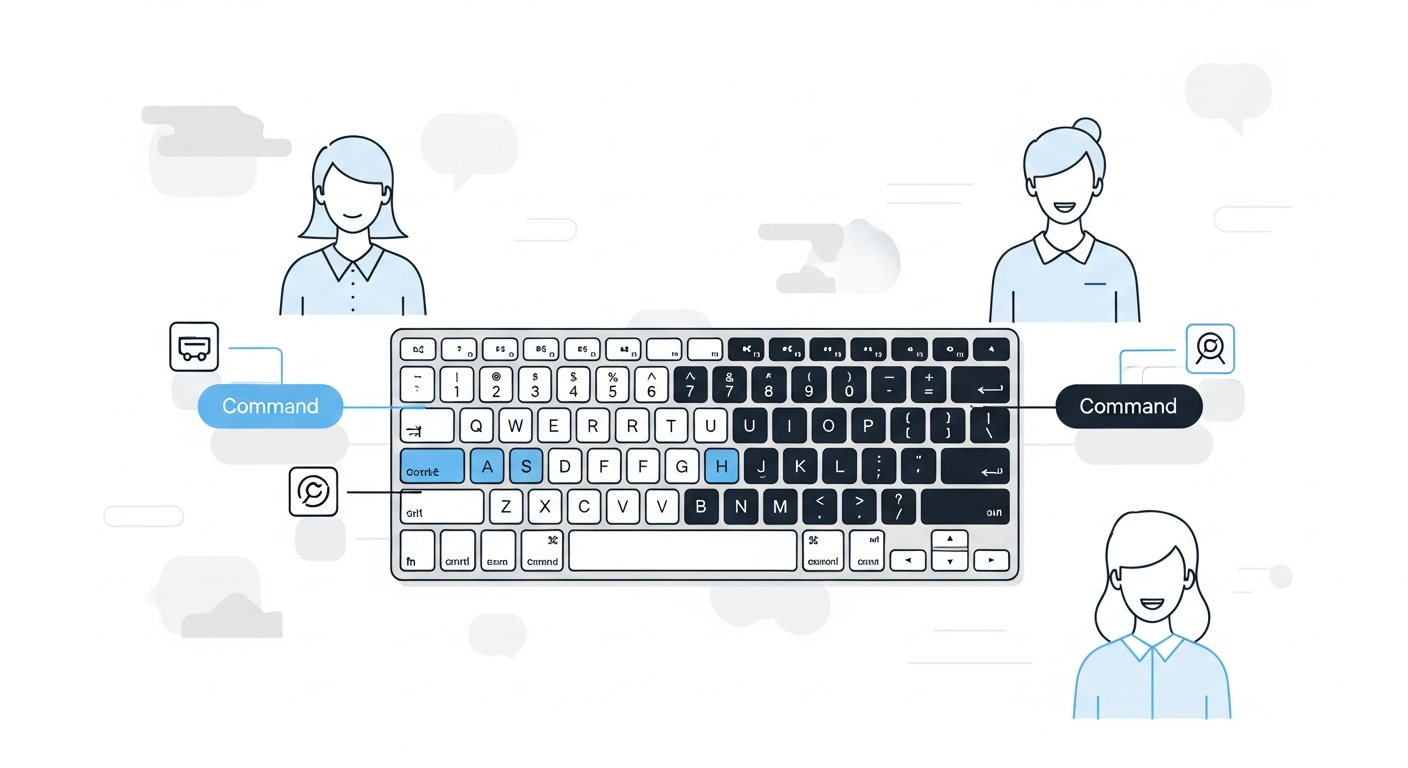
Left Command vs Right Command: Why macOS Tracks Both Separately
Most keyboards have symmetric modifier keys — two Shift keys, two Option keys, two Command keys — for ergonomic reasons. Left-hand shortcuts (like Cmd+C) are easier to reach with the right hand anchored on the mouse. Right-hand shortcuts benefit from the right modifier.
macOS itself treats them identically at the system shortcut level. Press Left Cmd+C or Right Cmd+C and you get the same Copy. The OS combines them into a single “Command key is held” signal.
But that’s only half the story.
At the CoreGraphics event level, macOS tracks which Command key was physically pressed using separate flag bits (NX_DEVICELCMDKEYMASK for left, NX_DEVICERCMDKEYMASK for right). Low-level tools that read raw keyboard events can see this distinction. Most apps ignore it. A few do not.
The Shortcut Math
Standard modifier-key combinations on macOS are already heavily used by apps. Cmd+S saves. Cmd+T opens a new tab. Cmd+Option+S is claimed by various apps. Finding conflict-free global shortcuts that work across all apps is genuinely hard.
The left/right distinction changes the equation.
If you can treat Left Cmd and Right Cmd as two separate modifiers, you get two clean shortcut namespaces:
Left Cmd+1throughLeft Cmd+9— 9 shortcutsRight Cmd+1throughRight Cmd+9— 9 shortcuts
That’s 18 direct-access hotkeys with a single modifier key on each side. No chording. No three-key combinations. Just one modifier and one number, pressed by different hands.
Here’s what a full two-layer layout could look like for a typical developer workflow:
| Shortcut | App |
|---|---|
Left Cmd+1 | Terminal |
Left Cmd+2 | VS Code |
Left Cmd+3 | Finder |
Left Cmd+4 | Simulator / Docker |
Left Cmd+5 | Postman / Insomnia |
Left Cmd+6 | Slack |
Left Cmd+7 | Notion / Obsidian |
Left Cmd+8 | Calendar |
Left Cmd+9 | System Settings |
Right Cmd+1 | Chrome |
Right Cmd+2 | Firefox / Arc |
Right Cmd+3 | Safari |
Right Cmd+4 | Figma |
Right Cmd+5 | Linear / Jira |
Right Cmd+6 | Zoom |
Right Cmd+7 | Spotify / Music |
Right Cmd+8 | Notes |
Right Cmd+9 | Messages |
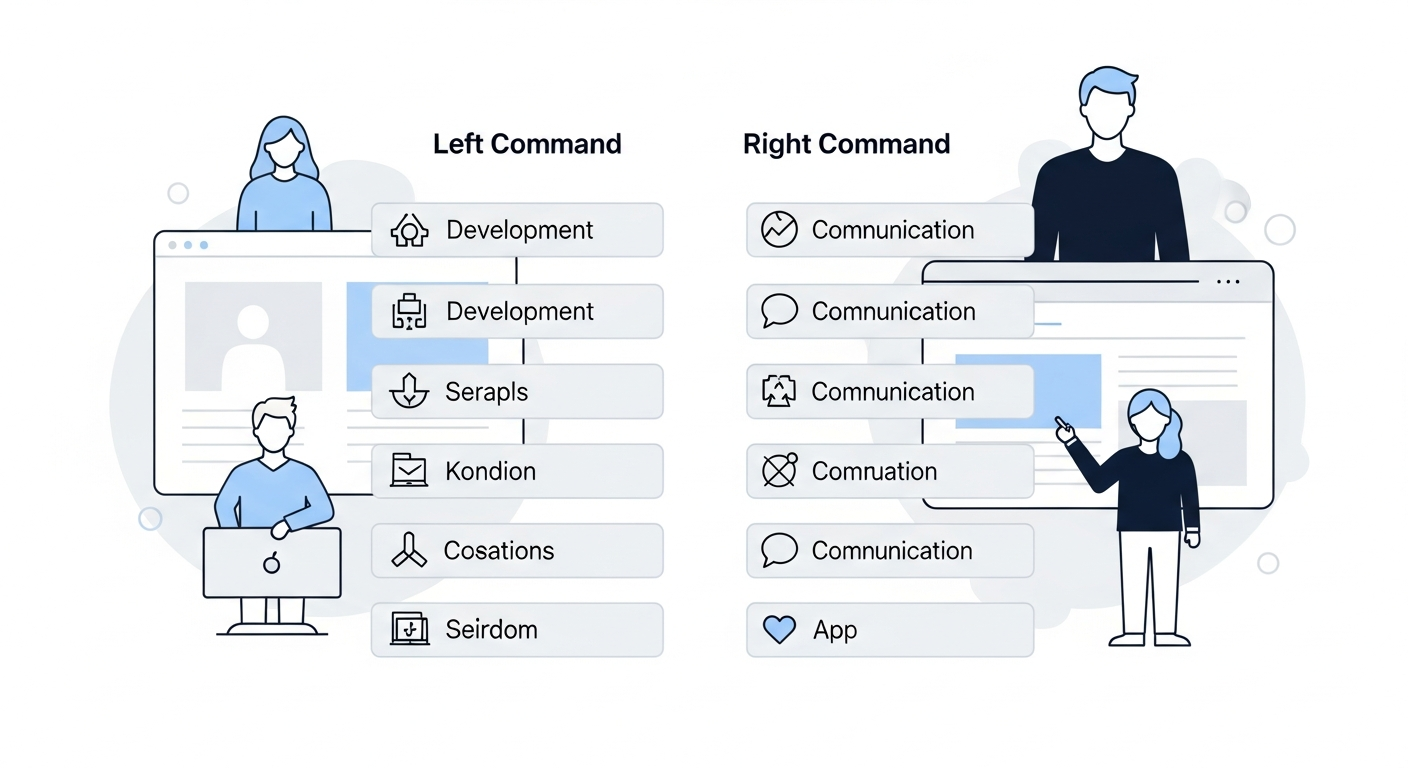
All 18 of these are one keypress away. No switcher invoked. No Cmd+Tab cycling. No app search. Your left thumb covers development tools; your right thumb covers browsers and communication.
This is the practical payoff of the mac left right command key modifier distinction.
Which Tools Can Actually Do This
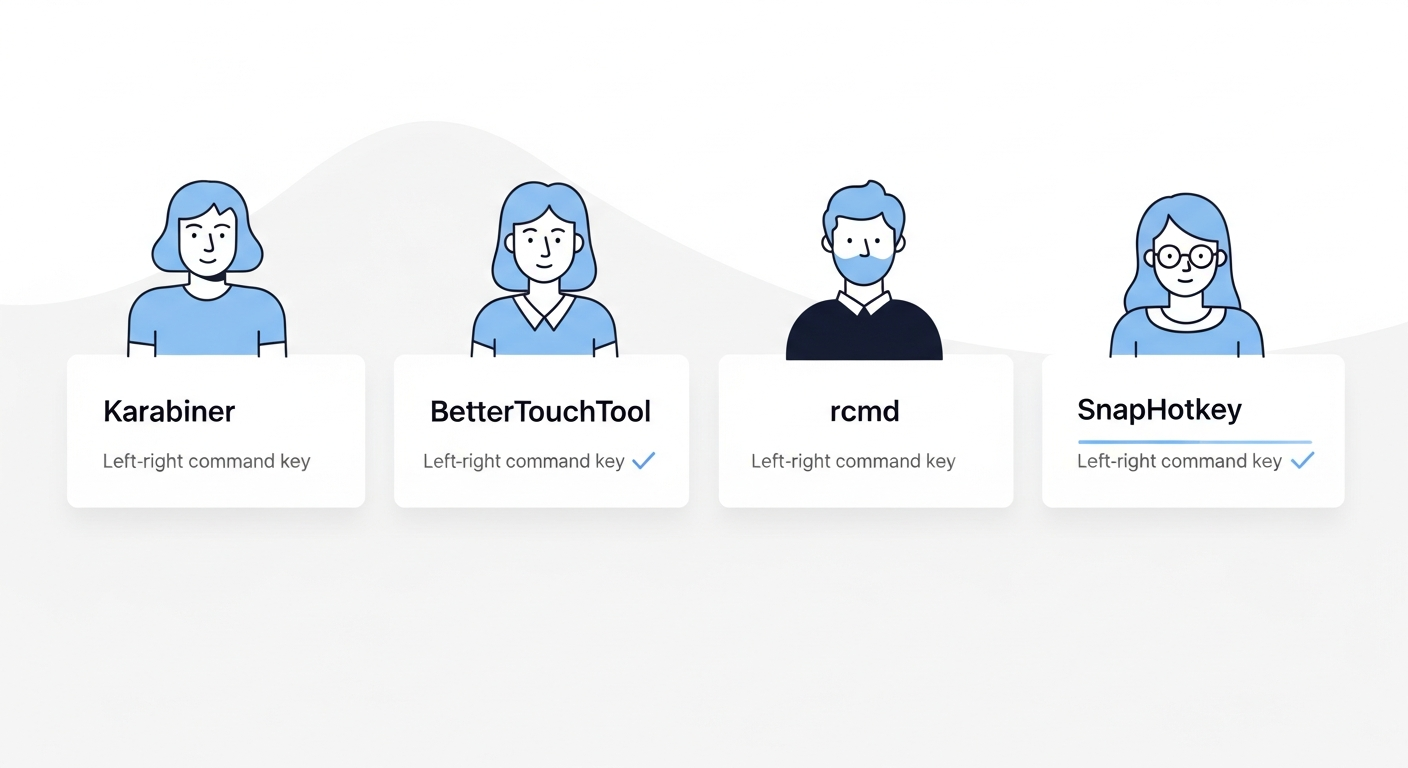
The left/right Command distinction is a capability, not a built-in macOS feature. You need software that reads raw keyboard events and understands which side the modifier came from. There are a few options, and they differ significantly in how much setup they require.
Karabiner-Elements (Free, Requires JSON Config)
Karabiner-Elements is the most capable low-level keyboard remapper on macOS. It operates at the driver level, intercepting keystrokes before any application sees them — including the left/right distinction.
In Karabiner’s complex modifications, left_command and right_command are valid and separate modifier values. This lets you write rules that trigger only on the left or only on the right Command key.
A Karabiner rule that triggers on left_command+1 looks like this in JSON:
{
  "type": "basic",
  "from": {
    "key_code": "1",
    "modifiers": {
      "mandatory": ["left_command"],
      "optional": []
    }
  },
  "to": [
    {
      "shell_command": "open -a Terminal"
    }
  ]
}
You need one block like this per app, per shortcut. Managing 18 of them in a JSON file is doable but becomes a maintenance burden. Add Hammerspoon on top if you want show/hide toggle behavior, and you’re now maintaining two apps and two config file formats.
See Karabiner & Hyper Key vs Dedicated App Switchers for a deeper look at the Karabiner + Hammerspoon approach and its real-world tradeoffs. For a broader introduction to using both sides of your modifier keys, Double Your Hotkey Space: Left and Right Modifier Keys covers how this principle applies across Shift, Option, and Control as well.
BetterTouchTool ($14–24, GUI-Based)
BetterTouchTool can distinguish left_command from right_command in its hotkey trigger setup. The GUI is more approachable than editing JSON, and you can point a trigger directly at an app without shell commands.
The downside: BetterTouchTool is a large, multipurpose app. Its feature set covers trackpad gestures, window snapping, Touch Bar customization, and much more. If app switching is your only goal, you’re carrying significant feature overhead. It also costs more than a dedicated tool.
rcmd (Free, Right Cmd Only)
rcmd uses Right Cmd as its fixed modifier for auto-mapped app switching. Install it and Right Cmd+S launches Safari, Right Cmd+T launches Terminal — automatically, based on app name first letters.
rcmd technically uses the right-side Command key, but it doesn’t expose the full left/right distinction as a user-configurable system. You get Right Cmd as an app-switching layer, but Left Cmd remains unchanged and isn’t configurable as a separate layer within rcmd. The auto-mapping is clever, but letter conflicts are inevitable as your app count grows.
SnapHotkey (Free / $9.99 Pro, Purpose-Built)
SnapHotkey is built specifically for shortcut-to-app mapping, and left/right modifier distinction is a first-class feature. The configuration GUI lets you record Left Cmd+1 and Right Cmd+1 as separate entries pointing to different apps — no JSON, no scripting.
It’s the only dedicated app switcher in this category that exposes the full left/right modifier layer in a GUI. You build out your shortcut layout by clicking “Record Shortcut,” pressing the key combination, and selecting the target app. Each shortcut takes about five seconds to configure.
SnapHotkey offers a free tier with up to 3 rules — enough to test whether this workflow suits you before committing. The Pro plan ($9.99, one-time) unlocks unlimited rules and is what you’d want for a full 18-shortcut layout.
Beyond the left/right distinction, SnapHotkey adds behaviors that complement this layout:
- Toggle show/hide — pressing the shortcut for a focused app hides it, so
Left Cmd+6both summons and dismisses Slack - Same-app multi-window cycling — if you have three Terminal windows open, repeated
Left Cmd+1presses cycle through them - Deep Launch — open apps with specific parameters, not just a plain app launch
For a full breakdown of the dedicated hotkey app switcher category, see Best Mac Hotkey App Launchers Compared.
Setting It Up Without Karabiner
If you want to explore the left/right Command layer without touching a JSON file, here’s the practical path:
1. Decide your layout first. Before opening any app, plan which apps go on which side. Left Cmd for your primary development tools, Right Cmd for browsers and communication is a natural split for most developers. Write it down.
2. Assign your most-used apps to the lowest numbers. Number keys closer to the modifier key are faster to reach. Terminal, your editor, and your browser should probably be +1, +2, and +3.
3. Start with 6 shortcuts, not 18. Muscle memory builds faster when you’re learning a smaller set. Map your six most-switched apps first, use them for a week, then expand.
4. Keep both sides thematically consistent. The left/right split is most useful when one side has a coherent purpose. “Left Cmd = tools I use to build, Right Cmd = tools I use to communicate” is easier to recall than a random mix.
The Deeper Opportunity: Left/Right Option and Control
Command isn’t the only key with two sides. Left Option, Right Option, Left Control, and Right Control all have separate hardware identities that low-level tools can distinguish.
Most macOS shortcuts use Cmd and Option together, leaving Control largely free for global hotkeys. If you want to push beyond 18 shortcuts, adding a Left/Right Control layer gives you another 18 slots. That’s 36 direct-access hotkeys in total — more than enough for any developer’s full app stack.
In practice, most developers don’t need 36. The left/right Command distinction alone — the mac modifier key app shortcut layer almost nobody uses — is usually enough to cover every app you switch to multiple times a day.
Why This Shortcut Layer Goes Unused
The capability has existed in macOS for years. Karabiner has supported left_command and right_command as distinct modifiers since at least macOS Sierra. So why do so few developers use it?
The main reason is discoverability. macOS doesn’t surface the distinction in its native keyboard settings. System Settings → Keyboard → Keyboard Shortcuts treats Left Cmd and Right Cmd identically — you can’t record a left-only shortcut there.
The tools that do support it (Karabiner, BetterTouchTool) require setup effort that most users don’t realize is worth it. You have to know the capability exists before you’ll seek out a tool that exposes it.
The second reason is that most app switcher tools don’t support it. rcmd, Thor, Snap, Manico — none of them expose left/right modifier distinction. If you’ve explored the app switching category and tried a few tools, you may have concluded the distinction simply wasn’t available without heavy Karabiner config.
It is available. It just requires choosing the right tool.
The Bottom Line
Your Mac keyboard has two Command keys and macOS tracks them separately at the hardware level. With the right tool, that means two clean modifier layers — up to 18 conflict-free, one-keypress shortcuts mapped to specific apps.
For most developers, setting up even six of these shortcuts eliminates Cmd+Tab from the most common switching moments in their day. Setting up all 18 eliminates it entirely.
Karabiner-Elements gives you this capability for free if you’re comfortable editing JSON. SnapHotkey gives you the same capability through a GUI — free to try with 3 rules, $9.99 one-time for unlimited — with toggle show/hide and multi-window cycling built in. Either way, the shortcut layer is there. It’s just been waiting for you to use it.
Want to compare all the tools that support direct hotkey-to-app access? See Best Mac Hotkey App Launchers Compared. Or for a deeper look at the Karabiner + scripting approach, see Karabiner & Hyper Key vs Dedicated App Switchers.
Related reading:
- Stop Using Cmd+Tab: Better App Switching for Developers — why
Cmd+Tabbreaks down at scale - How I Built a Keyboard-Only App-Switching Workflow — a concrete 8-shortcut developer setup
- How to Toggle (Show/Hide) Apps on Mac — adding Quake-style toggle on top of direct hotkeys
- Raycast Hotkeys vs Dedicated App Switcher — why Raycast alone isn’t enough for the muscle-memory layer