Raycast Hotkeys for Apps vs a Dedicated App Switcher
Raycast hotkey open app mac works well, but has gaps. Learn what Raycast gets right and wrong for app switching, and when a dedicated tool fills the gap.
You already use Raycast. Most developers do — it’s a genuinely excellent command palette, and for good reason. Snippet expansion, floating notes, window management, AI commands, clipboard history. It’s the Swiss Army knife of Mac productivity.
But here’s the friction you may have noticed: when you want to jump to a specific app, Raycast isn’t quite as fast as pressing one key and being there.
This article is about that gap — not a criticism of Raycast, but an honest look at what it’s optimized for and where a dedicated app switcher fits alongside it.

How Raycast Hotkeys for Apps Actually Work
Raycast does support assigning hotkeys to open specific apps. The path goes like this:
- Open Raycast Settings → Extensions
- Find the app or command you want to assign
- Click “Record Hotkey” and press your shortcut
Once configured, pressing that hotkey opens Raycast and executes the command — or in many cases, launches the app directly without the full command palette appearing. For “No View” commands like app launching, this is reasonably fast.
This is a real feature. Raycast hotkey open app on Mac works, and if you’ve set it up for your five most-used apps, it feels fast.
But there are real trade-offs in how this system is built, and they matter if app switching is something you do 100+ times a day.
What Raycast Gets Right for App Switching
Before the critique, let’s be fair about what works well.
Global hotkey support. Raycast hotkeys are system-wide. You can trigger them from any app, any context — no need to switch focus to a launcher window first.
Broad command coverage. You’re not limited to apps. You can assign hotkeys to Raycast commands, AI presets, window management actions, Quicklinks, and scripts. One hotkey system for your whole workflow.
Extension ecosystem. The Raycast extension store has thousands of extensions, and many include hotkey-compatible commands. If your workflow involves GitHub PRs, Linear tickets, or Notion pages, you can assign hotkeys to those actions too.
Free tier covers it. Hotkey assignment is available in Raycast’s free tier. You don’t need the Pro plan ($8/month) for per-app hotkeys.
For developers who want a command palette and some app hotkeys in a single tool, Raycast is a reasonable choice.
Where Raycast Falls Short for App Switching
Here’s where the gaps appear — not because Raycast is bad, but because it wasn’t purpose-built for this specific workflow.
Per-App Hotkeys Live Inside the Extension System
Assigning a hotkey to an app in Raycast requires navigating into Settings → Extensions, finding the right command, and recording the hotkey. It’s not complex, but it’s not the first-class, dedicated interface you get from a tool built only for this purpose.
More importantly, Raycast organizes hotkeys as command shortcuts, not app shortcuts. The mental model is: “what command do I want to run?” rather than “what app do I want to reach?” For developers who think in apps — VS Code, Terminal, Chrome, Slack — that’s a friction point in the configuration, even if it’s small.
No Toggle Show/Hide
When you press a Raycast hotkey to open an app, the app comes to the front. Press the same hotkey again, and nothing happens — the app stays visible.
Toggle behavior (press once to show, press again to hide) is the kind of thing you don’t know you need until you’ve had it. It’s especially useful for Slack, music players, and terminals: you check a message, and the same key that brought Slack forward sends it back behind your work. Without toggle, you need a separate shortcut or Cmd+H to hide manually.
No Same-App Multi-Window Cycling
If you have three Terminal windows open, a Raycast hotkey will bring a Terminal to the front — probably the last one you used. Getting to a specific Terminal window still requires Cmd+~ or Mission Control.
A purpose-built app switcher can track all windows of the same app and cycle through them on repeated keypresses. That’s a meaningfully different capability when you’re juggling multiple projects in the same tool.
No Left/Right Modifier Distinction
macOS treats Left Cmd and Right Cmd as the same key. Most apps — and Raycast — don’t distinguish between them.
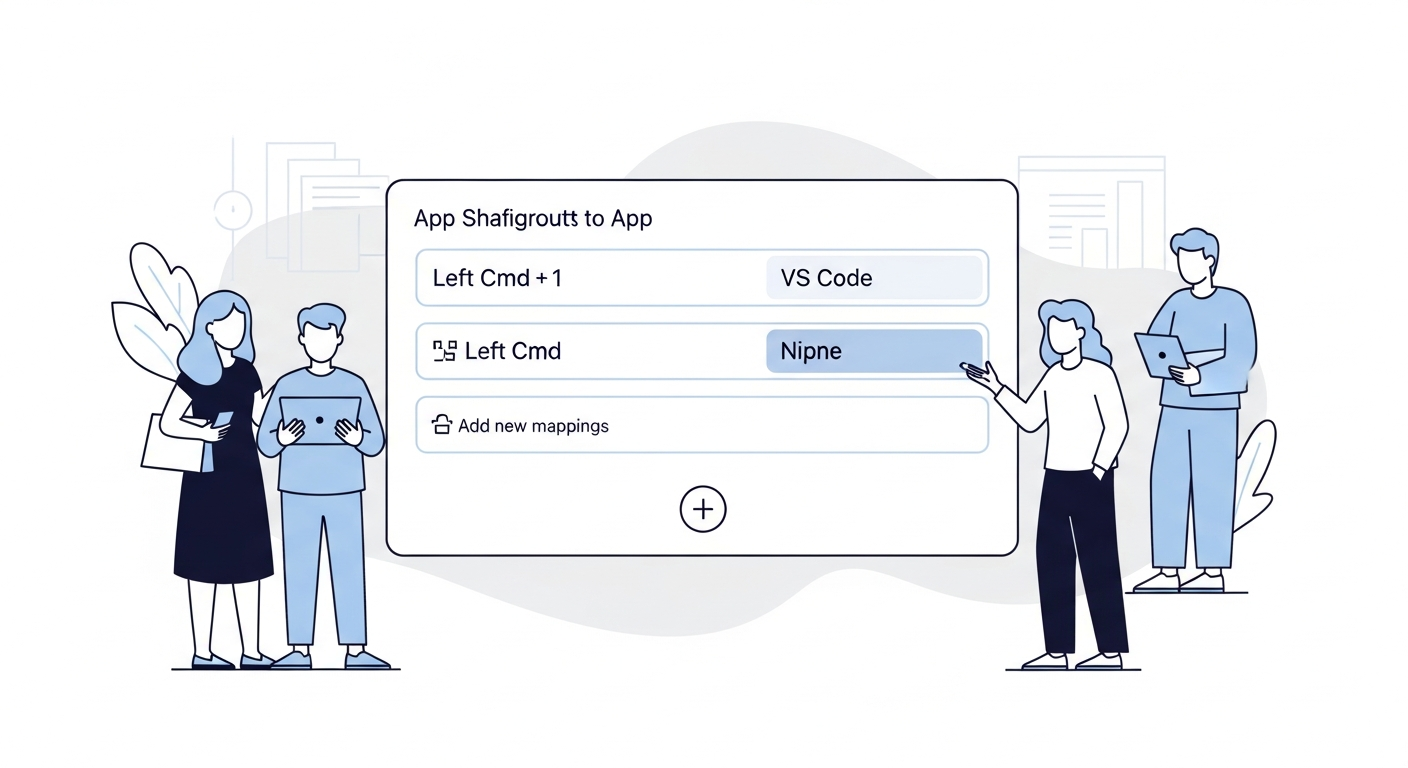
A dedicated app switcher can use Left Cmd as its modifier namespace (e.g., Left Cmd+1 through Left Cmd+9 for your nine core apps) while leaving Right Cmd completely free. That doubles your available shortcut space without adding a new modifier key.
If you’re trying to build a full app-switching layer alongside Raycast’s command palette, this distinction matters.
Raycast Is a Heavy Process
Raycast is a powerful app with many features — which means it consumes resources accordingly. For developers who want a lightweight, always-on app switcher that does one thing, running Raycast solely for per-app hotkeys is using a power tool for a finishing nail.
The Right Mental Model: Two Different Layers
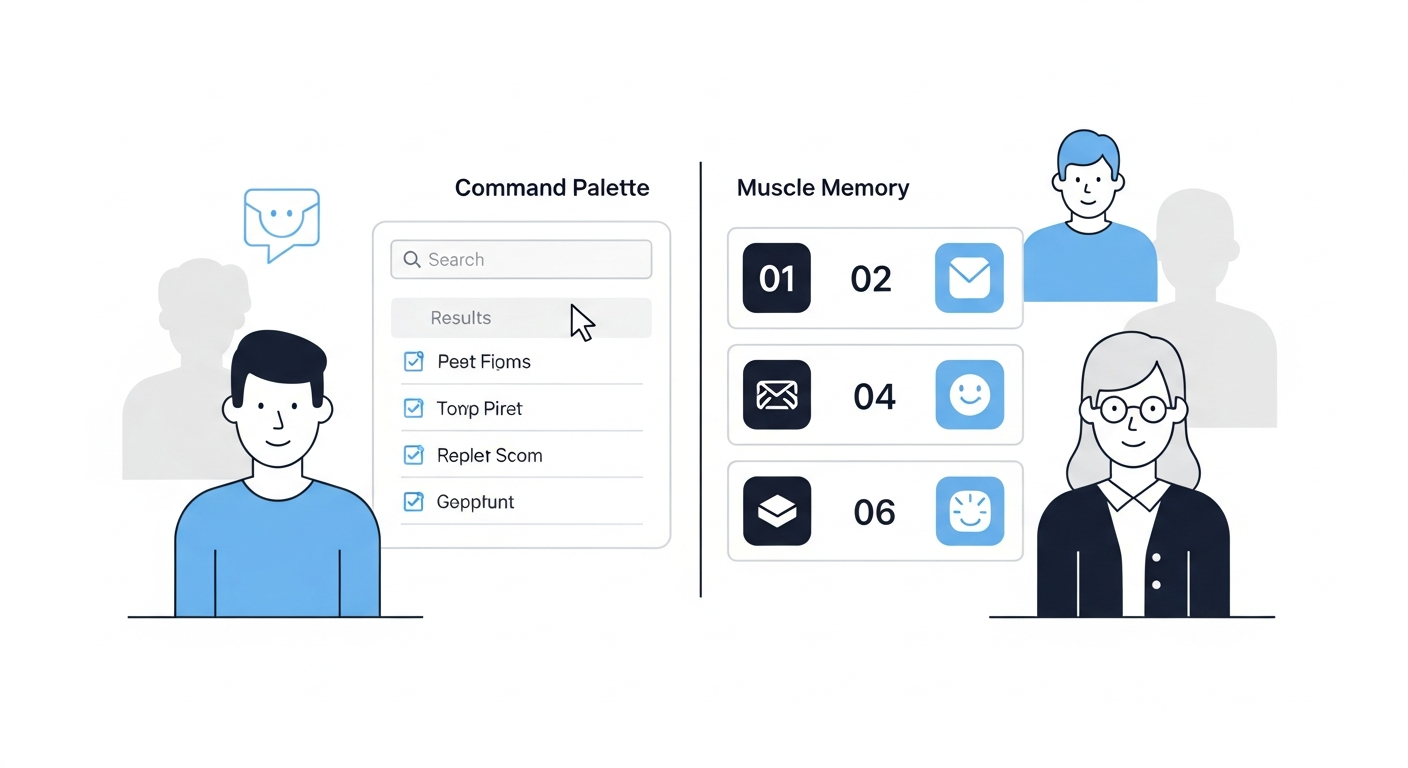
Here’s the frame that makes this clear: Raycast is your command palette. A dedicated app switcher is your muscle memory layer.
These are different categories of tool, even though they overlap on hotkeys.
Your command palette handles things that require thinking: “Run this script, search this database, expand this snippet, send this text.” You invoke it, you see options, you choose.
Your muscle memory layer handles things that require zero thinking: “I need Terminal. I need Slack. I need Chrome.” You press a key, you’re there. No invocation, no scanning, no choosing.
When Raycast handles both, the command palette model wins — and the muscle memory layer suffers a little. Your per-app hotkeys live in the same configuration as your AI commands and clipboard history. The app-switching workflow gets the same UI treatment as every other Raycast feature.
That’s a design tradeoff Raycast made intentionally. It’s not a bug. It just means there’s room for a complementary tool.
Tool Comparison for Mac App Switching
Here’s how the main options stack up for direct app-switching specifically — not as a general tool comparison.
| Feature | Raycast | rcmd | Thor | SnapHotkey |
|---|---|---|---|---|
| Per-app hotkeys | Yes (via extension system) | Yes (auto-mapped) | Yes (manual GUI) | Yes (manual GUI) |
| Toggle show/hide | No | No | No | Yes |
| Same-app multi-window cycling | No | No | No | Yes |
| Left/Right modifier distinction | No | Right Cmd only | No | Yes |
| Deep Launch (open with params) | No | No | No | Yes |
| Setup complexity | Medium | Low (zero-config) | Low | Low |
| Price | Free / Pro $8/mo | Free | Free | $9.99 one-time |
rcmd (free) is worth considering if you want zero-config app switching alongside Raycast. It auto-maps Right Cmd + first letter to each running app. The limitation: you’re stuck with Right Cmd, letter conflicts emerge with many apps open, and there’s no toggle or multi-window cycling.
Thor (free) lets you manually map shortcuts to apps — similar to a dedicated switcher, but development appears stalled and it lacks advanced features.
SnapHotkey ($9.99, one-time) is built specifically for the muscle memory layer problem. You map shortcuts to apps through a simple GUI, and it adds the features the others lack: toggle show/hide, same-app multi-window cycling, left/right modifier distinction, and Deep Launch. Many SnapHotkey users run it alongside Raycast — Raycast stays as the command palette, SnapHotkey handles the app-switching layer.
Karabiner-Elements (free) can technically do all of this, but requires JSON config and Lua scripting via Hammerspoon. If you want to compare the scripting approach vs dedicated tools, Karabiner & Hyper Key vs Dedicated App Switchers covers that tradeoff in detail.
A Real Developer Setup: Raycast + SnapHotkey
Here’s how a working combination looks in practice.
Raycast handles:
- Command palette (search, AI, snippets, clipboard)
- Script commands with hotkeys (e.g., a custom deployment trigger)
- Quicklinks to specific URLs
- Floating window for scratch notes
- Window management shortcuts
SnapHotkey handles:
Left Cmd+1→ VS CodeLeft Cmd+2→ TerminalLeft Cmd+3→ ChromeLeft Cmd+4→ Slack (with toggle — same key hides it)Left Cmd+5→ FinderLeft Cmd+6→ Obsidian
The two tools don’t conflict. Raycast uses Option+Space as its main trigger and various hotkeys for commands. SnapHotkey uses Left Cmd+number for the app-switching layer. They operate in separate shortcut namespaces.
The result: you have a full command palette for everything that requires thought, and a zero-thought switching layer for everything that requires only muscle memory.

When to Use Raycast Hotkeys vs a Dedicated Switcher
Stick with Raycast hotkeys only if:
- You switch between 3-4 apps and per-app hotkeys cover your workflow
- You don’t need toggle show/hide or multi-window cycling
- You want to minimize the number of installed tools
Add a dedicated app switcher if:
- You use 6+ apps regularly and want muscle memory access to all of them
- Toggle show/hide matters for how you use communication apps or terminals
- You work with multiple windows of the same app (multiple Terminal sessions, VS Code projects)
- You want
Left Cmdas a dedicated app-switching modifier, separate from Raycast’s namespace
Use rcmd alongside Raycast if:
- You want zero-config automatic hotkeys and don’t mind Right Cmd as the fixed modifier
- Your app names all start with different letters
The underlying question is whether app switching is a workflow you’ve optimized or just something you do. If you’ve never thought about it, Raycast’s built-in hotkeys are probably fine. If you’ve noticed the friction — too many apps to juggle, windows piling up, the same few keypresses repeated hundreds of times — that’s the signal that the muscle memory layer deserves its own tool.
The Bottom Line
Raycast is excellent. If you’re not using it yet, start there — it will improve your workflow meaningfully.
For app switching specifically, Raycast’s hotkey system works but is built around the command-palette model rather than the instant-muscle-memory model. The gaps — no toggle show/hide, no multi-window cycling, no left/right modifier distinction — aren’t bugs. They’re tradeoffs that come from building a general-purpose tool.
A dedicated app switcher closes those gaps without replacing Raycast. The two tools are complementary by design.
If you’re ready to eliminate Cmd+Tab cycling entirely and build a proper app-switching layer, Stop Using Cmd+Tab: Better App Switching for Developers walks through the full setup — from quick macOS fixes to the dedicated tool approach.
For a side-by-side comparison of all the dedicated hotkey app launchers available on Mac, see Best Mac Hotkey App Launchers Compared.
SnapHotkey is a dedicated Mac app switcher: one-time purchase at $9.99, no subscription. It handles the muscle memory layer so Raycast can stay focused on what it does best.
Related reading:
- Left/Right Command: The Shortcut Layer Most Developers Never Use — double your shortcut slots without modifier chords
- How I Built a Keyboard-Only App-Switching Workflow — a concrete 8-shortcut developer setup
- How to Toggle (Show/Hide) Apps on Mac — Quake-style toggle that Raycast doesn’t do
- Mac Multi-Window Headache: Switching Between Windows of the Same App — same-app cycling beyond `Cmd+“
- Alfred vs Raycast vs Dedicated App Switcher: Three Tools, Three Different Jobs — if you’re also deciding between Alfred and Raycast, this framing clarifies how all three categories coexist