Keyboard Shortcut to Toggle Show/Hide Any App on Mac
Learn how to show and hide any Mac app with a single keyboard shortcut. Native methods, scripting approaches, and dedicated tools compared.
You’re deep in your code editor when a message comes in. You press a key, Slack pops up, you read and reply, press the same key again, and it vanishes. You’re back in your editor without touching the mouse or cycling through windows.
That’s the show/hide toggle — assigning a hotkey that both brings an app to the front and hides it with the same key. It’s one of the most useful keyboard behaviors you can set up on a Mac in 2026. The frustrating part: macOS doesn’t support it natively, at least not the way most people want. This guide covers every option, from native workarounds to scripted solutions to dedicated apps that make toggle behavior work exactly the way you’d expect.

What “Toggle” Means (and Why macOS Doesn’t Do It)
Toggle show/hide means one keyboard shortcut handles both directions:
- Press once: the app comes to the front (if it’s hidden or in the background)
- Press again: the app hides (if it’s currently focused)
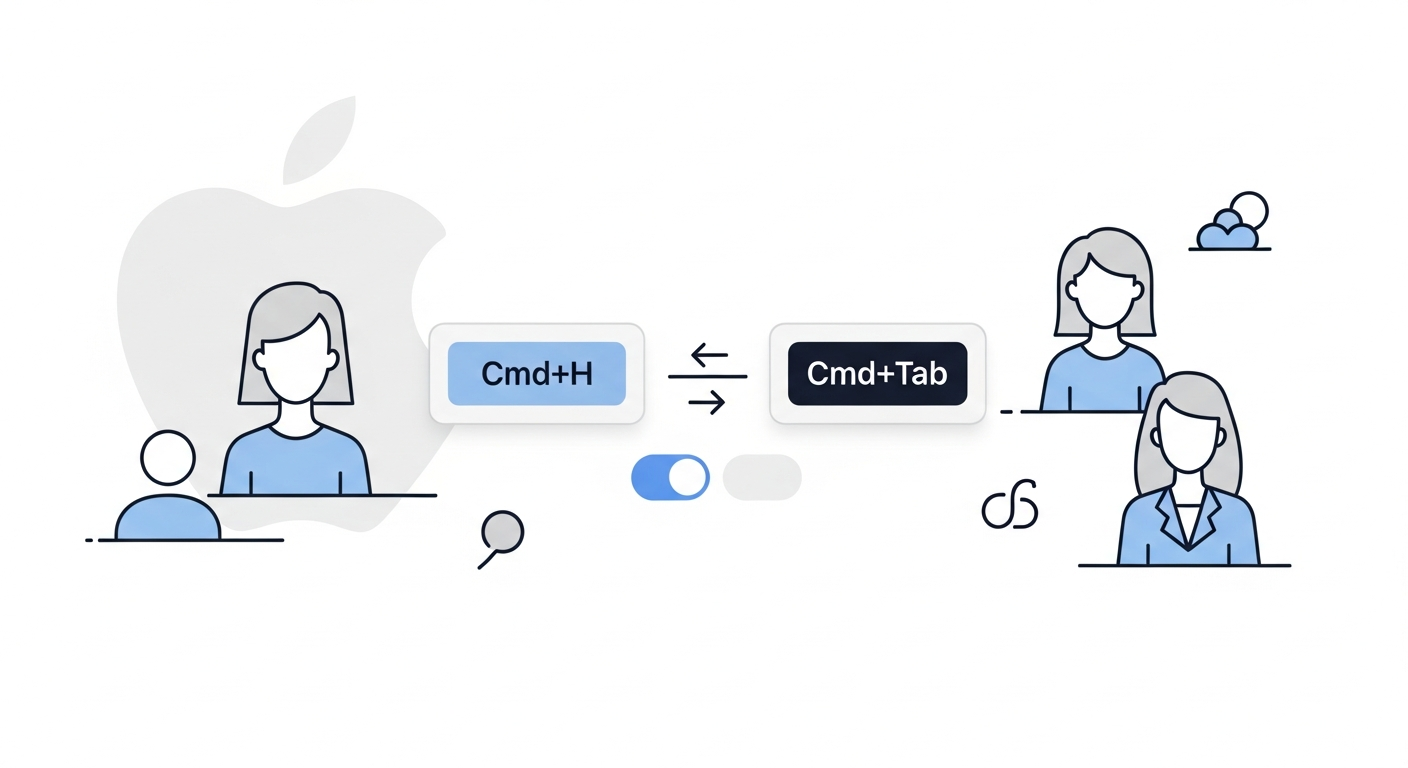
macOS has two separate commands that do half of this each:
Cmd+Tab: switches to an app but can’t hide itCmd+H: hides the current app but can’t bring it back
There’s no built-in way to bind a single key that does both, which is why developers and power users who want this behavior have to build it themselves.
Option 1: Native macOS — What You Can Actually Do
Cmd+H to Hide
Every Mac app responds to Cmd+H to hide (minimize to the background without closing). This is useful, but it’s not a toggle — you still need Cmd+Tab or a click to bring the app back.
The Dock Click Workaround
Clicking an app’s Dock icon does act as a toggle in some cases: if the app is in front, the click hides it; if it’s in the background, the click brings it to the front. But this requires a mouse, defeats the keyboard workflow purpose, and only works for apps already in your Dock.
Mission Control and Exposé
Control+Up for Mission Control and Control+Down for App Exposé are powerful for window overview, but they’re the opposite of quick toggle — they add visual overhead rather than reducing it.
The bottom line on native options: macOS doesn’t support single-key app toggle. You’ll need to go beyond the defaults.
Option 2: AppleScript — A Simple Toggle Script
AppleScript can check whether an app is in the foreground and either focus it or hide it, giving you toggle behavior. Here’s the pattern for Slack:
tell application "System Events"
    if frontmost of process "Slack" is true then
        set visible of process "Slack" to false
    else
        tell application "Slack" to activate
    end if
end tell
Save this as an Application in Script Editor (File → Export → Format: Application). Then assign a keyboard shortcut to it via the macOS Shortcuts app:
- Open Shortcuts app
- Create a new shortcut
- Add an “Open” action pointing to your saved AppleScript app
- In the shortcut settings, assign a keyboard shortcut
Limitations: This approach works, but it has reliability issues common to Shortcuts-app hotkeys — the shortcut may not trigger when the Shortcuts app isn’t active, and it can conflict with app-specific shortcuts. You also need to create and maintain separate scripts for each app you want to toggle.
Option 3: Hammerspoon — More Reliable Scripting
Hammerspoon is a free automation tool that uses Lua scripting for keyboard hotkeys. It registers shortcuts at a system level, which makes it more reliable than the Shortcuts app approach.
A toggle function in Hammerspoon looks like this:
local function toggleApp(appName)
    local app = hs.application.find(appName)
    if app and app:isFrontmost() then
        app:hide()
    else
        hs.application.launchOrFocus(appName)
    end
end

hs.hotkey.bind({"cmd", "shift"}, "S", function()
    toggleApp("Slack")
end)

hs.hotkey.bind({"cmd", "shift"}, "T", function()
    toggleApp("Terminal")
end)
This creates Cmd+Shift+S to toggle Slack and Cmd+Shift+T to toggle Terminal. The logic checks whether the app is frontmost: if yes, hide it; if no, bring it to the front.
Advantages over AppleScript: More reliable global registration, faster execution, no dependency on the Shortcuts app being active.
Limitations:
- Requires installing Hammerspoon and writing Lua
- Every new app you want to toggle means editing the config file
- No GUI — changes require reloading the config with
hs.reload() - Hammerspoon needs to be kept updated when macOS upgrades; kernel-level changes can temporarily break it
- For complex setups with many apps, the config file grows and becomes harder to maintain

Option 4: Dedicated Hotkey Apps with Built-In Toggle
Dedicated hotkey-to-app tools are purpose-built for mapping keyboard shortcuts to specific apps. The better ones include toggle show/hide as a built-in behavior — no scripting required.
rcmd (Free)
rcmd uses Right Cmd + first letter of an app’s name. It supports a focus/hide toggle when you press the shortcut while the app is already frontmost. Simple and reliable, but you’re limited to Right Cmd as the modifier, and apps with the same first letter create conflicts.
Thor (Free)
Thor lets you configure custom shortcut-to-app mappings. The focus behavior works, but toggle show/hide (hiding the app when it’s already frontmost) is not built in. You’d still need the Hammerspoon approach for true toggle.
SnapHotkey ($9.99, one-time)
SnapHotkey includes toggle show/hide as a core feature. When you configure a shortcut for an app:
- Press once: app comes to the front (launches it if not running)
- Press again while it’s focused: app hides
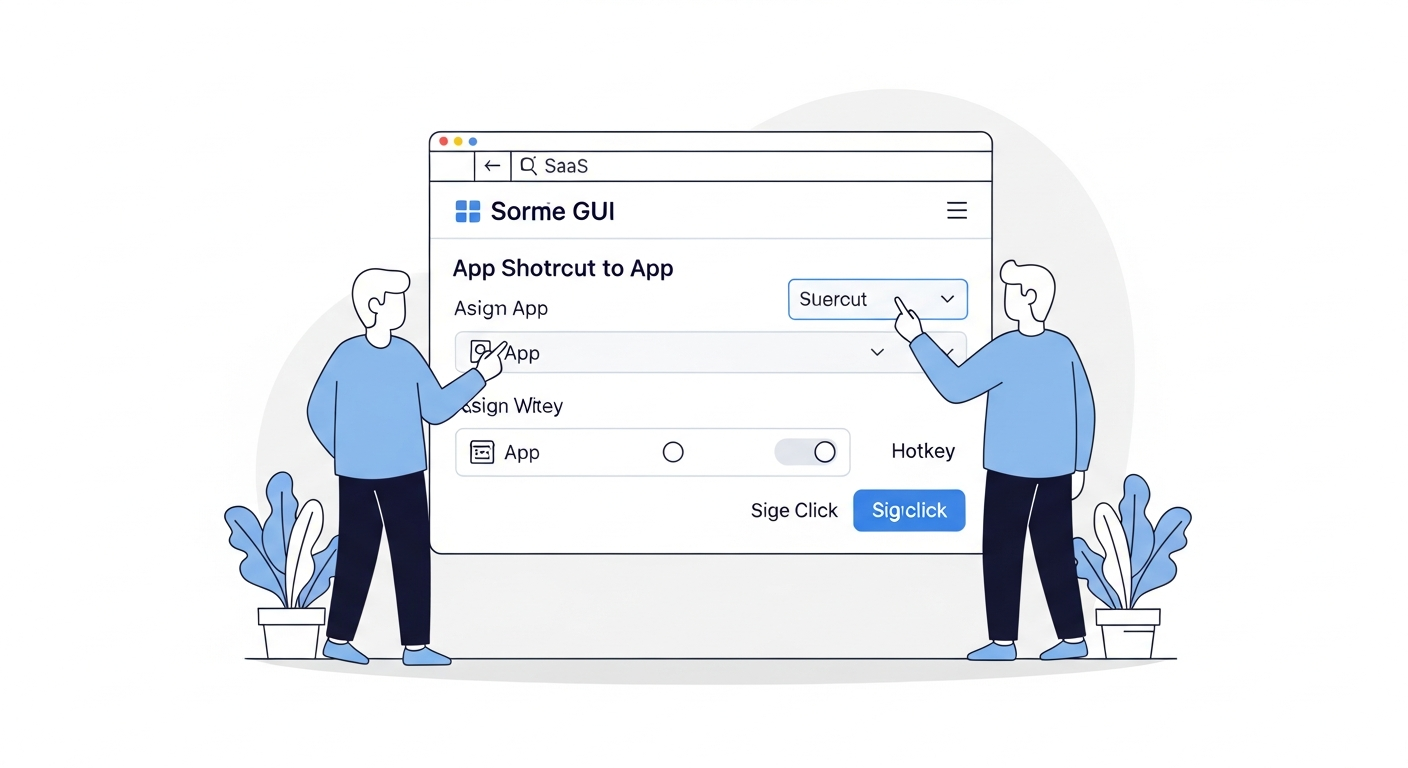
The configuration is a GUI — you pick a modifier key combination, select the app, and it works. No scripts, no JSON, no Lua. Adding a new app to your toggle setup takes about 10 seconds.
SnapHotkey also distinguishes between Left and Right modifier keys, so Left Cmd+1 and Right Cmd+1 can be separate shortcuts. In practice this means you can use the Left Cmd key as a dedicated app-switching modifier (giving you 9-10 conflict-free shortcuts across number keys) while keeping Right Cmd free for other purposes.
Comparing the Options
| Approach | Toggle support | Setup effort | Reliability | Per-app config |
|---|---|---|---|---|
| Native macOS | No | None | N/A | N/A |
| AppleScript + Shortcuts | Yes | Medium | Sometimes unreliable | Script per app |
| Hammerspoon | Yes | High (Lua) | Good | Code block per app |
| rcmd | Yes (Right Cmd only) | Low | Good | Auto + letter mapping |
| Thor | No | Low | Good | GUI per app |
| SnapHotkey | Yes | Low | Good | GUI per app |
The Toggle Use Case in Practice
Toggle show/hide matters most for apps you access frequently but don’t want permanently visible:
Slack / Messages / Discord — You want to glance at notifications, respond, and immediately get them out of your way without the distraction of leaving them open.
Terminal — A quake-style terminal that drops down on demand and hides when you’re done is a classic developer workflow. Toggle makes this possible with any terminal app, not just dedicated quake-terminal apps.
Music players — Show Spotify or Apple Music to change a track, then hide it with the same key.
Reference apps — Toggle a dictionary, calculator, or notes app in and out of view during focused work.
The common thread: these are apps you interact with in short bursts. Toggle reduces the context-switch friction to a single keypress in each direction.
Which Approach to Use
If you already use Hammerspoon for other automation, add the toggle function to your existing config. The code is minimal and you avoid adding another app.
If you want zero scripting, a dedicated tool is the right choice. SnapHotkey is the most direct fit if toggle show/hide is the main behavior you want, since it’s built in rather than bolted on. rcmd is a good option if you’re comfortable with Right Cmd letter-based shortcuts and want an even simpler setup.
If you’re testing the concept before committing to any tool, the AppleScript + Shortcuts approach lets you try toggle behavior for free with no new apps installed. If you run into reliability issues, that’s the signal to move to a dedicated solution.
Want to go further with keyboard-driven app switching? See Karabiner & Hyper Key vs Dedicated App Switchers for a deep dive into the tradeoffs between DIY and purpose-built tools, or Best Mac Hotkey App Launchers Compared (2026) for a full breakdown of every dedicated tool in this space.
If your hotkeys used to work but randomly stopped, Mac Hotkey to Launch App Not Working? explains the specific failure modes of native Automator and Shortcuts.app. And if you’re coming from Windows and miss Win+Number, Taskbar-Style App Hotkeys on Mac walks through how to replicate that feel — with toggle show/hide on top. If you also have multiple windows of the same app open and can’t reach the one you need, Mac Multi-Window Headache: Switching Between Windows of the Same App covers same-app window cycling. Already using Raycast? Raycast Hotkeys vs a Dedicated App Switcher explains why Raycast’s built-in hotkeys don’t support toggle show/hide — and when to add a dedicated layer.