How I Built a Keyboard-Driven Workflow on Mac (No Cmd+Tab)
Build a keyboard-only app switching workflow on Mac: one hotkey per app, no Cmd+Tab, no mouse. Here's the exact setup that made muscle memory automatic.
For years, I thought Cmd+Tab was fine. Then I tracked how many times a day I was pressing it — and decided to build a proper keyboard-only app switching workflow on Mac instead.
On a typical Tuesday — debugging a backend issue, jumping between VS Code, Terminal, Chrome, Slack, and a database client — I hit Cmd+Tab over 400 times. That’s not switching apps. That’s searching for apps, one keypress at a time, 400 times a day. I decided there had to be a better way to build a real keyboard driven workflow on Mac.
This is how I rebuilt app switching from scratch.

The Problem With Cmd+Tab (And Spotlight)
Cmd+Tab is a sequential switcher built on most-recently-used order. The position of every app shifts every time you switch. Terminal was two tabs away a moment ago — now it’s five. You can’t build muscle memory on a moving target.
Spotlight (Cmd+Space) is faster than cycling, but it still requires typing. Even two or three characters per switch adds up when you’re jumping between apps hundreds of times a day. And Spotlight results include files, contacts, and web suggestions — there’s always a chance you land somewhere unexpected.
The mental model I wanted was different: one specific key for each specific app. No cycling. No typing. No disambiguation. Just press, arrive, done.
That’s what a keyboard-only app-switching workflow actually means.
The Three Paths I Considered
When I started researching, I found three distinct approaches to building this system. Each has a real trade-off.
Path 1: Karabiner-Elements + Hammerspoon (Free, Maximum Control)
Karabiner-Elements is a free, open-source keyboard remapper that operates at the driver level. It can distinguish Left Cmd from Right Cmd, read raw key events before any app sees them, and trigger shell commands on any key combination you define.
Pair it with Hammerspoon — a Lua scripting bridge for macOS — and you can write precise behaviors: launch-or-focus, show/hide toggle, multi-window cycling. It’s technically capable of everything I wanted.
The catch: every behavior requires writing and maintaining code. A basic launch-or-focus binding in Hammerspoon is clean enough. But add toggle show/hide and multi-window cycling, and each app needs its own script block. I was looking at 80+ lines of Lua for my full setup, spread across two config file formats (JSON for Karabiner, Lua for Hammerspoon). When a major macOS update broke Karabiner for three weeks last year, I remembered this cost viscerally.
For developers who enjoy dotfile tinkering, this path is legitimate. I go into its trade-offs in detail in Karabiner & Hyper Key vs Dedicated App Switchers. For me, the maintenance overhead wasn’t worth it.
Path 2: Raycast Hotkeys (Free, Already Installed)
Most developers I know already have Raycast installed. It’s a genuinely excellent command palette, and it does support assigning per-app hotkeys through Settings → Extensions.
I used Raycast hotkeys for about three months before I hit the limitations. The biggest one: Raycast is built around the command-palette model — you invoke it and choose from options. Even when a hotkey launches an app directly without showing the palette, the underlying architecture treats app switching as “running a command,” not “jumping to an app.” This shows up in the feature gaps.
There’s no toggle show/hide. Pressing the same hotkey while the app is frontmost does nothing. There’s no same-app multi-window cycling — Cmd+hotkey brings up a Terminal window, not a specific one. And Raycast doesn’t distinguish Left Cmd from Right Cmd, so you can’t use the left side as a dedicated app-switching layer while keeping the right side free.
Raycast is part of my workflow, but not for this. See Raycast Hotkeys vs Dedicated App Switcher for the full comparison.
Path 3: A Dedicated App-Switching Tool
The third path is a tool built specifically for hotkey-to-app mapping. Nothing else, no command palette, no keyboard remapper, no general launcher — just the muscle memory layer.
rcmd (free) takes an auto-mapping approach: hold Right Cmd and press the first letter of the app’s name. Zero configuration. Right Cmd+S for Safari, Right Cmd+T for Terminal. I used it for a week and liked the zero-setup start. But letter conflicts surfaced fast — I had Terminal, Telegram, and Todoist all wanting T. And there’s no toggle, no multi-window cycling, no left/right modifier flexibility. (See rcmd vs SnapHotkey: Which App Switcher is Right for You? for the full comparison.)
Alfred (Powerpack ~$34) can map hotkeys to apps through its Workflow system, but the setup requires building workflow objects — it’s genuinely overkill for this single use case, and the Powerpack price is steep if you’re only buying it for app hotkeys.
SnapHotkey ($9.99 one-time, free with 3 rules) is what I landed on. It’s purpose-built for exactly this workflow: you record a shortcut, pick an app, and that mapping is permanent until you change it. No auto-guessing, no letter conflicts, no command-palette layer in between. I’ll show my setup below.
My Keyboard-Only App Switching Setup
Here’s the shortcut table I’ve been running for the past four months. The left Cmd key is my app-switching modifier — separate from everything macOS and my apps use on the right side.
| Shortcut | App | Notes |
|---|---|---|
Left Cmd+1 | VS Code | Primary IDE, frontmost position |
Left Cmd+2 | iTerm2 | Second most-switched; multiple windows |
Left Cmd+3 | Chrome | Docs, PRs, localhost preview |
Left Cmd+4 | Slack | Toggle: same key hides it when I’m done |
Left Cmd+5 | Finder | File management |
Left Cmd+6 | Obsidian | Notes and documentation |
Left Cmd+7 | TablePlus | Database client |
Left Cmd+8 | Postman | API testing |
The numbering follows frequency of use, not alphabetical order. The apps I switch to most live on the lowest-numbered keys because they’re closest to the modifier. After about three days, I stopped consciously thinking about the mapping. Left Cmd+2 for iTerm is now the same kind of automatic motion as Cmd+C for copy.
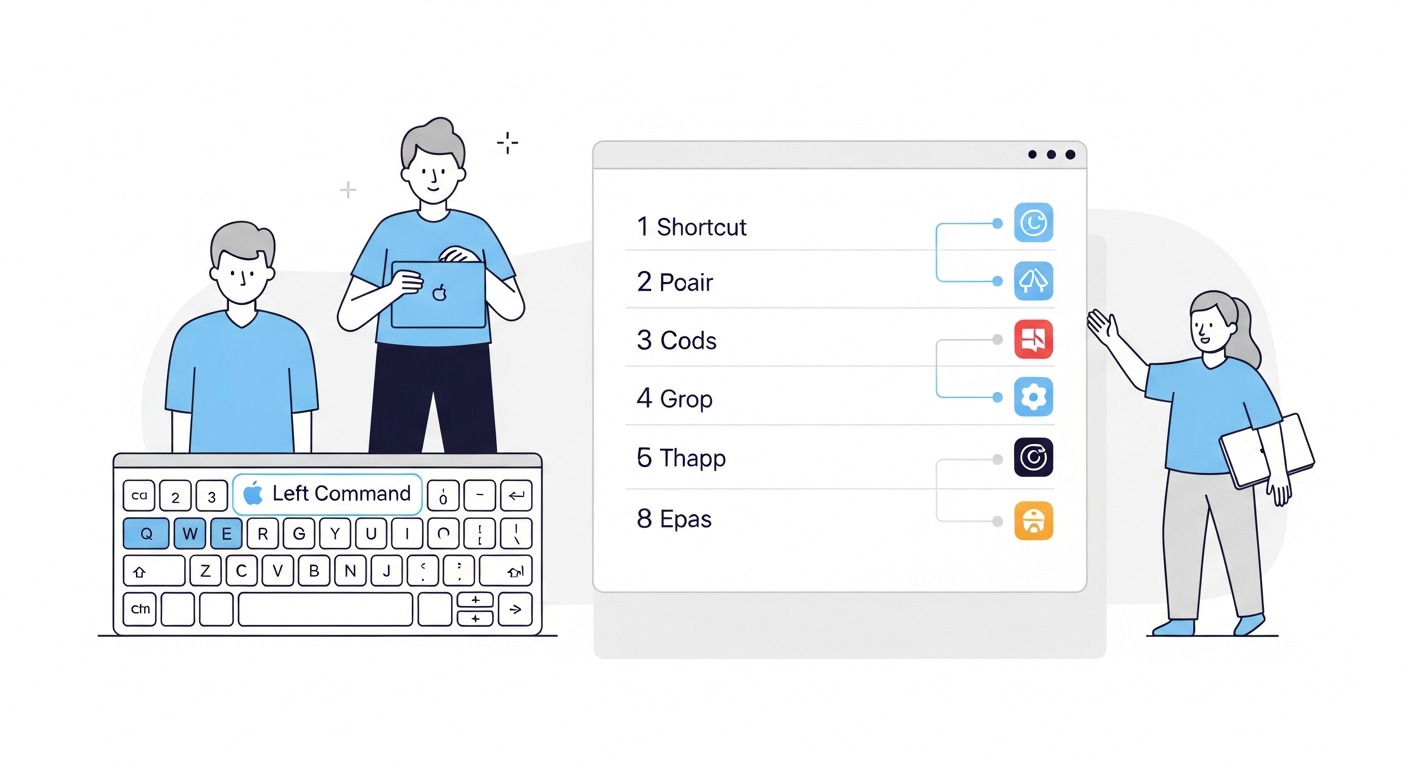
Why Left/Right Modifier Distinction Matters
The detail that makes this setup work is Left Cmd versus Right Cmd. Most tools — and macOS itself at the system shortcut level — treat them identically. But at the CoreGraphics event level, the OS tracks which side was pressed using separate hardware flag bits.
SnapHotkey reads these raw events. So Left Cmd+1 and Right Cmd+1 are genuinely separate shortcuts that can point to different apps. This means:
- My entire
Left Cmd+1throughLeft Cmd+9namespace is dedicated to app switching - My
Right Cmdkey is completely untouched — standard macOS shortcuts work normally - No modifier key conflicts with anything else on my system
Without this distinction, I’d need a more obscure modifier combination (like Ctrl+Option+number) which is slower to press and harder to remember. The left/right separation is the secret that makes +number keys feel natural.
For a deeper look at how this works technically and what other tools support it, see Left Command vs Right Command: The Shortcut Layer Most Developers Never Use.
The Features That Changed My Workflow
Two behaviors in particular made the biggest difference once I switched to muscle-memory app switching.
Toggle Show/Hide
When I press Left Cmd+4, Slack comes to the front. When I press Left Cmd+4 again while Slack is frontmost, it hides. That’s the toggle behavior — same key, opposite action.
This sounds minor but changes how I handle communication apps. I check a message, the key that summoned Slack sends it back behind my work. My window layout isn’t disrupted. I don’t have to reach for Cmd+H or click the Dock to get Slack out of the way.
Same-App Multi-Window Cycling
I usually have three or four iTerm2 windows open — one per project. Before, getting to a specific Terminal window was a two-step annoyance: Cmd+Tab to iTerm, then Cmd+~ to cycle through windows.
Now I press Left Cmd+2 once for the most recently active iTerm window. Press it again and it cycles to the next one. Press again, the next. All my Terminal windows are accessible through the same single shortcut, in rotation.
This also applies when I have two VS Code projects open simultaneously. One keypress lands me on the last-used one; a second press takes me to the other. For a deeper look at this specific feature, see Mac Multi-Window Switching: One Hotkey for All Windows.
Building the Muscle Memory
The first day with this setup, I kept reaching for Cmd+Tab out of habit. By day two, I was catching myself before pressing it. By day four, the new shortcuts were automatic.
A few things accelerated the transition:
Start with your five most-switched apps. Don’t map all eight at once. Map the five apps you use constantly and leave the rest as Cmd+Tab fallbacks. Your muscle memory will build faster on a smaller set.
Put your most-used app on +1. Not alphabetically, not by app name — by frequency. The app you switch to most should require the least finger travel.
Don’t change the mapping once you set it. Consistency is what builds muscle memory. If you remap Left Cmd+3 from Chrome to something else, you’ll be fighting your existing motor patterns for weeks.
Use it deliberately for the first 48 hours. Every time you instinctively reach for Cmd+Tab, stop, and use the new shortcut instead. The habit transfer happens faster with conscious repetition. This aligns with how habit formation research describes cue-routine-reward loops — the consistent cue (wanting a specific app) needs to map to a consistent routine (one fixed hotkey) before the new behavior becomes automatic.
Beyond App Switching: Building a Full Keyboard-Driven Workflow on Mac
App switching was my first step, not my last. A complete keyboard-driven workflow on Mac has four distinct layers, each with its own tooling:
| Layer | Job | Tool |
|---|---|---|
| App switching | Press one key, land on one app instantly | SnapHotkey |
| Window tiling | Arrange windows without dragging | Rectangle or Aerospace |
| Browser navigation | Click links without touching the mouse | Vimium (Chrome/Firefox extension) |
| Search and launch | Open files, run commands, quick math | Raycast |
App switching is the only layer where I’d argue you need a purpose-built tool. Rectangle and Vimium are free and install in minutes. Raycast has a free tier that covers 95% of what most developers need. The only piece that requires a dedicated paid tool — if you want it to work correctly — is the app-switching layer.
That’s also the highest-leverage change. Every other keyboard optimization saves you a few keypresses per hour. App switching — done wrong — costs you 400+ keypresses a day just searching for things you already know you need.
Fix app switching first. The rest of the mouseless Mac stack slots in naturally after that.
The Setup in Three Steps
If you want to replicate this workflow, here’s the path of least resistance:
- Download SnapHotkey — it’s free to start with up to 3 rules, which is enough to test whether the muscle memory approach works for you
- Map your three most-switched apps to
Left Cmd+1,Left Cmd+2,Left Cmd+3 - Use only those shortcuts for one week — no
Cmd+Tabfor those three apps
After a week, you’ll have strong muscle memory for three apps and a clear sense of whether you want to expand to a full 8-app layout. The $9.99 one-time purchase unlocks unlimited rules when you’re ready.
This is not a complex setup. It’s one lightweight app, a five-minute configuration session, and three days of deliberate habit building. The payoff is app switching that happens below the level of conscious thought — which is exactly where it should be.
For a broader look at why Cmd+Tab is worth replacing and what all the alternatives look like, see Stop Using Cmd+Tab: Better App Switching for Developers.
Related reading:
- Best Mac Hotkey App Launchers Compared — full side-by-side of every dedicated tool
- How to Toggle (Show/Hide) Apps on Mac — adding hide-on-second-press to your hotkeys
- Mac Multi-Window Headache — what to do when one app has 5 windows
- Mac Hotkey to Launch App Not Working? — diagnosing native shortcut failures
- The Mouseless Mac Setup in 2026 — complete keyboard-driven stack: Vimium, Aerospace, Raycast, and app switching
- Mac Developer Productivity Keyboard Shortcuts 2026 — the full picture of keyboard optimization for developers
- Linux to Mac App Switching: Replacing i3 Workspaces — how per-app hotkeys map to i3’s $mod+N workspace model