Double Your Hotkey Space: Left vs Right Modifier Keys
Most Mac users ignore their right ⌘, ⇧, or ⌥ key for shortcuts. Here's how separating left and right modifiers unlocks a whole new shortcut layer.
Your Mac keyboard has two Command keys. Two Shift keys. Two Option keys. The left vs right modifier keys are identical to the system — but that difference is something you can exploit.
You probably use only one of each.

The Invisible Waste
Think about how you copy text. You almost certainly press Left ⌘ + C — left hand on Command, index finger on C. The right ⌘ key never gets involved.
This isn’t a personal quirk. It’s universal. Keyboard shortcuts like ⌘C, ⌘V, ⌘Z were designed to be pressed with one hand while the other is on the mouse. The left modifier keys do all the work. The right ones sit idle.
For typing shortcuts, this makes sense. But for app-switching hotkeys, those dormant right-side keys represent something valuable: a completely separate set of combinations that almost nothing else is using.
Why This Matters for App Switching
When you want to assign a dedicated hotkey to each of your frequently-used apps, you run into a space problem. Most good single-key combinations are already taken by the system or by individual apps.
The classic workaround is to use more modifiers — ⌘⇧, ⌘⌥, even ⌘⌥⌃. But these become awkward to press, especially if you need them dozens of times a day.
Distinguishing left and right modifiers solves this cleanly:
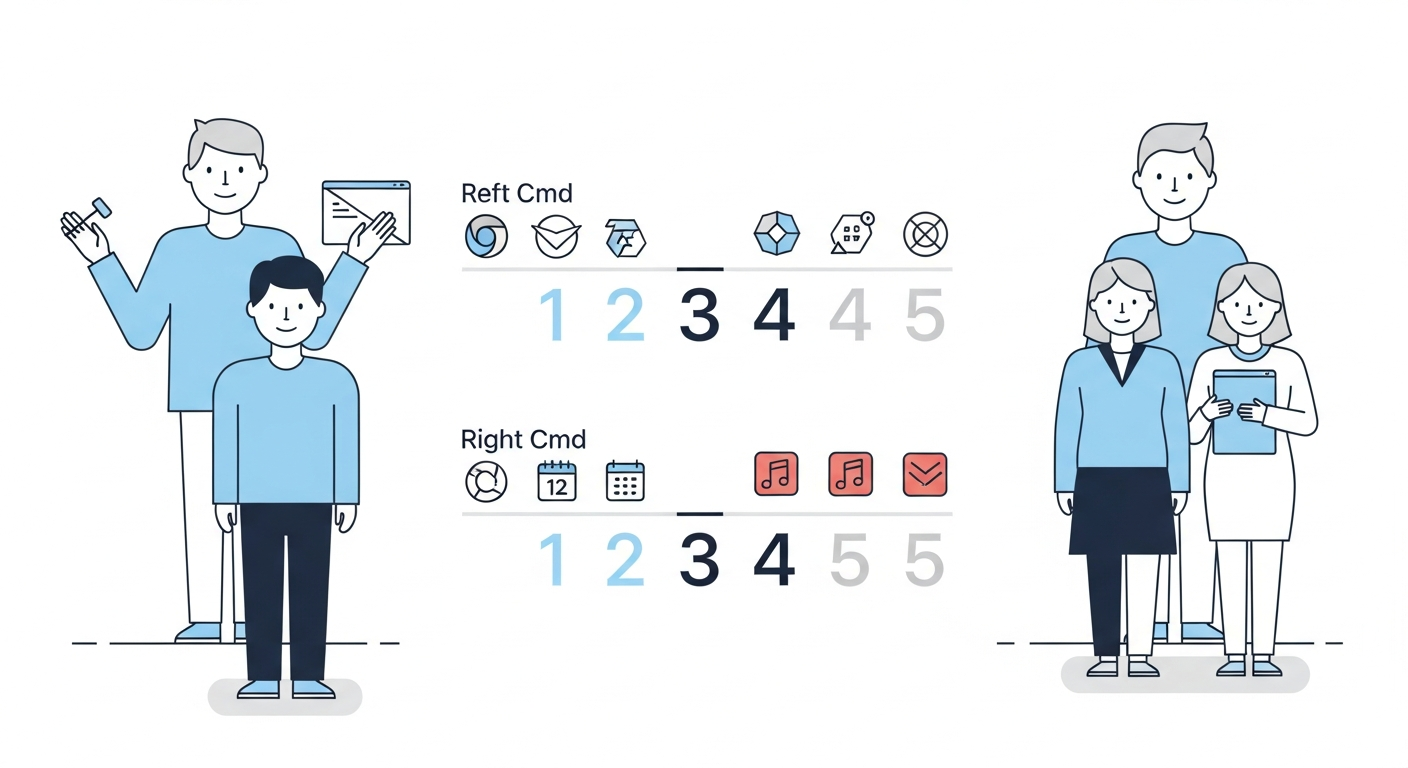
- Left ⌘ + 1 and Right ⌘ + 1 are two different hotkeys
- Left ⇧ + E and Right ⇧ + E are two different hotkeys
- Left ⌥ + T and Right ⌥ + T are two different hotkeys
In practice, this roughly doubles the number of natural, easy-to-press combinations available — without stacking three modifiers into an awkward chord.
A Concrete Example
Say you work across six apps all day: a code editor, terminal, browser, notes, email, and a chat tool.
With a conventional app switcher that treats left and right ⌘ as identical, you might end up with clunky combos like ⌘⌥1 through ⌘⌥6 — modifier-heavy and easy to mis-hit.
With left/right distinction, your layout can feel much more natural:
| App | Hotkey |
|---|---|
| Code editor | Left ⌘ + 1 |
| Terminal | Left ⌘ + 2 |
| Browser | Left ⌘ + 3 |
| Notes | Right ⌘ + 1 |
| Right ⌘ + 2 | |
| Chat | Right ⌘ + 3 |
Each key is easy to press one-handed. The left side covers your development tools; the right side covers your communication tools. There’s a logic to it that makes it easier to internalize.
Why Most Apps Don’t Support This
macOS’s standard hotkey APIs treat left and right modifier keys as the same key. Registering a global shortcut for ”⌘ + 1” captures both Left ⌘ + 1 and Right ⌘ + 1 simultaneously — there’s no way to differentiate.
Doing it properly requires listening at a lower level, using CGEventTap to intercept raw keyboard events before the OS abstracts the modifier identity away. This is more complex to implement and requires Accessibility permission, which is why most apps don’t bother.
SnapHotkey is built on CGEventTap from the ground up. Left and right modifiers — ⌘, ⇧, and ⌥ — are treated as distinct keys throughout. It’s the only Mac app launcher that natively supports this distinction without workarounds or scripting.

The Result: A Keyboard That Feels Twice as Large
Once you start thinking in terms of left and right modifiers separately, your keyboard stops feeling cramped for shortcuts.
You don’t need complicated chords. You don’t need to memorize arbitrary key numbers. You pick combinations that feel natural for each hand and let muscle memory handle the rest.
The right ⌘ key has been waiting. Now it has a job.
SnapHotkey is free to download. You can try it with up to 3 hotkey rules at no cost — enough to experience left/right modifier distinction firsthand. Download it here.
For a deeper look at how left/right modifier distinction works at the macOS API level — and a comparison of every tool that supports it — see Left Command vs Right Command: The Keyboard Shortcut Layer Most Developers Never Use. If you use Raycast and wonder whether its built-in hotkeys cover this, Raycast Hotkeys vs a Dedicated App Switcher explains why Raycast doesn’t distinguish left from right — and what that means in practice.