Mac Switch Windows Same App: Hotkey Methods
Mac switch windows same app: why Cmd+` breaks in full-screen and Spaces, every native method tested, and keyboard solutions that actually work.
You have three Terminal windows open. One is running a dev server, one has a Git log you’re tracing, and one is idle in the project root. You press Cmd+`` — wrong window. Press it again — wrong window again. Now you’ve looped past the one you wanted.
This is the mac switch windows same app hotkey problem. The shortcut exists. It’s even documented. But it breaks in enough real-world situations that developers end up clicking with a mouse, using the Window menu, or stacking windows in ways that create a different mess. This guide covers every approach — native and third-party — and when each one actually works.

The Native Answer: Cmd+` and Why It’s Not Enough
Every guide on this topic leads with Cmd+`` (Command + backtick). Press it and macOS cycles through the windows of the currently active application. Press Cmd+Shift+`` to cycle in reverse.
It works. Under specific conditions.
When Cmd+` Fails
Full-screen mode breaks it completely. If you have a window in full-screen, Cmd+`` doesn’t reach it. macOS treats full-screen spaces differently — they’re outside the normal window stack, and the shortcut doesn’t cross that boundary. If you work with one full-screen app and one regular window, you’re already stuck.
Minimized windows are invisible to it. Minimize a Finder window to the Dock with Cmd+M, then try Cmd+`` in Finder. The minimized window doesn’t appear in the cycle. This catches people off guard — the window exists, it’s just unreachable from the keyboard.
It only works within the same Space. If you split your workflow across multiple Spaces (virtual desktops) in macOS, Cmd+`` won’t jump across them. Two Chrome windows on two different Spaces? You’ll need to switch Spaces first.
App-specific window types cause confusion. Xcode is a good example. It can have a project editor window, a separate documentation viewer, and a simulator window all open at once. These are different window types — panels, sheets, and document windows — and Cmd+`` cycles through them in a non-obvious order. Most of the time you want the project window, not the documentation viewer, and the cycling gives you no control over which you land on.
It can stop working entirely after using the app switcher. This is a known macOS quirk: after you use Cmd+Tab to switch apps and return to the same application, Cmd+`` occasionally loses its cycle state. Clicking the window directly or using Mission Control usually resets it. It’s intermittent and hard to predict.
For a simple two-window scenario, Cmd+`` is fine. For developer workflows with mixed window states — full-screen terminals, minimized windows, windows across Spaces, Xcode with multiple panel types — it fails too often to rely on.
Other Native Methods Worth Knowing
The Window Menu
Every app with multiple windows has a Window menu in the menu bar. It lists open windows by name and lets you click to jump directly. For apps like VS Code, the Window menu shows the project name — you can tell at a glance which window is which.
This is the most reliable native method but requires a mouse or trackpad. It’s not a hotkey workflow.
Cmd+Tab Then Down Arrow
Open the app switcher with Cmd+Tab, highlight an app, and press the Down arrow key while still holding Cmd. This reveals all windows for that app in a Mission Control-style overlay. You can then use arrow keys to select a specific window and press Enter.
Two caveats: it requires you to already be on the app (since Cmd+Tab only shows you apps, not their individual windows), and the interaction sequence is clumsy — Cmd held, Tab pressed to select app, Down pressed to expand windows, arrow keys to navigate, Enter to confirm. That’s a five-step sequence.
Exposé / App Exposé
Three-finger swipe down on a trackpad (or Ctrl+Down by default) triggers App Exposé: all windows of the frontmost application spread out visually. Click the one you want. Fast and visual, but trackpad-dependent.
You can trigger App Exposé with a keyboard shortcut by going to System Settings > Keyboard Shortcuts > Mission Control and enabling “Application windows.” The default shortcut is Ctrl+Down. This is genuinely useful if you remember to use it, but it’s still a point-and-click selection step after triggering it.
Mission Control
Ctrl+Up (or the Mission Control keyboard key) shows all windows across all apps. Useful for orientation, but not focused enough for cycling through windows of a specific app.

When Mac Switch Windows Same App Goes Wrong: Real Developer Scenarios
The abstract problem becomes concrete fast in actual development workflows.
Multiple Terminal Windows
This is the most common pain point. A typical session might have four terminal windows: one watching logs, one running tests, one in the project directory, and one with SSH to a remote server. Cmd+`` cycles them, but you have no control over the order. You’re pressing the shortcut and visually checking which window appeared rather than pressing it and arriving exactly where you expected.
VS Code with Multiple Projects
VS Code opens each project in a separate window. With two or three projects open simultaneously — a frontend repo, a backend repo, and a shared library — Cmd+`` cycles through them, but the order is based on when they were last focused. After an hour of switching between projects, the order is unpredictable. You press Cmd+`` and check the title bar rather than knowing where you’ll land.
Xcode: Project Window vs. Documentation
Xcode can have a project editor, an Organizer window, and a documentation browser open simultaneously. These are not equivalent windows — the documentation window is a reference you occasionally consult, not a primary working surface. Cmd+`` treats all three equally and cycles through them in order. If you’re cycling to get back to the project editor from Terminal, you often land on the Organizer or documentation window instead.
Browser Profiles and Dev Windows
If you use Chrome or Firefox with separate browser profiles — one for work, one for personal use — or if you keep a localhost preview window separate from your general browsing, Cmd+`` cycles all of them. You’re back to visual checking rather than muscle memory switching.
Third-Party Solutions
When Cmd+`` isn’t enough, third-party tools offer different tradeoffs.
AltTab (Free)
AltTab is a free, open-source replacement for Cmd+Tab that shows actual window previews — visual thumbnails rather than app icons. It shows all windows from all apps in one place, including multiple windows of the same app listed separately.
AltTab also supports a “Shortcut 2” mode in its preferences that shows windows from the active application only, making it a usable Cmd+`` replacement with better visibility. The tradeoff: AltTab is still a visual switcher. You trigger it, visually scan the thumbnails, and select. That’s faster than blind cycling, but it’s a different workflow from pure hotkey muscle memory.
AltTab doesn’t give you a dedicated hotkey that jumps directly to “the second Terminal window” or “the project window in VS Code.” It gives you better visibility when choosing.
Contexts ($9.99)
Contexts takes a search-based approach. Press a shortcut to bring up a sidebar or search panel, type a few letters of the window title, and jump to it. For apps with named windows (VS Code shows the project name in the title), this is excellent — type “backend” and jump directly to your backend VS Code project.
Contexts also enhances Cmd+Tab behavior and shows a sidebar with all windows listed by app. It handles full-screen windows, minimized windows, and windows across Spaces — problems that defeat the native Cmd+`` entirely.
The search-first workflow works well when windows have distinctive names. It’s less effective for Terminal windows that might all be titled “Terminal” or “bash” without much differentiation.
Witch ($14)
Witch is a window switcher that gives you a multi-tab interface similar to the macOS app switcher but for individual windows. It can show each window separately, group by app, and be configured to show windows only from the current app. It’s a well-maintained tool that handles edge cases like minimized windows and full-screen apps better than the native shortcut.
Like AltTab and Contexts, Witch is a “trigger and select” tool rather than a “press and arrive” tool. You invoke the switcher, then navigate within it.
Mission Control Spaces (Built-in, Free)
For developers who want to separate contexts entirely: assign each major app or project to its own Space. Three-finger swipe between Spaces, or use Ctrl+Number to jump to a numbered Space directly. This sidesteps the same-app window problem by isolating windows into their own dedicated spaces.
The downside is that you give up the ability to see related windows side-by-side, and managing many Spaces becomes its own organizational challenge.
rcmd (Free)
rcmd maps Right Cmd + first letter of an app name to switch to that app. It’s an app switcher, not a window switcher — pressing Right Cmd+T for Terminal brings Terminal to the front, but it doesn’t help you choose which Terminal window appears, and it doesn’t cycle through them. If multi-window switching is your primary need, rcmd alone doesn’t solve it. See rcmd vs SnapHotkey: Which App Switcher Is Right for You? for a full feature comparison.
The Power-User Approach: Hotkey-Based Multi-Window Cycling
What’s missing from most solutions is a way to use the same hotkey that brings an app forward to also cycle through that app’s windows — without invoking a separate switcher UI.
This is the behavior that Hammerspoon scripts try to replicate with Lua code (as covered in the Stop Using Cmd+Tab article), but scripting it for every app in your workflow is a significant maintenance commitment.
SnapHotkey builds this behavior in directly. You map a hotkey to an app — say, Left Cmd+2 for Terminal. The first press brings Terminal to the front. If Terminal is already frontmost, the next press cycles to the next Terminal window. Press again, next window. It cycles through all open windows of that app in sequence, in order, every time.
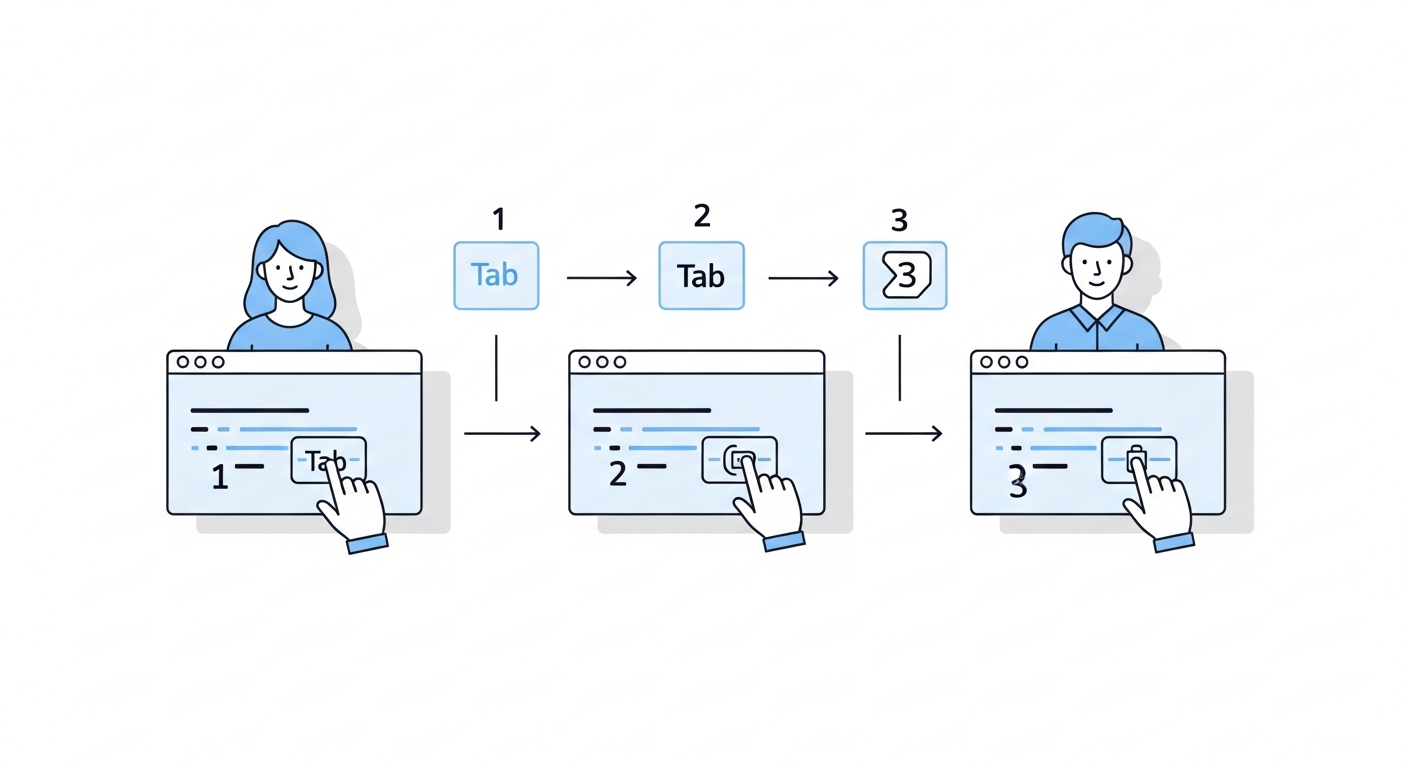
The mechanics matter here. This isn’t a “show me a switcher for Terminal windows” action — it’s a direct jump. Press once, arrive at Terminal. Press again, arrive at the next Terminal window. No visual panel, no selection step, no confirmation. Pure muscle memory.
In the Terminal workflow described earlier — four windows for logs, tests, project directory, and SSH — you build a mental model: first press gets you the logs terminal, second press gets tests, third gets the project root. The cycling order is stable and predictable because it follows the order the windows were opened.
This works for all apps you’ve mapped a hotkey to. VS Code projects cycle in sequence. Xcode windows cycle in sequence. Multiple Finder windows cycle. It generalizes rather than requiring per-app configuration.
SnapHotkey is $9.99 as a one-time purchase and includes a free tier with up to 3 rules — enough to try the multi-window cycling behavior on your most-used apps before committing.
For a broader comparison of dedicated hotkey tools, see Best Mac Hotkey App Launchers Compared.
Which Approach Fits Your Workflow
If you have two windows of the same app: Cmd+`` works fine. Don’t over-engineer it.
If full-screen windows are involved: Cmd+`` will fail. Use Mission Control Spaces to isolate full-screen apps, or use a tool like Contexts or Witch that handles full-screen windows.
If you need to identify windows by name: Contexts is the best fit. The search-based approach lets you jump to “backend server” or “main.swift” by typing a few characters.
If you want visual confirmation before switching: AltTab shows window thumbnails, which helps when multiple windows look similar but have different content.
If you want pure hotkey muscle memory with no UI: SnapHotkey’s cycling behavior is the most direct path. One hotkey, repeated presses cycle windows, no visual panel required.
If you’re a developer with many apps and want everything on a hotkey: Combine SnapHotkey for multi-window cycling with the macOS Window menu for occasional navigation in apps where window names matter (like Xcode).
The Underlying Issue
Cmd+`` solves 70% of cases, and Apple documented it on their Mac keyboard shortcuts page. For the remaining 30% — full-screen windows, minimized windows, different Spaces, mixed window types — you need either a different workflow or a different tool.
The deeper issue is that macOS doesn’t give you a way to say “when I press this hotkey, always bring me to this specific window of this specific app.” The native system works on the frontmost-app model, not the specific-window model. Third-party tools bridge that gap in different ways: visually (AltTab, Witch), by search (Contexts), or by ordered cycling (SnapHotkey).
Knowing which approach matches your mental model — visual scanning, search-first, or positional muscle memory — tells you which tool to try.
For developers who want to eliminate Cmd+Tab entirely, not just improve same-app switching, read Stop Using Cmd+Tab: Better App Switching for Developers.
Related reading:
- Best Mac Hotkey App Launchers Compared — full side-by-side of the tools mentioned above
- How to Toggle (Show/Hide) Apps on Mac — a different problem (focus+hide), same hotkey discipline
- Left/Right Command: Double Your Shortcut Space — pair per-window cycling with more modifier slots
- Karabiner & Hyper Key vs Dedicated App Switchers — scripting multi-window cycling vs using a built-in tool
- Raycast Hotkeys vs a Dedicated App Switcher — if you use Raycast: why its hotkeys don’t cycle through same-app windows and what does