Stop Using Cmd+Tab: Better App Switching for Developers - SnapHotkey

Faster app switching on Mac for developers who are tired of Cmd+Tab cycling. Direct hotkey access methods from Karabiner to rcmd and SnapHotkey compared.

SnapHotkey April 7, 2026 11 min read
developer-workflow app-switching productivity macOS keyboard-shortcuts

You’re deep in a debugging session. VS Code has the stack trace, Terminal is running logs, Chrome has the docs, Slack has the thread from your teammate who found the bug. You need to check the logs. Cmd+Tab — wrong app. Cmd+Tab — still wrong. Cmd+Tab — there it is. Three keypresses and a context switch that yanked you out of flow.

If you switch apps 100+ times a day — and most developers do — that friction compounds. This guide covers every practical way to get faster app switching on Mac as a developer, from quick fixes to the setup that eliminates Cmd+Tab entirely.

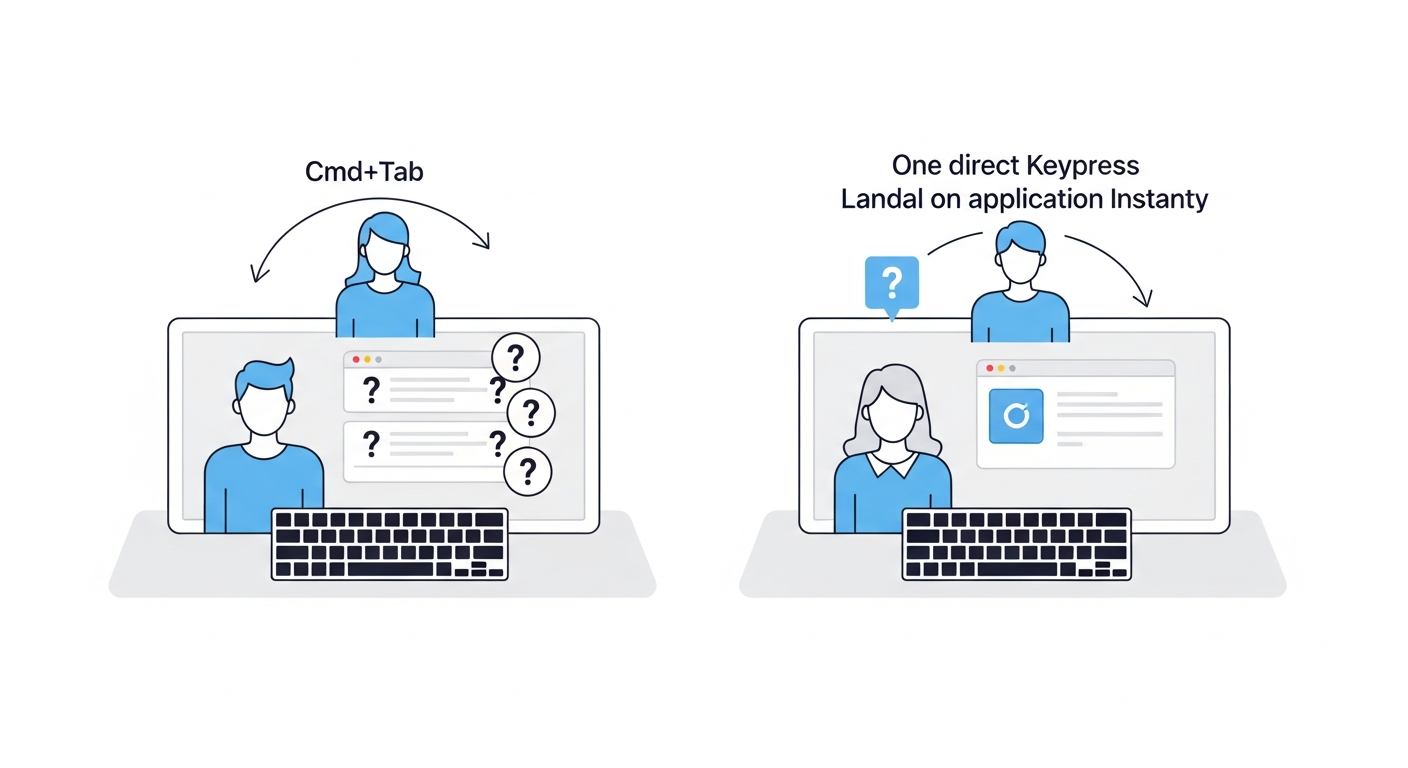
Developer frustrated with Cmd+Tab cycling through too many apps

Why Cmd+Tab Breaks Developer Flow

Cmd+Tab is a sequential switcher. It shows your apps in most-recently-used order, and you cycle through them one at a time. This design has three problems that hit developers especially hard.

The app count problem. A typical developer workspace has 6-10 apps open: IDE, terminal, browser, Slack or Teams, a database client, maybe Docker Desktop and a notes app. Cmd+Tab forces you to cycle through all of them to reach the one you want.

The order instability problem. The MRU order changes every time you switch apps. Terminal was two tabs away a moment ago — now it’s five. Your muscle memory can’t develop because the positions never stay consistent.

The multi-window problem. Cmd+Tab switches between apps, not windows. If you have three Terminal windows or two VS Code projects open, Cmd+Tab brings you to the app but gives you no control over which window appears. You end up using Cmd+Tab followed by Cmd+~ — a two-step process that still might not land you on the right window.

For developers, these aren’t minor inconveniences. They’re interruptions that happen dozens of times per hour during active development.

Level 1: Quick Fixes Within macOS

Before reaching for third-party tools, a few built-in macOS features can reduce your Cmd+Tab dependency.

Hot Corners and Mission Control

Assign Mission Control to a hot corner (System Settings > Desktop & Dock > Hot Corners). Flick your cursor to the corner, see all windows, click the one you need. It’s visual and works without memorizing anything, but it requires moving your hand to the trackpad — not ideal for keyboard-driven workflows.

Spotlight as an App Switcher

Cmd+Space, type the first two letters of the app name, hit Enter. Spotlight is surprisingly fast for app switching once you build the habit. The downside: it requires typing, and the results aren’t always predictable if you have files or contacts matching those letters.

Dock Shortcuts with Numbers

If you keep your Dock minimal, you can use a tool like Snap (free) to map Cmd+1 through Cmd+0 to your Dock positions. Windows users will recognize this as the Win+Number equivalent — if you’re switching from Windows and want to replicate this pattern fully, see Switching from Windows to Mac: Taskbar-Style Hotkey App Launching. The limitation: Cmd+Number conflicts with browser tab switching, and rearranging your Dock breaks your muscle memory.

These approaches help, but none solve the core problem: direct, instant, consistent access to a specific app with one keypress.

Level 2: The Hyper Key Approach (Karabiner Elements)

If you’ve spent any time in developer productivity circles, you’ve heard of Karabiner Elements. It’s a free, open-source keyboard remapper for macOS that lets you do almost anything with your keyboard — including building a custom app-switching layer.

What’s a Hyper Key?

The “Hyper key” approach remaps an underused key (usually Caps Lock) to simultaneously press Ctrl+Shift+Option+Cmd. This creates a modifier key that no app uses, giving you a clean namespace for global shortcuts.

With Hyper key set up, you can create bindings like:

  • Hyper+T → open Terminal
  • Hyper+C → open VS Code
  • Hyper+B → open Chrome
  • Hyper+S → open Slack

How to Set It Up

  1. Install Karabiner Elements
  2. Import a Hyper key complex modification from the community rules
  3. Use the macOS Shortcuts app or Automator to create “Open App” shortcuts triggered by your Hyper combos

Or, for more control, pair Karabiner with Hammerspoon — a Lua scripting bridge for macOS automation. Hammerspoon can bind Hyper+key to launch or focus a specific app:

-- Hammerspoon config (~/.hammerspoon/init.lua)
local hyper = {"ctrl", "shift", "option", "cmd"}

hs.hotkey.bind(hyper, "t", function()
  hs.application.launchOrFocus("Terminal")
end)

hs.hotkey.bind(hyper, "c", function()
  hs.application.launchOrFocus("Visual Studio Code")
end)

The Karabiner Trade-Offs

The Hyper key approach is powerful, and many developers swear by it. But it has real costs.

Setup complexity. Karabiner uses JSON configuration files. Hammerspoon requires Lua scripting. If you enjoy tinkering with dotfiles, this is fine. If you want something that works in five minutes, it’s not.

Maintenance burden. Major macOS updates can break Karabiner, sometimes for weeks until the maintainer pushes a compatibility fix. Your app-switching setup shouldn’t depend on one open-source developer’s release schedule.

Feature gaps. Basic launch-or-focus works well. But if you want toggle show/hide (press once to focus, press again to hide), or cycling through multiple windows of the same app, you’re writing increasingly complex Lua scripts. Here’s what multi-window cycling looks like in Hammerspoon:

hs.hotkey.bind(hyper, "t", function()
  local app = hs.application.get("Terminal")
  if app then
    local wins = app:allWindows()
    if app:isFrontmost() and #wins > 1 then
      wins[#wins]:focus()
    else
      app:activate()
    end
  else
    hs.application.open("Terminal")
  end
end)

That’s per-app scripting for a single feature. Multiply by every app in your workflow, and the config becomes fragile and time-consuming to maintain.

The Karabiner + Hammerspoon combo is a legitimate solution for developers who enjoy the setup process. But if your goal is faster app switching — not a keyboard customization hobby — dedicated tools get you there with less work.

JSON config file vs simple GUI for hotkey mapping

Level 3: Faster App Switching With Dedicated Mac Developer Tools

Dedicated hotkey-to-app mapping tools solve the Cmd+Tab problem directly: assign a shortcut to an app, press it, arrive there instantly. No cycling, no searching, no typing. For developers who want the fastest possible app switching on Mac, these are the best options.

rcmd — Auto-Mapped Shortcuts

rcmd (free) takes a clever approach: hold Right Cmd and press the first letter of the app’s name. Right Cmd+S for Safari, Right Cmd+T for Terminal. No configuration needed.

For developers, the upside is zero setup time. Install it and you’re switching apps faster immediately.

The downsides emerge with heavy use. When multiple apps share a first letter — Terminal, Todoist, Telegram — rcmd has to pick one, and it’s not always the one you want. You’re locked to Right Cmd as the modifier, which limits flexibility. And there’s no multi-window cycling, which matters when you have three Terminal sessions running.

SnapHotkey — Full Control Over Hotkey Mapping

SnapHotkey ($9.99) takes the opposite approach to rcmd: you explicitly map each shortcut to each app through a simple GUI. No auto-guessing, no conflicts.

What makes it relevant for developers specifically:

  • Left/Right Cmd distinction — you can use Left Cmd for app switching while keeping Right Cmd free for other shortcuts (or vice versa). This effectively gives you two modifier namespaces on one keyboard.
  • Same-app multi-window cycling — press Left Cmd+T once for your first Terminal window, press it again to cycle to the next one. No Cmd+~ needed.
  • Toggle show/hide — press the shortcut to bring Slack to the front, press it again to hide it. Perfect for quickly checking a message without permanently cluttering your workspace.
  • Deep Launch — open apps with specific parameters, not just a plain launch.

The trade-off is setup time: you need to manually assign each shortcut. In practice, this takes about two minutes for a typical developer’s 8-10 core apps, and you only do it once.

For a detailed comparison of SnapHotkey alongside rcmd, Thor, Snap, Manico, and SpaceLauncher, see our Mac hotkey app launcher comparison.

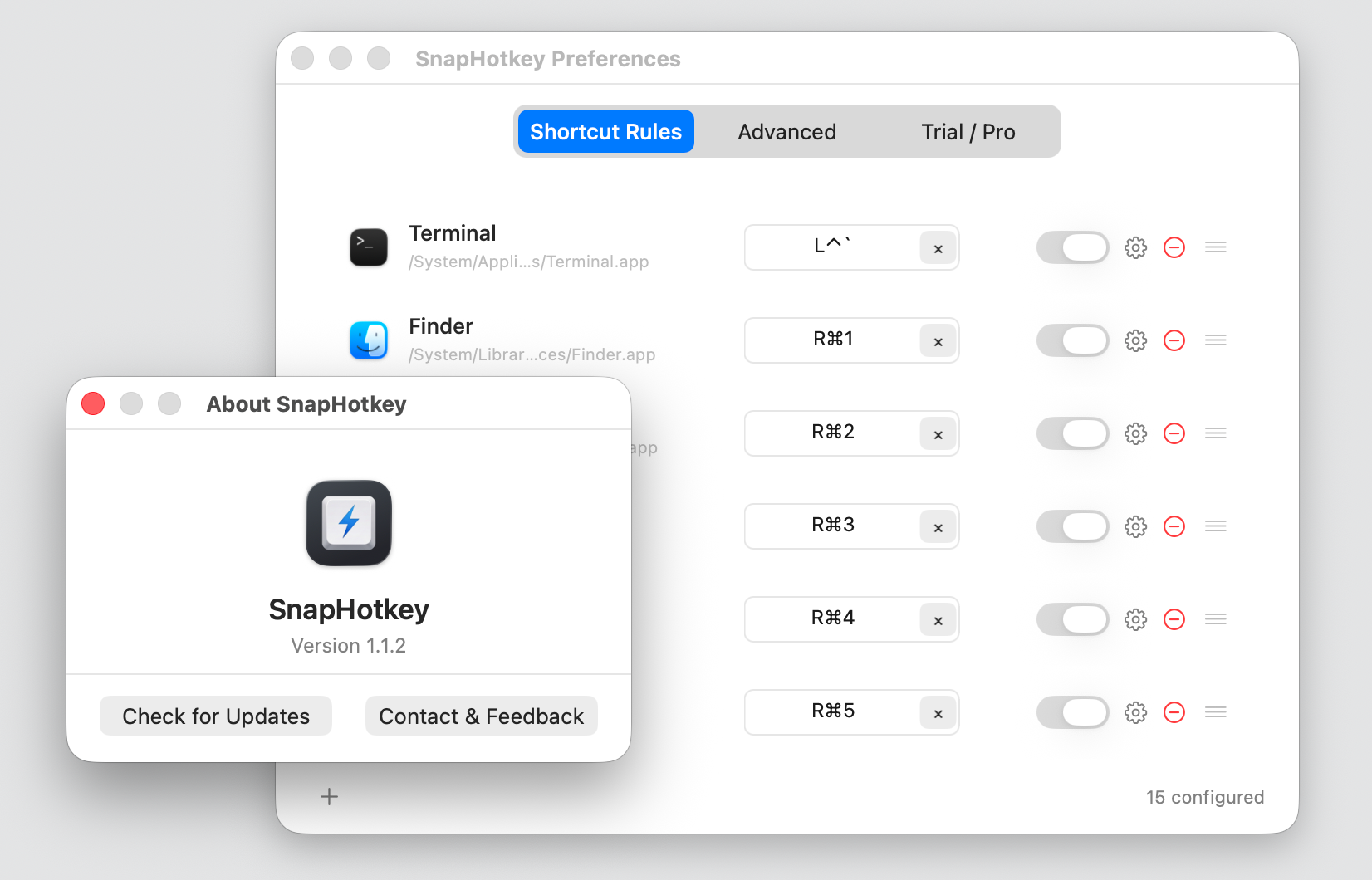
Developer hotkey setup with number keys mapped to apps

A Concrete Developer Setup

Here’s a real-world shortcut mapping that works well for full-stack development. This uses Left Cmd + number keys, keeping Right Cmd free for standard macOS shortcuts.

ShortcutAppWhy
Left Cmd+1VS CodePrimary IDE, most-used app
Left Cmd+2Terminal / iTermSecond most-used, multiple windows
Left Cmd+3ChromeDocs, PRs, localhost preview
Left Cmd+4SlackCommunication
Left Cmd+5FinderFile management
Left Cmd+6Notes / ObsidianDocumentation, scratch notes
Left Cmd+7TablePlus / PosticoDatabase client
Left Cmd+8Postman / InsomniaAPI testing

The numbering follows usage frequency — your most-used apps get the most accessible keys. After a day of use, this becomes muscle memory. You stop thinking about which number maps to which app; your fingers just know.

With multi-window cycling, Left Cmd+2 pressed repeatedly flips through all your Terminal windows. With toggle show/hide, Left Cmd+4 shows Slack, and pressing it again hides it immediately — you checked the message without disrupting your window layout.

This setup works with SnapHotkey out of the box. You can build something similar with Karabiner + Hammerspoon, but you’ll write about 80 lines of Lua and spend an afternoon debugging edge cases.

What About AltTab, Contexts, and Other Enhanced Switchers?

You might be wondering about tools like AltTab (free, Windows-style Alt+Tab for Mac) or Contexts ($9.99, search-based window switching). These are excellent tools, but they solve a different problem.

Enhanced switchers improve the cycling experience — AltTab shows window previews, Contexts lets you search by typing. They make Cmd+Tab better, but they don’t eliminate it. You still invoke a switcher, scan options, and select. The workflow is: trigger, scan, choose.

Direct hotkey access is fundamentally different: trigger, arrive. No scanning, no choosing. For developers who switch apps 100+ times a day, that difference in cognitive load adds up significantly.

If you only switch between 2-3 apps, an enhanced switcher like AltTab is probably enough. If you juggle 6-10 apps and want each one reachable without thinking, a hotkey-to-app tool is the better fit for faster app switching on your Mac developer workflow.

Which Approach Should You Use?

The right choice depends on how much you value setup simplicity versus feature depth.

Stick with Cmd+Tab if you only use 3-4 apps and the cycling doesn’t bother you. Not every problem needs a tool.

Use Spotlight (Cmd+Space) if you want a quick improvement without installing anything. It’s already on your Mac and works for occasional switches.

Use the Hyper key (Karabiner + Hammerspoon) if you already have a Karabiner config and enjoy customizing your keyboard. The Hyper key approach is powerful and free — it just requires ongoing maintenance.

Use rcmd if you want instant setup with no configuration. The auto-mapping is smart and it’s free. Expect letter conflicts if you run many apps.

Use a dedicated hotkey mapper like SnapHotkey if you want full control — explicit shortcut-to-app mapping, left/right modifier distinction, multi-window cycling, and toggle show/hide. It costs more than rcmd but covers edge cases that matter in heavy daily use. If your shortcuts ever stop firing after a macOS update, Mac Hotkey to Launch App Not Working? covers the common causes.

Developer working productively with direct hotkey access

The Real Cost of Cmd+Tab

Switching apps isn’t the problem. Switching apps slowly and unpredictably is the problem. Every time Cmd+Tab forces you to visually scan the app strip, locate your target, and count Tab presses, it pulls a thread from your focus.

Developer productivity research consistently shows that context-switching costs are real — and mechanical context switches (physically navigating to the right window) compound cognitive context switches (re-loading the mental state for a different task).

Direct hotkey access — whether through Karabiner, rcmd, SnapHotkey, or any other tool — removes the mechanical cost entirely. One keypress, right app, no thinking. Over hundreds of switches per day, that’s not a marginal improvement. It’s a qualitative change in how fluidly you move through your workspace.

Pick a method, set it up, and give it three days. The muscle memory builds faster than you’d expect, and going back to Cmd+Tab will feel like going back to cd-ing through directories after learning z or autojump.


Considering the Hyper key + Karabiner route? Read Karabiner & Hyper Key vs Dedicated App Switchers for a detailed breakdown of that tradeoff. Want to double your shortcut slots with Left vs Right Cmd? See Left Command vs Right Command: The Shortcut Layer Most Developers Never Use. For a concrete 8-shortcut developer setup, see How I Built a Keyboard-Only App-Switching Workflow. Already use Raycast and wondering if that’s enough for app switching? Raycast Hotkeys for Apps vs a Dedicated App Switcher covers exactly where Raycast’s per-app hotkeys fall short. For the full developer productivity system — app switching, window layout, and Spaces working together — see Developer Productivity on Mac in 2026: Stop Configuring, Start Switching.