Karabiner Hyper Key on Mac: Setup, Limits, and the Simpler Option
How the Karabiner-Elements hyper key works, what it costs you in setup and upkeep, and when a dedicated hotkey app switcher is the better call.
You’ve heard about the hyper key. Maybe you’ve already remapped Caps Lock in Karabiner-Elements and started mapping Hyper+S to Slack, Hyper+T to Terminal. It works — sort of. Then macOS updates, and your JSON config breaks. Or you add a new app and realize you’ve lost track of which key you assigned it to.
The hyper key approach to app launching is genuinely clever, but it comes with a ceiling. This guide compares Karabiner Elements and the hyper key paradigm against dedicated hotkey-to-app tools, so you can pick the right solution for how you actually work.
What Is the Hyper Key?
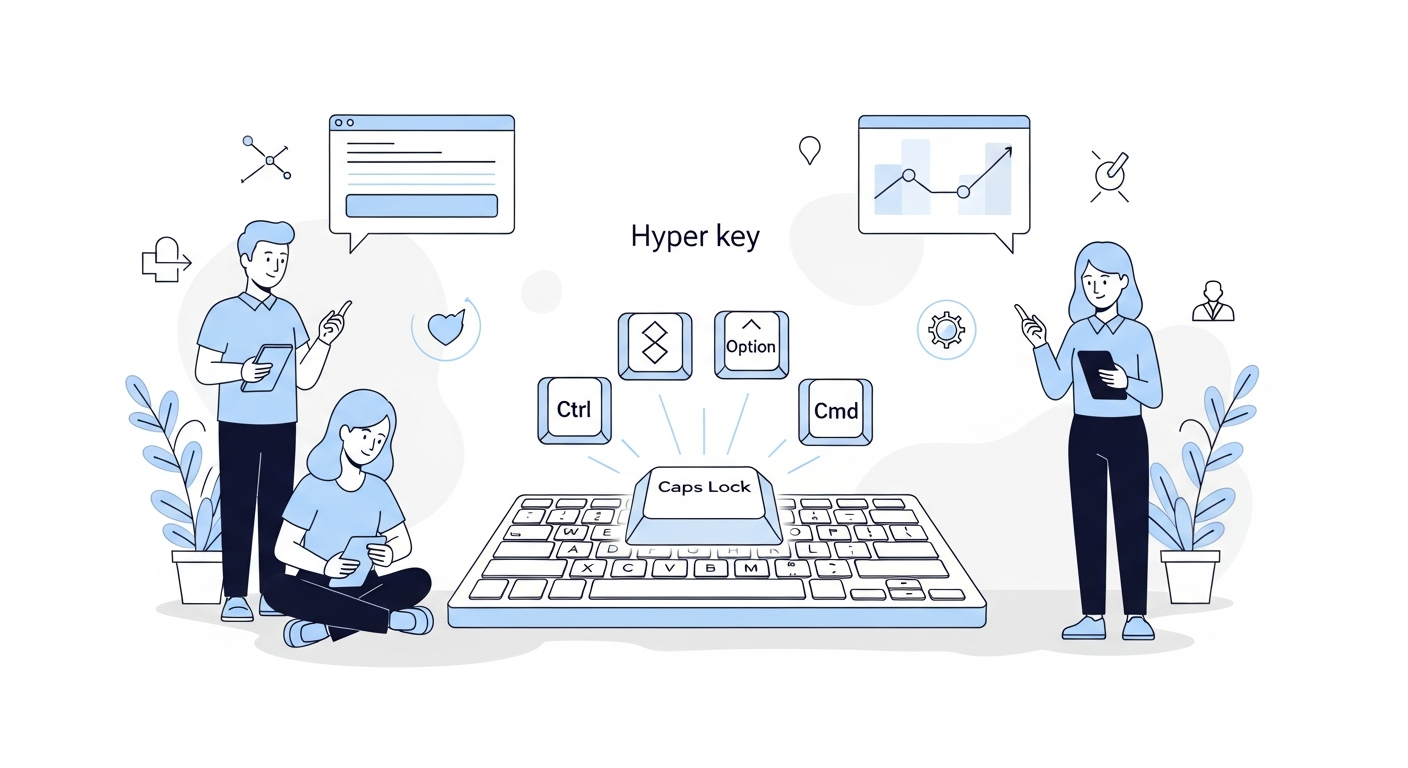
The hyper key is a modifier key concept, not a built-in macOS feature. The idea: remap a rarely-used key (almost always Caps Lock) to simultaneously hold Ctrl+Shift+Option+Cmd. Because no application uses all four modifiers together, Hyper+anything is a conflict-free shortcut space.
In practice, developers use it to create dedicated shortcuts that never collide with app shortcuts:
Hyper+S→ focus SlackHyper+T→ focus TerminalHyper+B→ focus Chrome (browser)Hyper+C→ focus VS Code (code)
The appeal is real: you get muscle memory shortcuts that work globally without learning a new app. The friction is also real, and it starts the moment you go beyond basic setup.
Setting Up the Hyper Key: Three Approaches
Karabiner-Elements (Free)
Karabiner-Elements is a powerful low-level keyboard remapper. It works at the kernel level, intercepting keystrokes before they reach any app. This makes it extremely reliable for key remapping — including creating a hyper key.
To set up a hyper key in Karabiner:
- Install Karabiner-Elements
- Open the Complex Modifications tab
- Import the “Hyper Key” rule from the online rules library
- Enable the rule to map Caps Lock →
Ctrl+Shift+Option+Cmd
Then, to use Hyper+S to launch Slack, you need a second tool. Karabiner can remap keys, but for “press Hyper+S → switch to Slack” you typically need:
- Hammerspoon — write a Lua script to handle the key combination
- Raycast or Keyboard Maestro — create a hotkey trigger pointing to the app
This is the core limitation: Karabiner creates the shortcut space, but you need another tool to fill it with app-launching actions.
A minimal Hammerspoon config for app switching looks like this:
local hyper = {"ctrl", "alt", "cmd", "shift"}

hs.hotkey.bind(hyper, "S", function()
  hs.application.launchOrFocus("Slack")
end)

hs.hotkey.bind(hyper, "T", function()
  hs.application.launchOrFocus("Terminal")
end)
You’ll need one block per app. Modifying it means editing a Lua file, saving, and reloading the config.
Hyperkey App (Free)
Hyperkey is a simple, free macOS app by Ryan Hanson that does one thing: remaps a key to the hyper modifier combination. It’s easier to install than Karabiner and doesn’t require a separate JSON config.
Hyperkey sets up the modifier. For app launching, you still need another tool — usually Raycast shortcuts or BetterTouchTool hotkeys — to bind Hyper+key to specific apps.
BetterTouchTool ($14–24)
BetterTouchTool can both create the hyper key and assign actions to hyper key combinations in a single app. You skip the Karabiner + Hammerspoon two-app setup.
The GUI lets you add a hotkey trigger, set it to Hyper+S, and point it at the Slack app. No scripting required. BetterTouchTool is more user-friendly than Karabiner+Hammerspoon, but it’s a large app with many features you won’t use if app switching is all you need.
The Real Limitations of the Hyper Key Approach
1. You’re One macOS Update Away From Breakage
Karabiner-Elements works at the kernel level, which means it needs to update whenever Apple changes kernel extension behavior. Major macOS updates (especially Sequoia’s privacy changes) have broken Karabiner configurations for weeks while waiting for compatibility updates. The Hammerspoon Lua scripts are usually more resilient, but they can fail when app names change or when APIs shift.
If you’re on a deadline, a broken keyboard remapping setup is the last thing you need. If you’re debugging a hotkey that’s suddenly stopped working, Mac Hotkey to Launch App Not Working? walks through the common causes.
2. Config Lives in Files, Not a GUI
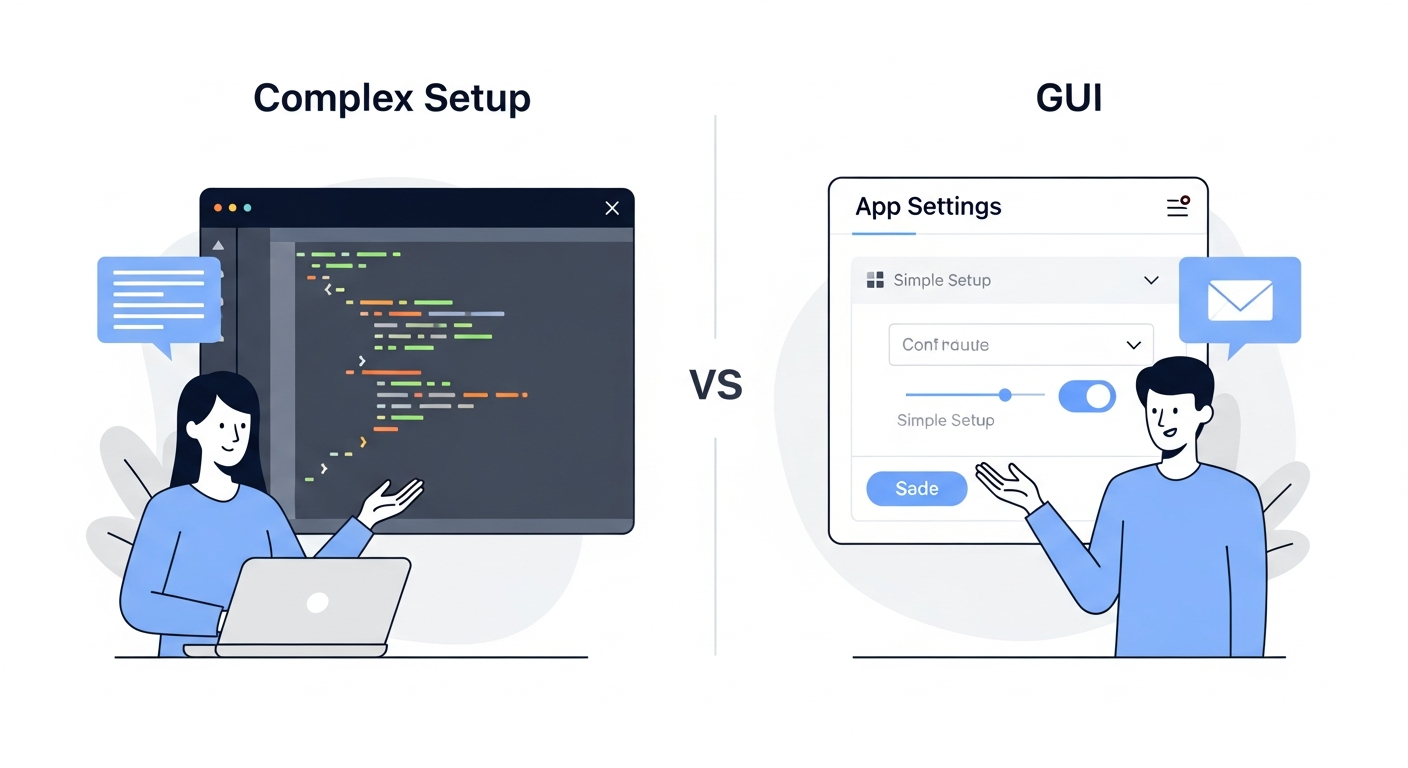
The Karabiner launch app shortcut macOS workflow involves editing JSON files for the Karabiner side and Lua files for the Hammerspoon side. There’s no visual “app → shortcut” mapping screen. When you add a new app to your workflow, you open two files, add the configuration, save, and reload.
This isn’t terrible for a developer who lives in a terminal. But it’s maintenance overhead that compounds as your app list grows.
3. No Toggle Show/Hide
Standard hyper key + Hammerspoon setups use launchOrFocus(), which brings the app to the front if it’s not focused. But pressing the shortcut again does nothing if the app is already focused. You can’t use the same key to hide an app — you need a separate shortcut for that, or a more complex Lua function.
4. No Same-App Multi-Window Cycling
If you have three Terminal windows open, Hyper+T → launchOrFocus("Terminal") brings one Terminal to the front — usually the most recently used one. Getting to a specific Terminal window requires additional scripting with hs.window.filter and manual window tracking.
5. Two Apps to Install and Maintain
Karabiner + Hammerspoon is two separate apps, each with their own update cycles, permissions requirements, and potential for conflict. Hyperkey + BetterTouchTool is also two apps (though BTT can handle both). This doubles your surface area for “my app switching is broken” diagnoses.
Dedicated Hotkey App Switchers: The Alternative
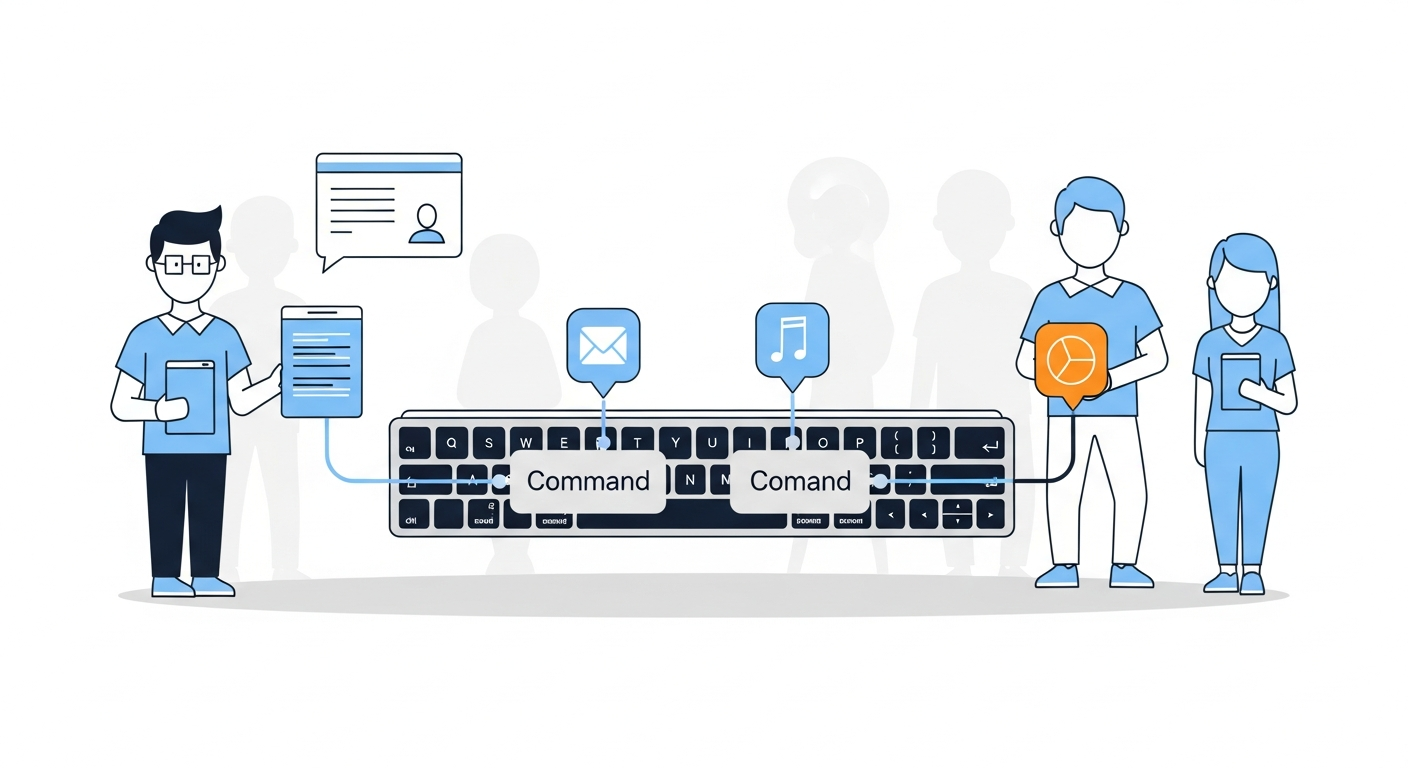
Dedicated hotkey-to-app tools are purpose-built for exactly this problem: map a keyboard shortcut to an app, press it to jump there instantly. They skip the hyper key setup entirely and offer features the DIY approach can’t easily replicate.
The main options in this category:
rcmd (free) uses Right Cmd as a fixed modifier — Right Cmd+S → Slack. The app auto-maps shortcuts based on app name first letters. Simple and reliable, but you’re limited to the Right Cmd modifier and can run into letter conflicts if you have two apps starting with the same letter.
Thor (free) lets you configure any shortcut-to-app mapping with a GUI. It works, but development has stalled and it lacks advanced features.
SnapHotkey ($9.99, one-time) takes the dedicated tool approach furthest. You configure shortcut-to-app mappings in a GUI — no JSON, no Lua. It adds three capabilities the hyper key approach can’t easily match:
- Left/Right modifier distinction:
Left Cmd+1andRight Cmd+1are separate shortcuts. In practice, this means Left Cmd becomes your app-switching modifier (effectively a hyper key, but with only one modifier instead of four), while Right Cmd stays free for other purposes. - Toggle show/hide: Press the shortcut once to focus the app; press it again to hide it. The same key that shows Slack also dismisses it. This behavior requires non-trivial Hammerspoon scripting to replicate.
- Same-app multi-window cycling: If you have three Terminal windows, repeated presses of your Terminal shortcut cycle through them in order. No window management scripts needed.
Side-by-Side Comparison
| Feature | Karabiner + Hammerspoon | BetterTouchTool | SnapHotkey |
|---|---|---|---|
| Setup complexity | High (JSON + Lua) | Medium (GUI) | Low (GUI only) |
| App mapping | Script per app | GUI per app | GUI per app |
| Toggle show/hide | Requires custom Lua | Possible with scripting | Built-in |
| Multi-window cycling | Requires hs.window.filter | Not available | Built-in |
| Left/Right modifier | Not distinguishable | Not distinguishable | Supported |
| Survives OS updates | Sometimes breaks | Usually stable | Designed for stability |
| Price | Free + Free | $14–24 | $9.99 one-time |
| Number of apps needed | 2 | 1–2 | 1 |
Which Setup Is Right for You?
Use Karabiner + Hammerspoon if:
- You already use Karabiner for other key remapping and don’t want another app
- You’re comfortable editing Lua and enjoy configuring your own system
- You want a free solution and don’t mind occasional maintenance
Use BetterTouchTool if:
- You already have BTT for window snapping or trackpad gestures
- You want one app that handles both the hyper key and app actions
- The price is reasonable for a tool you’ll use beyond app switching
Use a dedicated tool like SnapHotkey if:
- You want a GUI setup with zero scripting
- Toggle show/hide behavior matters to you (it’s surprisingly useful for Slack, music players, terminals)
- You work with multiple windows of the same app and want to cycle through them
- You want the shortcut setup to survive macOS updates without manual fixes
The Best-of-Both-Worlds Setup
If you already use Karabiner for remapping function keys or creating tap/hold behaviors, you don’t have to choose. Keep Karabiner for what it’s best at — low-level key remapping — and use a dedicated app switcher for the app-launching layer.
This combination gives you Karabiner’s kernel-level remapping reliability without asking it to do something it requires scripting for. Your app switching gets a GUI, toggle support, and multi-window cycling. The two tools don’t conflict.
The Bottom Line
The hyper key approach is a genuinely useful technique for developers who already live in Karabiner and Hammerspoon. But for app switching specifically, it’s a workaround — configuring a general-purpose remapping tool to simulate what a dedicated tool does natively.
If app switching is the goal, a purpose-built tool gets you there faster, stays working after OS updates, and adds features the scripted approach requires significant effort to replicate.
Looking for a full comparison of dedicated hotkey app switchers? See Best Mac Hotkey App Launchers Compared (2026). Or, if you want to eliminate Cmd+Tab entirely from your developer workflow, see Stop Using Cmd+Tab: Better App Switching for Developers. If you use Raycast and wonder whether its per-app hotkeys are enough, Raycast Hotkeys vs Dedicated App Switcher breaks down exactly where Raycast ends and a dedicated tool begins. For the complete developer productivity system beyond just app switching — hotkeys, window layout, and Spaces — see Developer Productivity on Mac in 2026.