The Best Mac Hotkey App in 2026: 6 Tools Compared
6 mac hotkey app tools compared head-to-head: rcmd, Thor, Snap, Manico, SpaceLauncher, SnapHotkey. Features, pricing, and which wins for which workflow.
Looking for HotKey App? If you searched for HotKey for Mac — the small App Store utility that launched apps with keyboard shortcuts — its last release (1.5) dates from 2020. The six tools compared below do the same job on current macOS, and most go well beyond it.
You have ten apps open. You need your terminal. With Cmd+Tab, you press Tab four times, overshoot, Shift-Tab once, release. Two seconds gone, flow broken. A mac hotkey app fixes this — one shortcut, one app, instant switch.
But which one should you use? There are six dedicated tools that do this on macOS. Here’s the short answer first, then the full comparison.
The Best Mac Hotkey App for Most People: SnapHotkey
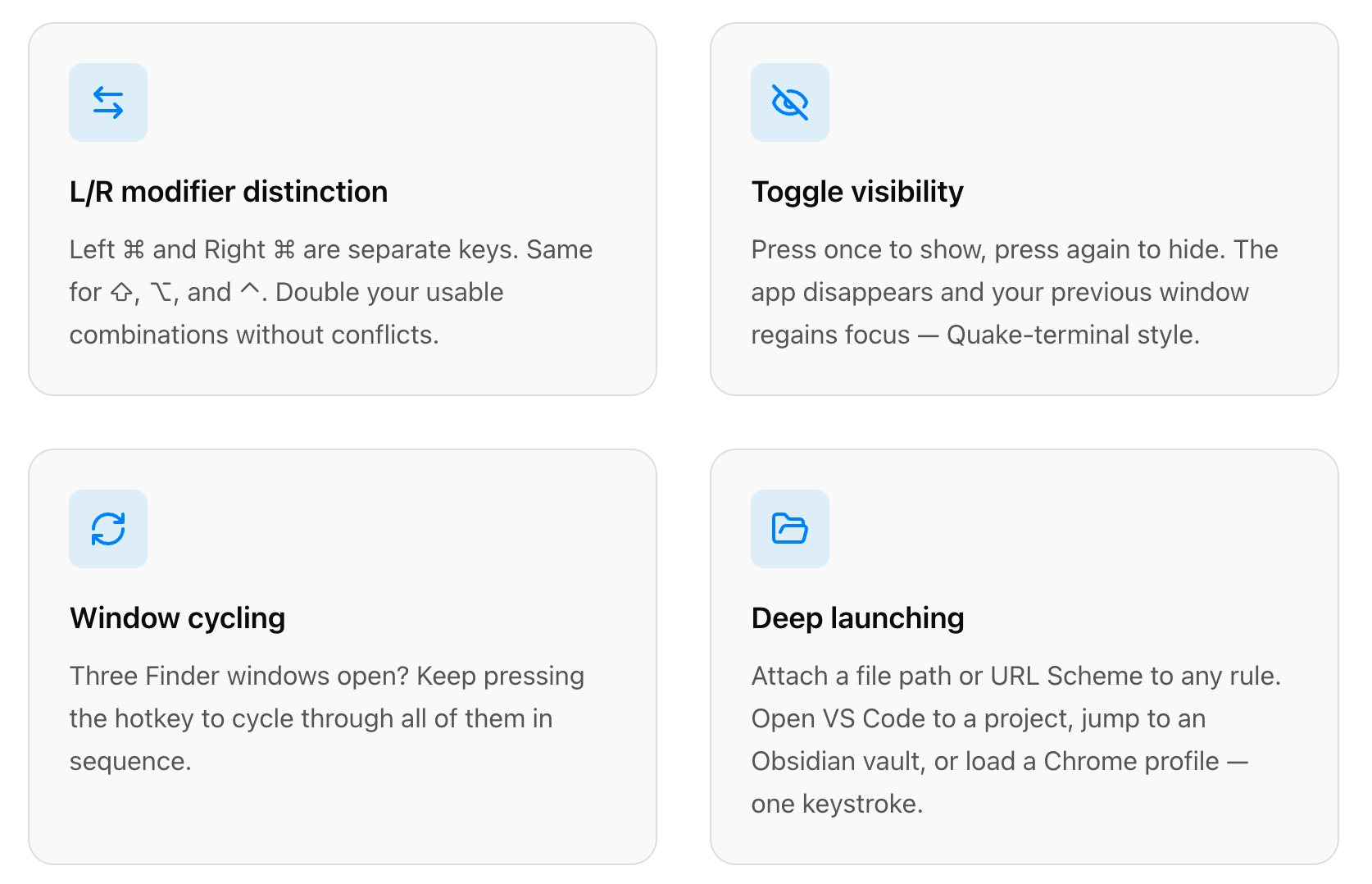
For most power users, SnapHotkey is the best pick. It’s the only tool in this comparison that ships the full set of features a daily power user actually needs: left/right modifier distinction, toggle show/hide, multi-window cycling, and Deep Launch with file paths or URL schemes.
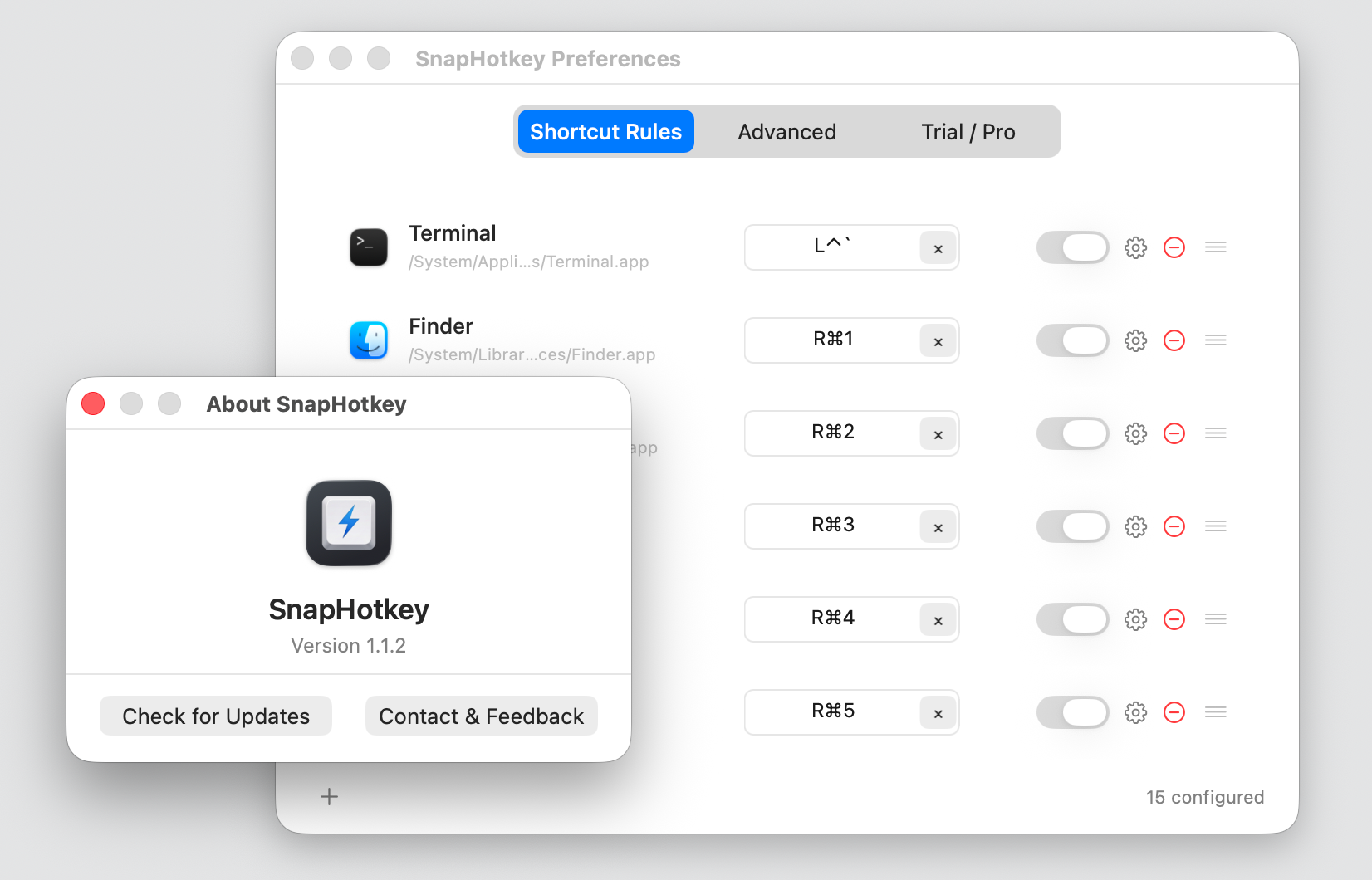
Setup takes two minutes — click the menu bar icon, open Preferences, map any modifier + key to any app. Download free and try every feature for 15 days before deciding.
The four features that separate it from every other tool below:
If you don’t need those four things, the free alternatives below also do the basics fine — they just stop short of the full picture.
Feature Comparison
| Feature | SnapHotkey 👍 | rcmd | Thor | Snap | Manico | SpaceLauncher |
|---|---|---|---|---|---|---|
| Price | $9.99 | Free | Free | Free | $5.99 | Paid |
| Any modifier + any key | Yes | No | Yes | No | Partial | No (Space only) |
| Left/Right modifier | Yes | No | No | No | No | No |
| Toggle show/hide | Yes | No | No | No | No | No |
| Deep Launch (file/URL/args) | Yes | No | No | No | No | No |
| Multi-window cycling | Yes | Via Hammerspoon | No | No | No | No |
| Auto-mapping | No | Yes | No | Dock-based | Dock-based | No |
| Setup effort | Low | None | Low | None | Low | Low |
What Counts as a “Hotkey App Launcher”
A dedicated hotkey app launcher maps a keyboard shortcut directly to a specific app. Press the shortcut, that app comes to the front — instantly.
That’s different from general launchers (Alfred, Raycast) that require typing an app name, enhanced switchers (AltTab, Contexts) that cycle or search through a list, or Cmd+Tab which only cycles sequentially. Dedicated hotkey launchers give you one keypress, one app. That’s the category we’re comparing.
The 5 Alternatives
rcmd — Smart Auto-Mapping
Price: Free — App Store
rcmd auto-maps each running app to Right Cmd + first letter. Zero config — install and go. Smart conflict resolution sends letter collisions to the most recently used app.
Falls short on: locked to Right Cmd only, no Deep Launch, no toggle show/hide, multi-window cycling needs a separate Hammerspoon script. Right pick if you want zero setup and don’t have more than ~15 frequent apps.
Thor — Free and Flexible
Price: Free — GitHub
The minimalist option. Pick an app, record a shortcut, done. Any modifier + any key combination. Import/export shortcut configs.
Falls short on: no toggle show/hide, no Deep Launch, no multi-window cycling, infrequent updates. Right pick if you want free + flexible and don’t need anything advanced.
Snap — Dock-Position Shortcuts
Price: Free — App Store
Windows-style taskbar shortcuts: Cmd+1 for your first Dock app, Cmd+2 for the second, up to Cmd+0. Zero config — shortcuts follow Dock order automatically.
Falls short on: Cmd+1–Cmd+9 conflicts with browser tab switching, locked to 10 apps, no modifier flexibility. Right pick for Windows converts who want Win+1/Win+2 muscle memory immediately.
Manico — Visual Overlay Approach
Price: $5.99 one-time — Official Site
Hold Option and an overlay shows your apps with assigned keys; press the key to switch. Visual training wheels while you learn shortcuts.
Falls short on: the overlay itself is a visual interruption (you skip overlays once you want to be fast), Option+Number conflicts with special-character input on US keyboards, no L/R distinction. Useful if you actively want a visual hint during the learning curve.
SpaceLauncher — The Spacebar Modifier
Price: Paid (trial available) — Official Site
Repurposes Space as a modifier — hold Space, press a letter, app launches. Avoids the usual modifier-key conflicts because Space isn’t a normal modifier.
Falls short on: fast typists trigger accidental launches, Space-only modifier, no toggle / Deep Launch / window cycling. Genuinely creative; right pick if modifier-key conflicts are your main pain point.
Which One Should You Pick?
- Full feature set: SnapHotkey (covered above)
- Zero setup, free: rcmd
- Free + flexible mapping: Thor
- Coming from Windows: Snap
- Want a visual learning aid: Manico
- Modifier conflicts are your main pain: SpaceLauncher
The Bottom Line
All six get you to the right app without Cmd+Tab cycling. The free options handle the basics; SnapHotkey is the only one that handles every feature a daily power user actually uses.
If you switch apps dozens of times an hour, give SnapHotkey a try — the free 15-day trial unlocks everything.
Further Reading
- Drop-Down Terminal on Mac: One Key to Summon Your Terminal — Apply Toggle show/hide to your terminal for Quake-style behavior.
- Create a Keyboard Shortcut to Open Any App on Mac — Three-step tutorial for setting up your first hotkey rule.
- Stop Using Cmd+Tab: Better Ways to Switch Apps on Mac — Why
Cmd+Tabbreaks at scale and the mental shift to direct hotkeys. - Karabiner & Hyper Key vs Dedicated App Switchers — When a dedicated switcher beats configuring Karabiner + Hammerspoon.
- Toggle Show/Hide Apps on Mac — Quake-style app toggling across all major approaches.
- Left Command vs Right Command: The Shortcut Layer Most Developers Miss — How L/R modifier distinction doubles your shortcut space.
- Mac Multi-Window Switching for the Same App — When
Cmd+`isn’t enough and you have 3+ windows open.