Keyboard Maestro App Switching on Mac: The Setup and the Honest Bill
TL;DR: Keyboard Maestro can switch apps with a hotkey — one macro per app, inside a full macro editor, for $36 one-time. If that narrow job is all you want from it, SnapHotkey does the same launch-or-focus from a single screen for $9.99, with toggle show/hide, same-app window cycling and Left/Right Cmd already built in. ▶ Watch the 1-minute intro
You want one key that lands you in VS Code. Another for Terminal. No Cmd+Tab cycling, no overshooting, no squinting at the switcher. Search for how to do it and Keyboard Maestro is on every result — and it genuinely works. A Hot Key Trigger plus an Activate a Specific Application action, and you have exactly what you asked for.
Here’s the catch no Keyboard Maestro app-switching tutorial leads with: you’re buying a $36 macro engine — 200-plus action types, text expansion, clipboard history, image-recognition triggers — to answer a nine-word question. “Press Left Cmd+1, go to Terminal.” The setup works. The bill is bigger than the job.
This post does two things in that order. First, the setup done properly, exactly as you’d build it in KM. Then an honest tally of what that setup costs you — and how SnapHotkey, a $9.99 single-screen tool, does the same launch-or-focus in about two minutes, with two behaviors KM leaves you to script already built in.
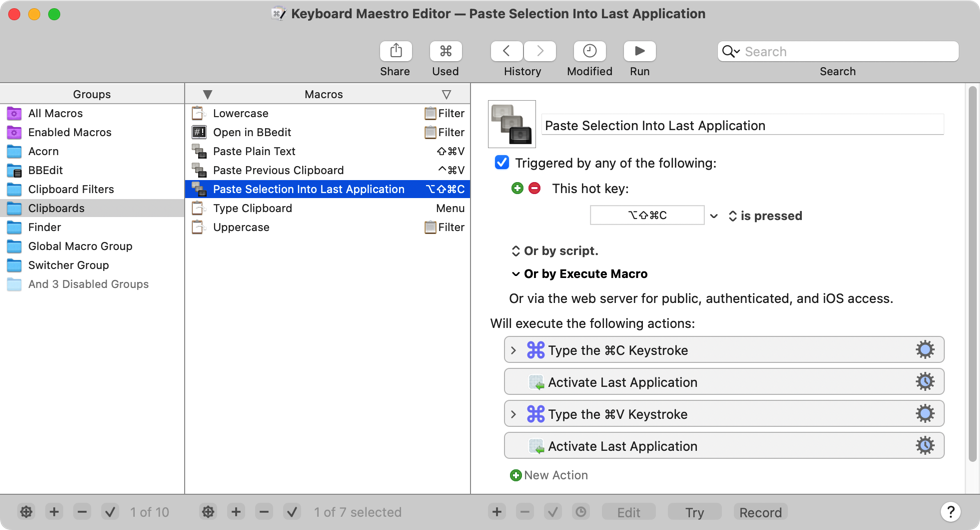
That’s the KM Editor: a macro library down the middle, a group sidebar on the left, and the trigger-plus-actions detail on the right. It’s a powerful place to work. For “press a key, get an app,” it’s also a lot of machinery to stand up — which is the whole tension this article is about.
Keyboard Maestro App Switching: The Setup
Keyboard Maestro app switching rests on three pieces: a macro, a trigger, and an action. Create one of each and you’re done.
1. Create the macro. Open the Keyboard Maestro Editor. Select a macro group — or create one called “App Switching” to keep things tidy — and click + below the macro list. Name it something recognizable, like “Open VS Code.”
2. Add a Hot Key Trigger. Click New Trigger → Hot Key Trigger, then click into the shortcut field and press your combination. Ctrl+Opt+V, say. KM accepts any mix of Cmd, Opt, Ctrl and Shift plus a key.
One caveat worth knowing before you build ten of these: like most macOS tools, KM treats Left Cmd and Right Cmd as the same key. Distinguishing them takes a condition-based trigger and help from another app — we’ll come back to it.
3. Add the Activate Application action. Click New Action, search “Activate,” and choose Activate a Specific Application. Pick the target app from the dropdown. By default this brings the app forward and launches it if it’s closed. Press Ctrl+Opt+V and VS Code appears.
4. Make the same key hide it again (optional). The action has an If already at the front option. Set it to Hide the application and one key both shows and dismisses the app. This is real toggle show/hide, native to KM, no extra macro required.
5. Repeat for every app. And here’s the part that shapes everything after it: each app gets its own macro. Six apps is six macros — six triggers, six actions, six entries in the library you’ll scan every time you want to change a key. Quick once you’ve done the first. But the library grows with your workflow, and there is no single screen that says “here are my app shortcuts.”
What That Setup Actually Cost You
Read the steps above as a checklist rather than a tutorial:
- $36, one-time. Fair for a general automation platform. A lot for per-app hotkeys if that’s the only thing you’ll use it for.
- One macro per app. Your six-app setup is six macros, and the count only goes up.
- A general-purpose macro editor. Macro library panel, trigger section, action browser. None of it is labeled “app switching.” Learnable — but front-loaded friction if KM is your first macro tool.
- Same-app window cycling is a scripting project. Press the Terminal hotkey with three Terminal windows open and KM raises whichever was last active. Cycling through them on repeated presses needs an AppleScript or shell-script action, not a checkbox.
- Left/Right Cmd needs a second app. Remap
Right Cmdto something unique —F19, say — in Karabiner-Elements, then trigger onF19in KM. A two-tool dependency for a modifier layer some tools give you natively. - Deep Launch is a shell script. Opening Terminal in a project directory, or VS Code on a workspace file, is a script action, not a field.
None of this is a knock on Keyboard Maestro. It’s a general tool doing a specific job, and general tools carry general-tool complexity. The question is whether you want to pay it.
The Same Job, From One Screen
If app switching is the only thing you’d use Keyboard Maestro for, the honest comparison is not “KM vs nothing” — it’s “KM vs a tool built for this one job.”
SnapHotkey is that tool. It does the same launch-or-focus — one shortcut per app, pressed from anywhere — but keeps the whole configuration on a single list: app, shortcut, options. No macro library, no trigger section, no action browser, no syntax, and no app name to mistype, because the app comes from a picker.
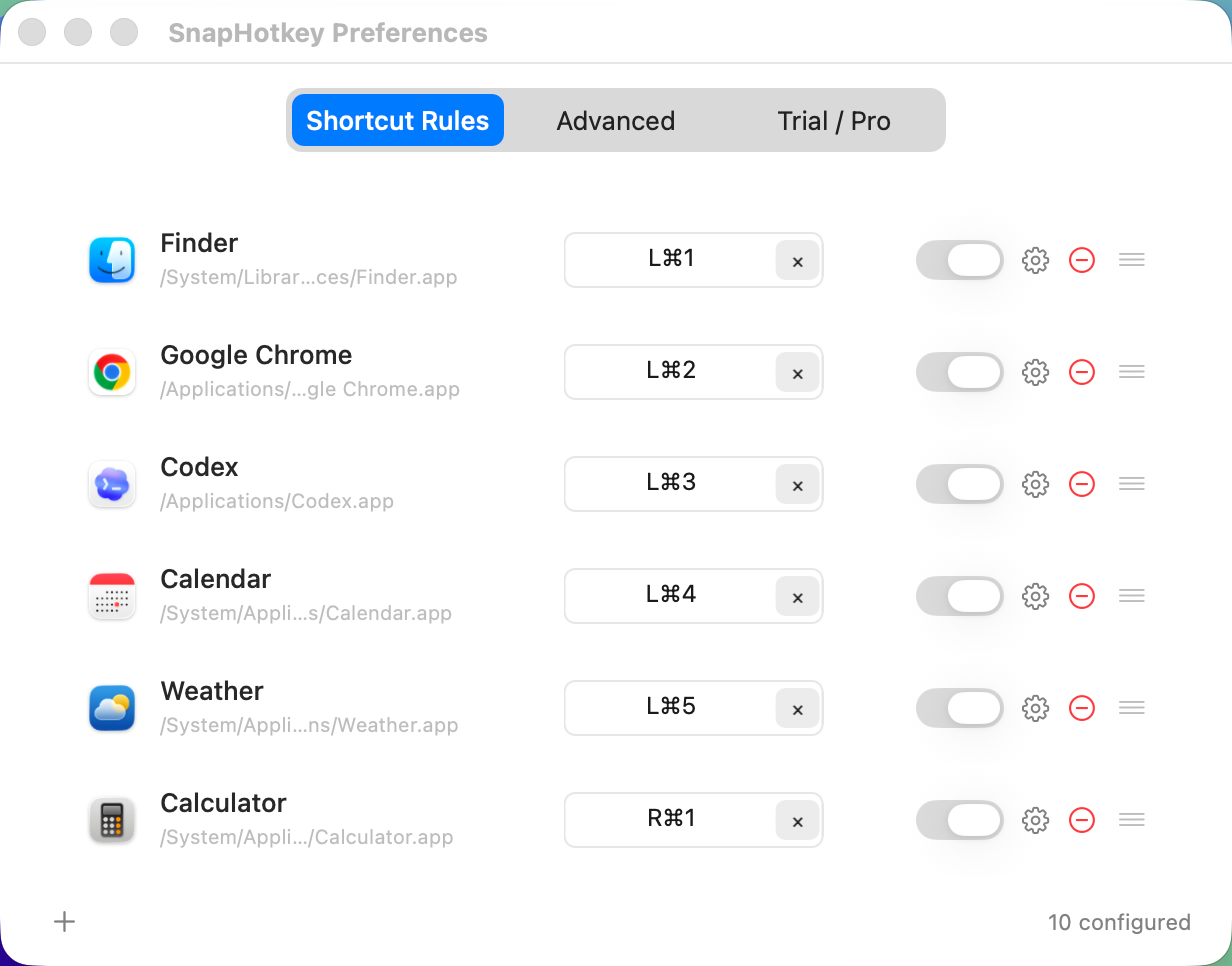
Adding an app is click +, pick it, record a key. Changes apply the moment you close the sheet. Ten apps take about two minutes, and the entire setup is a screen you can look at rather than a file you maintain. Toggle show/hide — the one thing KM also gets right — is a radio button on the rule instead of a dropdown buried in the action.
The Two Things Keyboard Maestro Makes You Work For
That per-rule sheet is the whole of this section. Everything below lives on it in SnapHotkey, and is a script, a second app, or an index you track yourself in KM.
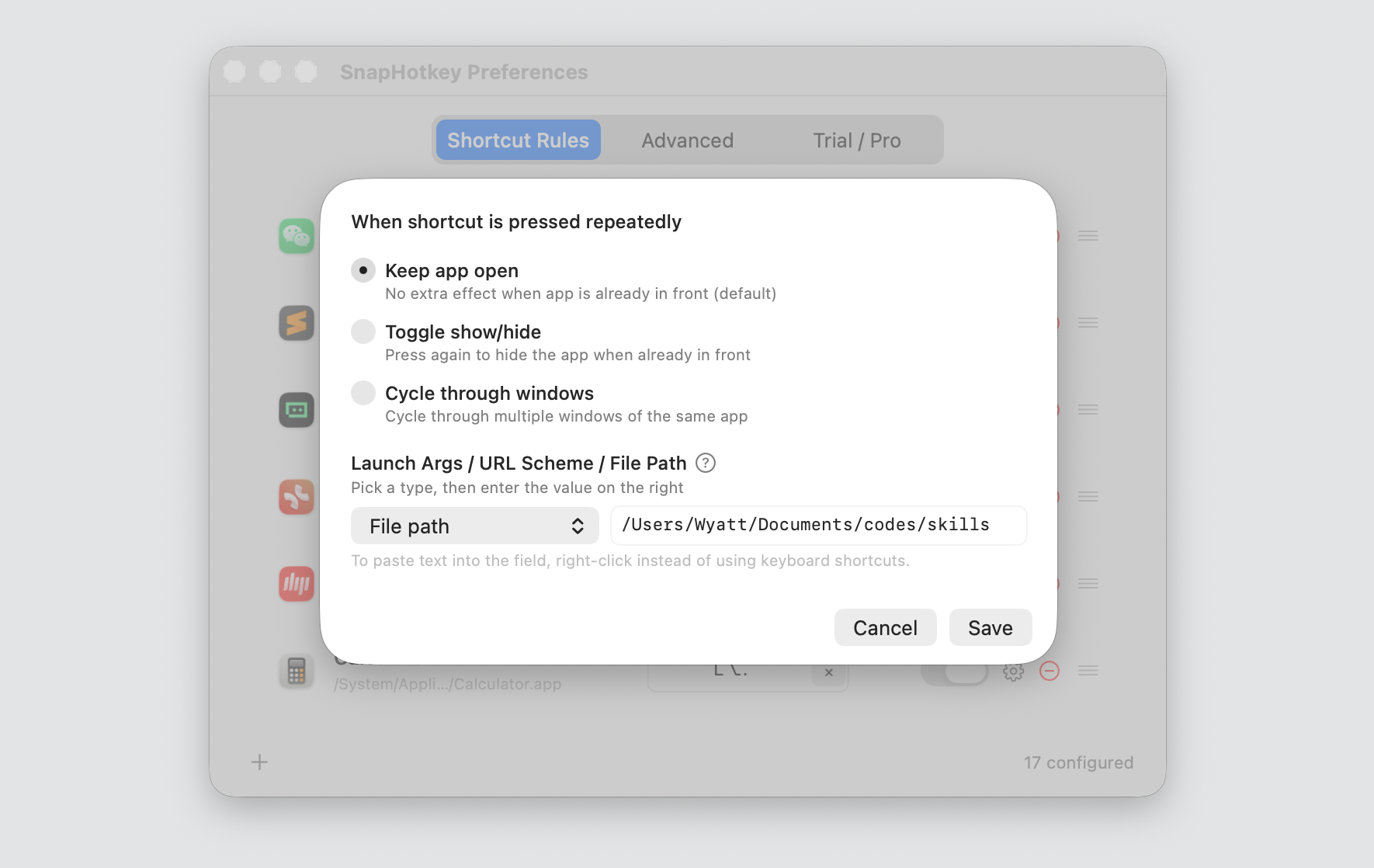
Two Chrome windows, one key. With a work window and a personal window open, KM raises whichever was last in front; reaching the other one is Cmd+` again. Cycling through them on repeated presses means an AppleScript, an index you track between presses, and minimized-window handling. SnapHotkey’s Cycle through windows is one option on the rule — repeated presses walk the app’s windows in order. The multi-window problem in full is worth a read before you commit either way.
Left Cmd vs Right Cmd. They are different keys at the hardware level, and Right Cmd+1 collides with nothing — no app binds it. But KM sees them as one modifier, so that entire free layer is unreachable without dropping into Karabiner first. SnapHotkey reads the physical key, so you can put every app on Right Cmd, keep Cmd+1 for tab switching, and skip the Hyper key setup entirely. More on why that layer matters in Left vs Right Command Key.
Deep Launch. The last one: open an app at something — Terminal in a project directory, VS Code on a workspace, a URL in a specific Chrome profile — from the same key. In KM that’s a shell-script action; in SnapHotkey it’s the Launch Args / URL Scheme / File Path field on the rule.
Side by Side for the Basic Job
| Keyboard Maestro | SnapHotkey | |
|---|---|---|
| Install | download + Accessibility | drag to Applications + Accessibility |
| Configure | macro editor: trigger + action | GUI picker + record a key |
| Add an app | new macro, new trigger | click + |
| Toggle show/hide | action option (“If already at the front”) | radio on the rule |
| Same-app window cycling | AppleScript / shell script | built-in option |
| Left/Right Cmd | Karabiner-Elements workaround | native |
| Deep Launch | shell-script action | GUI field |
| Price | $36 one-time | $9.99 one-time, 15-day trial |
Set It Up in Three Steps
If the tally above says “all I wanted was the app switching,” here’s the whole thing:
- Download SnapHotkey free, drag it to Applications, and launch it. A lightning-bolt icon appears in your menu bar.
- Click the icon → Preferences… → +, pick an app, and record your shortcut —
Left Cmd+1for VS Code,Left Cmd+2for Terminal, and so on. - Turn on Toggle show/hide on any rule you want the same key to dismiss. Add Cycle through windows for apps you keep in multiple windows.
No JSON config, no scripting, no system extension to wrestle with. About two minutes from install to ten apps mapped. $9.99 one-time, no subscription. The free download includes a 15-day full trial — every feature unlocked, no credit card.
Keep Keyboard Maestro, or Switch?
Keep the macros if KM is already doing other work for you — text expansion, clipboard history, scheduled tasks, AppleScript. App switching is then one more macro group in a tool you already run, and the extra scripts for cycling and Left/Right Cmd are a fair price for keeping everything in one place. The $36 is already spent; the macros cost nothing more.
Switch if app switching is the only reason you’d install Keyboard Maestro. Then you’re standing up a 200-feature macro engine to do one job, and every gap in it — window cycling, the Right Cmd layer — costs another script or another app. A dedicated tool does the whole job on one screen, and its Right Cmd layer gives you shortcuts KM can’t bind without help.
Both can coexist. SnapHotkey takes the app layer on Left Cmd and Right Cmd; Keyboard Maestro keeps whatever else it was doing on its own Ctrl+Opt namespace. They conflict only if you bind the same combination in both. It’s the same fork Raycast users hit — a full command palette and a dedicated switcher serving different mental models.
Bottom Line
Keyboard Maestro can absolutely switch apps with a hotkey, and if you already live in it, the five-step macro above is a reasonable use of five minutes. But the honest framing is that you’re paying $36 and maintaining a macro per app to do a job a $9.99 single-screen tool does with no library, no scripts, and no second app for the Right Cmd layer. The “Keyboard Maestro vs a dedicated app switcher” question has a clear answer when app switching is the only thing you need.
Further Reading
- Hammerspoon App Switching: The Simplest Setup (and the Simpler One) — the same “is the complexity worth it?” question for a different tool
- Best Mac Hotkey App Launchers Compared — rcmd, Thor, Manico and the rest of the dedicated-switcher landscape
- How to Switch Between Windows of the Same App on Mac — the multi-window gap in depth