Cmd+Tab on the Wrong Monitor? Why It Happens and How to Fix It
The Cmd+Tab switcher follows your Dock, not your cursor — so it lands on the wrong display. Here's the one-line fix, why it only solves half the problem, and what actually works.
You press Cmd+Tab and the switcher appears on your left monitor. Your cursor is on the right monitor. The app you want is on the right monitor. Now you’re holding two keys and squinting at the wrong screen.
This has been reported since OS X Mavericks in 2013 and it still happens today. If you run multiple displays and switch apps from the keyboard, you’ve hit it — probably a dozen times this week.
Why Cmd+Tab Lands on the Wrong Monitor
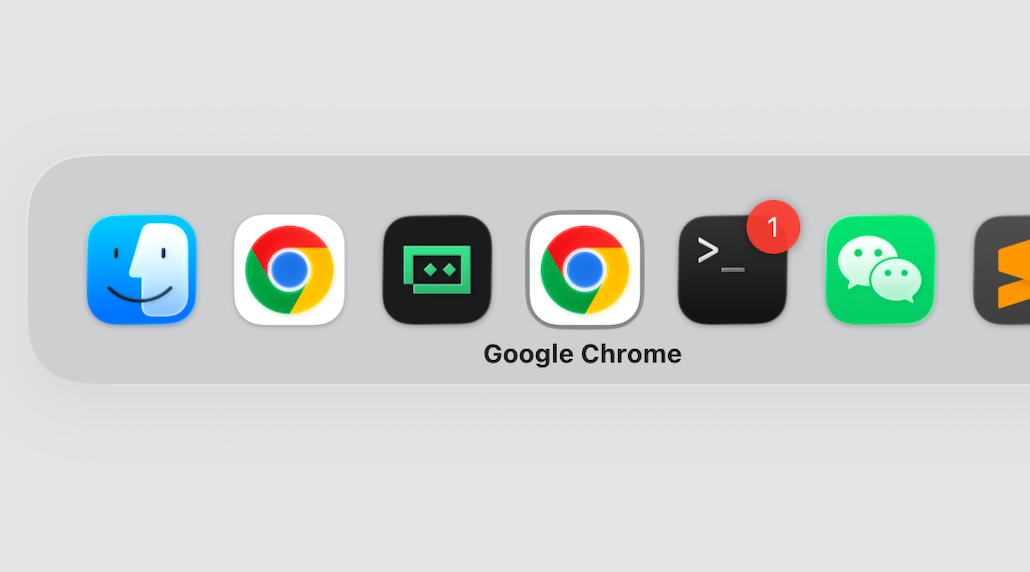
The switcher always appears on the display where the Dock is currently active. That’s documented behavior. The catch is that the Dock’s location isn’t fixed — it follows your cursor.
With auto-hide enabled, the Dock activates on whichever display your cursor last approached the bottom edge of. Brush the bottom of your secondary monitor for a moment and the Dock — and with it the switcher — quietly relocates. With a static Dock the problem doesn’t disappear either: move the Dock to your second display in System Settings and the switcher follows it there.
Either way the switcher’s position is tied to the Dock, not to your cursor or your active window. This is a design decision, not a bug in the queue. The Apple Communities threads go back more than a decade and the answer has been silence.
The One-Line Fix
There is a defaults command that makes the overlay appear on every connected display at once:
defaults write com.apple.dock appswitcher-all-displays -bool true
killall Dock
killall Dock applies it immediately — no reboot. To undo:
defaults write com.apple.dock appswitcher-all-displays -bool false
killall Dock
This is a genuine improvement and the best of the native options. You stop looking at the wrong screen to make a selection.
Why That’s Only Half a Fix
The overlay is now on every display. It’s still most-recently-used ordered, and it still makes you cycle.
Multi-monitor setups make the MRU problem measurably worse, because you click between displays constantly and every click reshuffles the order:
- VS Code on monitor 1, Terminal on monitor 2, Chrome on monitor 1
- You click into Terminal — it jumps to position 1
- You click into Chrome — Chrome takes position 1, Terminal slides to 2
- You press
Cmd+Tabexpecting Terminal and land on Chrome
“Terminal is always three presses away” stops being true the moment you use the mouse to cross displays. That’s the part appswitcher-all-displays cannot touch.
The other native routes have the same shape:
| Workaround | Fixes | Doesn’t fix |
|---|---|---|
appswitcher-all-displays | Overlay visible on all displays | Still MRU, still cycling |
| One Space per display | Fewer apps per switcher view | Still MRU, two keystrokes to cross Spaces |
Ctrl+F3 Dock focus | Works from any monitor | Slow, no search, three steps minimum |
Each one improves how Cmd+Tab behaves across displays. None of them changes the fact that you’re cycling through a list whose order you don’t control.
Direct Hotkeys Make the Display Question Disappear
Here’s what changes when a fixed hotkey activates an app directly: there is no switcher.
Press Left Cmd+2 and macOS raises VS Code immediately. It doesn’t ask which monitor VS Code is on. There’s no overlay to look at, on any display. The binding maps to the application, and macOS brings it forward wherever it last lived. If it was minimized on monitor 2, it comes back on monitor 2 — you never had to know that.
The MRU problem goes with it. Left Cmd+3 is Terminal today, tomorrow, and after an afternoon of clicking around both screens. The binding doesn’t depend on recency, so muscle memory actually holds.
SnapHotkey is a small Mac app built for exactly this: one shortcut per app, pressed from anywhere, no overlay in the path.
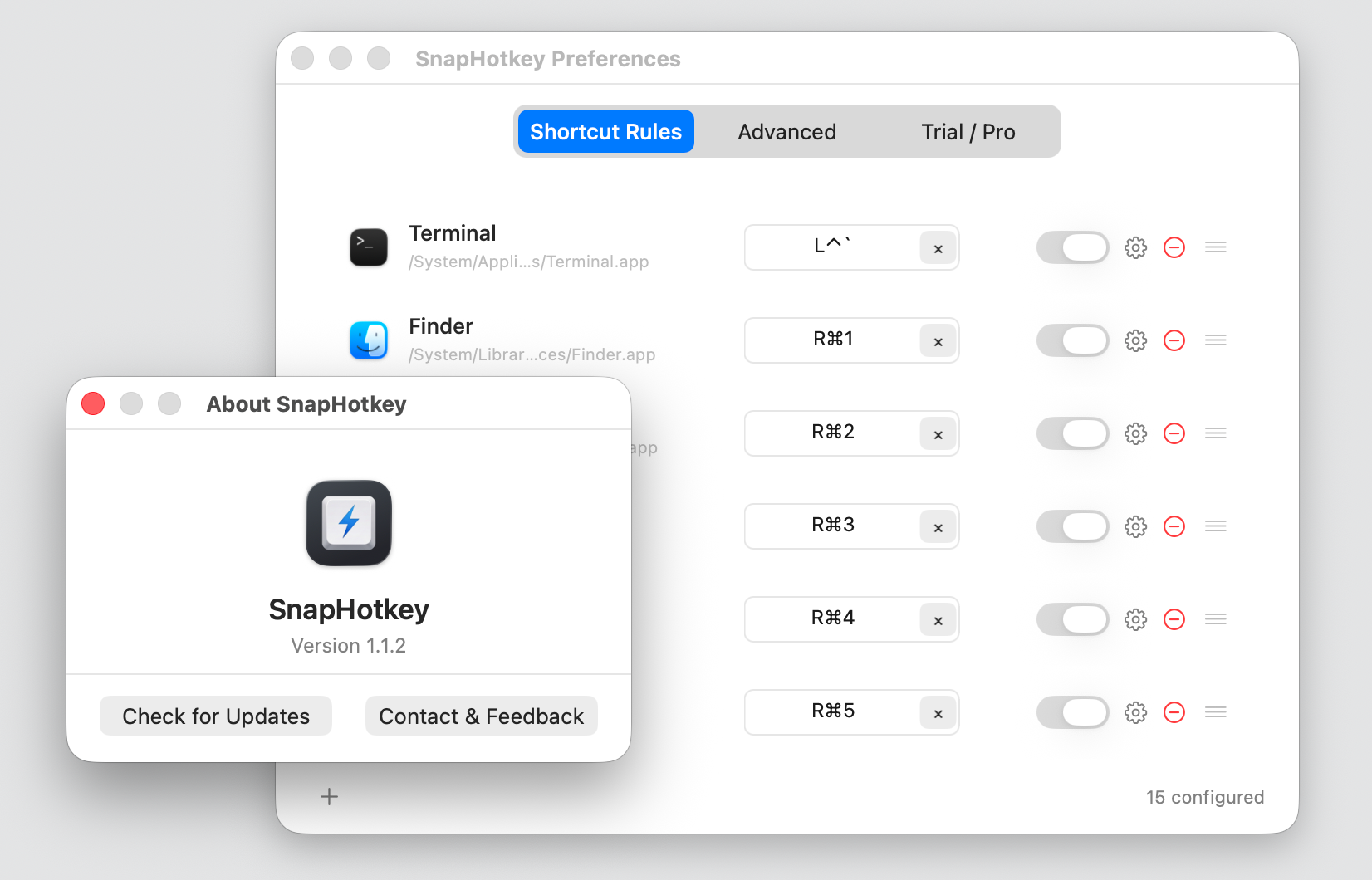
Three things matter specifically for multi-monitor work:
- Left/Right modifier distinction.
Left Cmd+1andRight Cmd+1are two different shortcuts, because SnapHotkey reads which physicalCmdkey you pressed. One hand-side for coding tools, the other for communication apps. More on that in Left vs Right Command Key. - Toggle show/hide. Press the same key again to hide the app — a fast way to clear a monitor without reaching for the mouse.
- Same-app window cycling. Two VS Code windows, one per display? Pressing
Left Cmd+1repeatedly cycles between them.
If you’d rather try the paradigm for free first, rcmd auto-assigns Right Cmd + an app’s first letter and solves the display problem the same way — with the trade-offs that it’s Right Cmd only, letters collide between apps with the same initial, and there’s no window cycling.
Set It Up in Three Steps
- Download SnapHotkey free, drag it to Applications, and launch it. A lightning-bolt icon appears in your menu bar.
- Click the icon → Preferences… → +, pick an app, record your shortcut.
Left Cmd+1throughLeft Cmd+9covers most setups. - Turn on Toggle show/hide for any app you want the same key to dismiss.
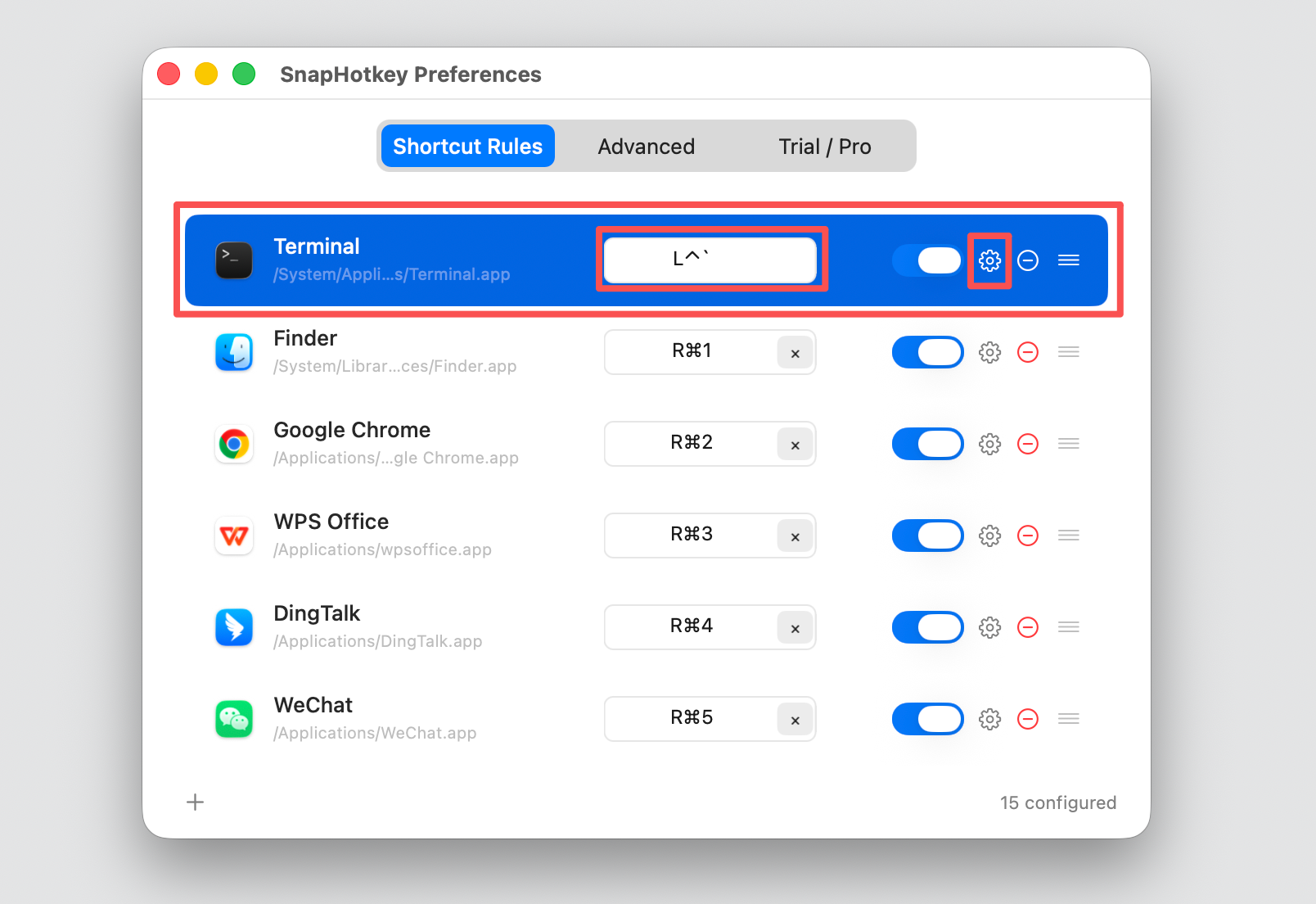
No config files, no scripting. About two minutes from install to ten apps mapped. $9.99 one-time, no subscription. The free download includes a 15-day full trial — every feature unlocked, no credit card.
Bottom Line
The switcher lands on the wrong monitor because it follows the Dock, and the Dock follows your cursor. If you’re staying with Cmd+Tab, run appswitcher-all-displays — it puts the overlay on every screen and costs you one command.
But the display placement was only ever half the problem. The other half is that you’re cycling through a list that reorders itself every time you click across monitors. A fixed hotkey per app removes both at once: nothing to look at, nothing to cycle, and the same key lands on the same app no matter how many displays you own.
Further Reading
- Mac App Switcher: Why Direct Hotkeys Beat Cmd+Tab Cycling — the four switching approaches compared
- Mac Multi-Window Headache: Switching Between Windows of the Same App — when one app has windows on both displays
- Best Mac Hotkey App Launchers Compared — rcmd, Thor, Manico, and the rest of the landscape