Stage Manager Keyboard Shortcuts on Mac: The Honest Guide
TL;DR: Stage Manager has no keyboard shortcut to jump to a group — that gap is by design. To switch between apps with a shortcut, you have two options: the built-in `Cmd+Tab` cycling, or SnapHotkey, which lets you jump directly to any app with a single keypress. ▶ Watch the 1-minute intro
You’ve tried Stage Manager. Maybe you like the visual organization. But the moment you reach for the keyboard to switch between Stage Manager groups, you hit a wall — there is no shortcut. Not a default one. Not a customizable one buried in System Settings. Just nothing.
That gap isn’t a bug someone will fix in a point release. It’s a design characteristic that has frustrated keyboard-first users since macOS Ventura in 2022, and it’s still true in macOS Tahoe.
Here’s what Stage Manager keyboard shortcuts actually exist, what’s genuinely missing, and what to do about it.
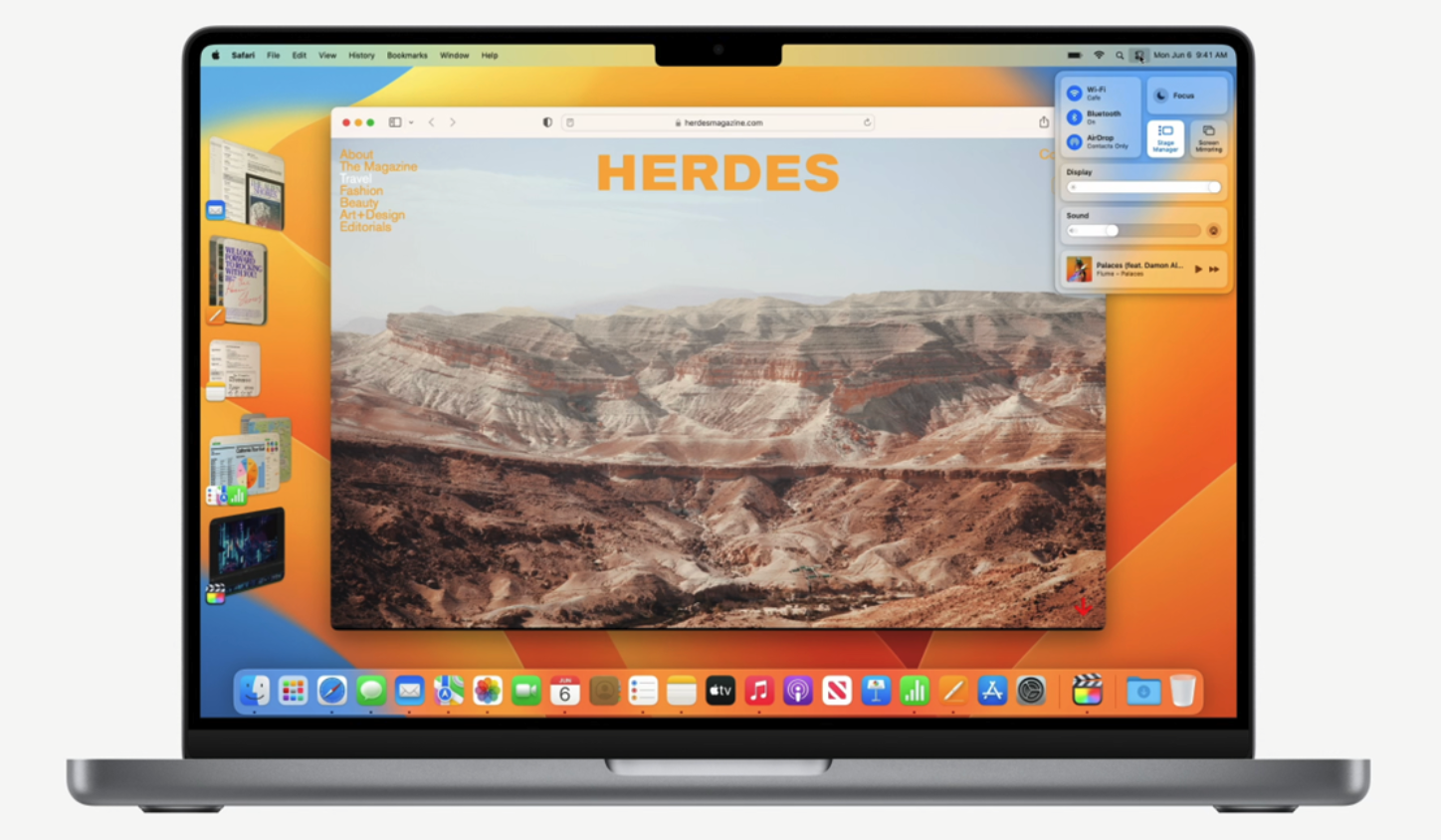
That strip down the left edge is the whole feature. It is also the whole problem: every group in it is reachable by click, and by nothing else.
Stage Manager Keyboard Shortcuts That Work
The honest inventory — these all work with Stage Manager active:
| Shortcut | What it does |
|---|---|
Cmd+Tab | Cycles apps in most-recently-used order. Switching to an app pulls its whole group center-stage. |
Cmd+` | Cycles windows of the frontmost app, unchanged by Stage Manager. |
Ctrl+Up (or F3) | Opens Mission Control; arrow keys or Ctrl+1/2/3 move between Spaces. |
Ctrl+F3 | Moves focus to the Dock — arrow keys to an app, Enter to switch. |
| Custom toggle | System Settings → Keyboard → Keyboard Shortcuts → Mission Control lets you bind a key to turn Stage Manager on and off. |
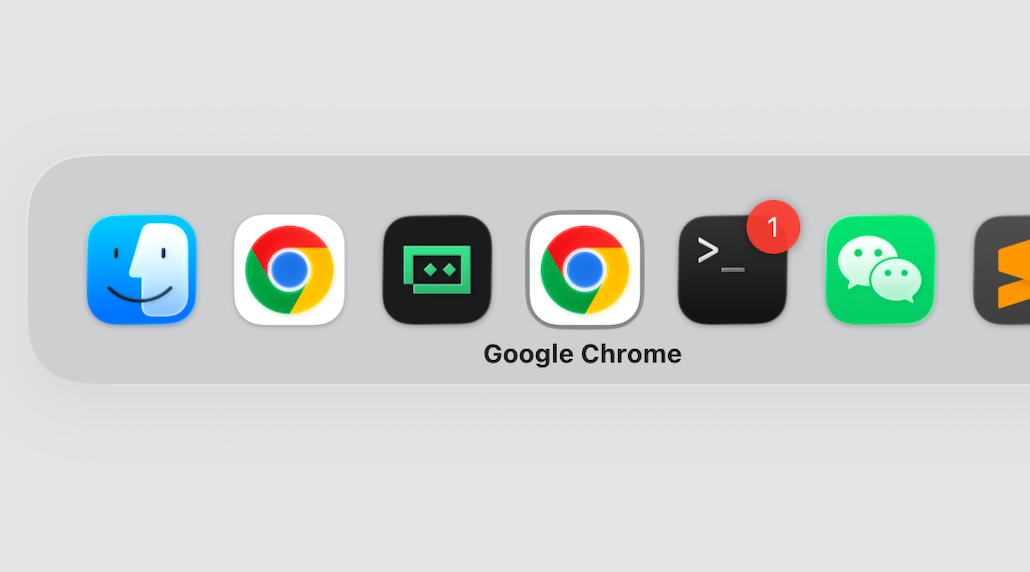
That overlay is your only native keyboard route into a Stage Manager group — and it lists apps, not groups, in an order that changes as you work.
Two of these deserve an asterisk. Mission Control moves between Spaces, not Stage Manager groups — if all your groups sit on one Space, which is the common setup, it buys you nothing. And Ctrl+F3 is a three-step interaction: focus the Dock, arrow to the app, press Enter. It works. It isn’t fast.
The Gap: Nothing Jumps to a Group
Stated plainly:
There is no keyboard shortcut that jumps directly to a specific Stage Manager group — by index, by position, or by app name.
You cannot press anything to say “go to the group with VS Code in it” or “switch to group 3.” The sidebar strip is exclusively mouse-driven. Your only native keyboard route into a group is Cmd+Tab, which doesn’t target groups at all — it targets apps in MRU order.
This isn’t a configuration problem. The functionality doesn’t exist in macOS’s keyboard shortcut system. Community threads asking for it have been open since launch, and the answers range from “use Cmd+Tab” to “write a Keyboard Maestro script” — which tells you the state of native support.
The contradiction is real. Stage Manager exists to make context-switching efficient, but the efficiency only lands if you can trigger the switch from the keyboard. A sidebar you have to mouse into is slower than the Cmd+Tab cycling it was meant to improve on.
Workarounds, and Why They Fall Short
Keyboard Maestro scripts. You can script a click into the sidebar at a fixed position. But group positions aren’t fixed — the sidebar reorders by recency, so a coordinate-based macro breaks the moment you use your apps. Targeting by accessibility identifier works until a macOS update changes the UI hierarchy.
One Space per group. Put each group on its own Space and Ctrl+1, Ctrl+2 navigate between them. Now you’re maintaining Stage Manager groups and Spaces — more moving parts, not fewer. Eight apps means eight Spaces.
Just use Cmd+Tab. The pragmatic settlement: keep Stage Manager for the visual cleanup, cycle with Cmd+Tab, accept the trade-off. Fine if you don’t have a hard keyboard-only requirement. Not fine if you want one keypress to land on one app.
Bypass the Sidebar Entirely
If the goal is reaching VS Code, Terminal, or Slack with a single keypress, the answer isn’t to navigate Stage Manager from the keyboard — it’s to operate below it.
SnapHotkey works through the macOS Accessibility APIs and CGEventTap, intercepting keystrokes at the system level before the UI layer sees them. Press Left Cmd+1 and it fires an app-focus event directly. It never touches the Stage Manager sidebar, never clicks a group, and doesn’t care what state Stage Manager is in.
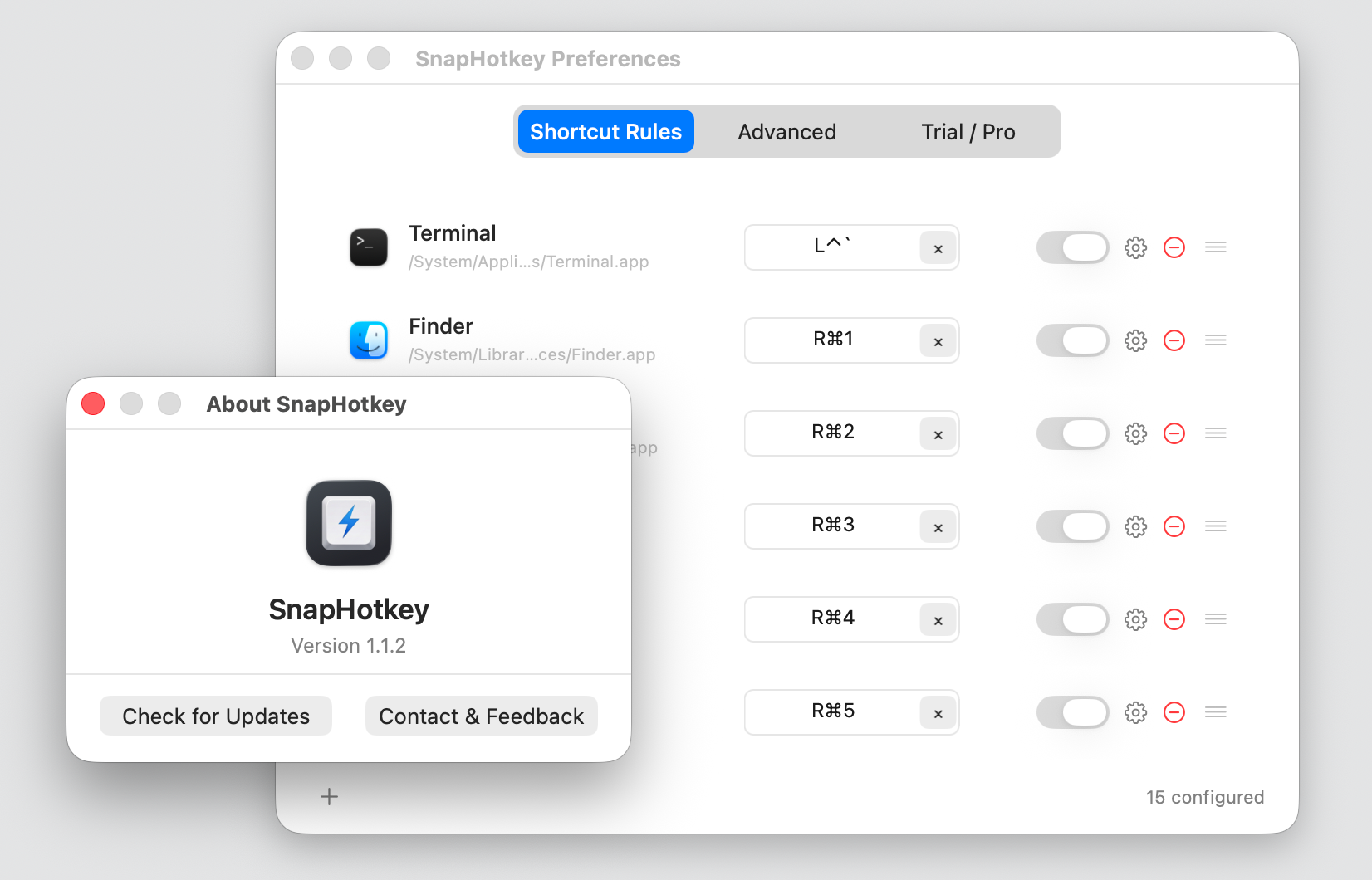
The result: Left Cmd+1 brings VS Code forward regardless of which group it lives in or whether that group is currently off-stage. Stage Manager responds by pulling the group center — that part works correctly on its own. SnapHotkey just deletes the manual navigation step in between.
That’s the difference from the click-the-sidebar workarounds: those automate Stage Manager’s UI, and break when it reorders. This bypasses it.
Keep Stage Manager for organization, use direct hotkeys for navigation, and neither one has to compromise.
Set It Up in Three Steps
- Download SnapHotkey free, drag it to Applications, and launch it. A lightning-bolt icon appears in your menu bar.
- Click the icon → Preferences… → +, pick an app, and record your shortcut —
Left Cmd+1for VS Code,Left Cmd+2for Terminal, and so on. - Turn on Toggle show/hide if you want the same key to dismiss the app again, leaving your Stage Manager layout undisturbed.
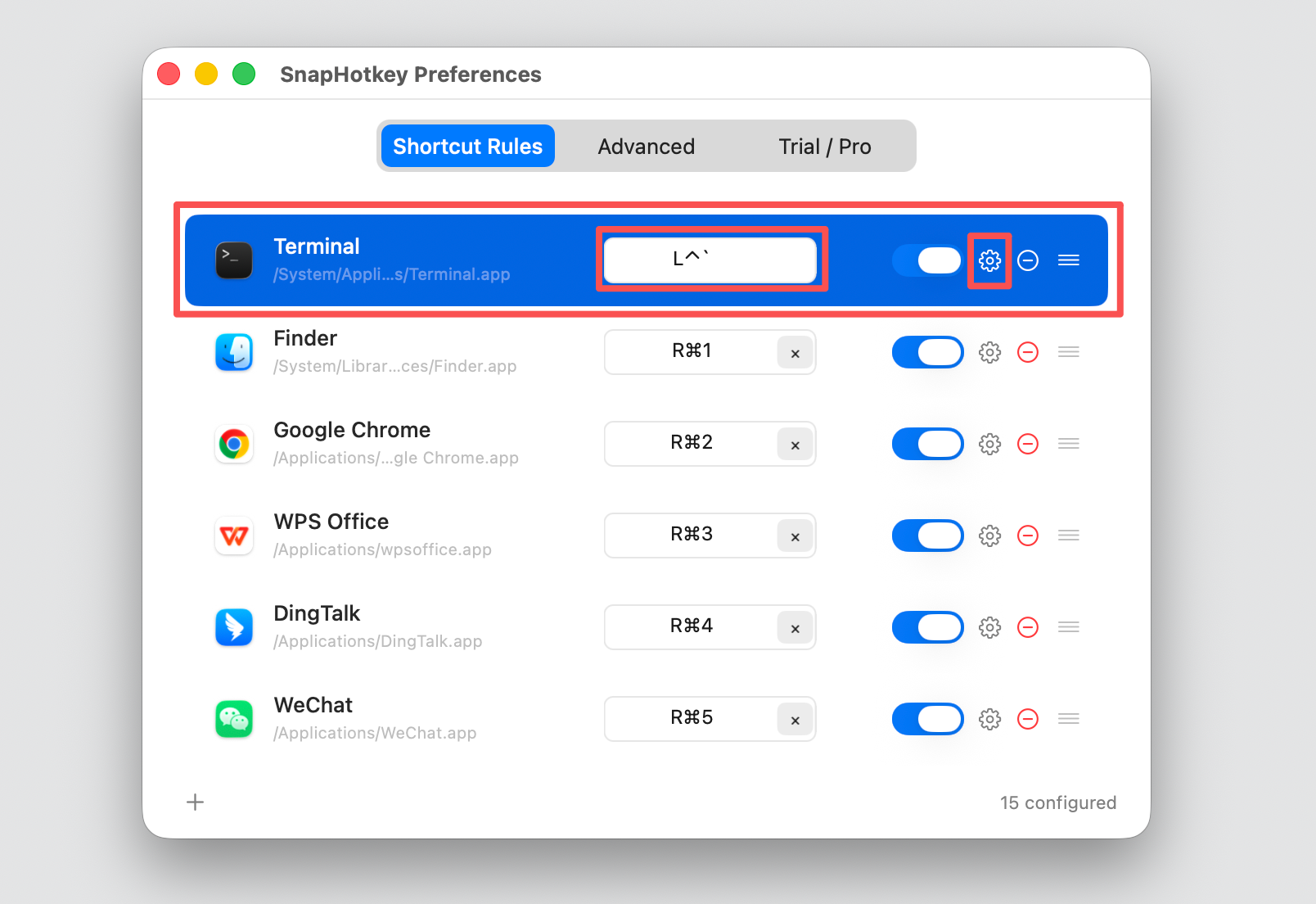
No JSON config, no scripting, no system extension to wrestle with. About two minutes from install to ten apps mapped. $9.99 one-time, no subscription. The free download includes a 15-day full trial — every feature unlocked, no credit card.
Should You Keep Stage Manager?
Keep it if you work in app groups you return to as a unit, switch between them a few times an hour rather than dozens, don’t mind a click to context-switch, and value having off-stage apps genuinely disappear.
Drop it if you switch apps dozens of times an hour and want each switch to be one keypress, dislike the sidebar reordering itself as you work, or find its window sizing constraints limiting on a single display.
The honest read: a lot of developers who tried Stage Manager at launch have since turned it off — not over bugs, but over the mouse-first interaction model landing at exactly the point where keyboard users most want keyboard control. That said, Apple has kept refining it through Sonoma, Sequoia, and Tahoe. If you dismissed it in Ventura 13.0, it behaves better now.
Bottom Line
Stage Manager’s keyboard shortcuts cover toggling it, cycling apps, and reaching the Dock. What they don’t cover — and what Apple has never shipped — is jumping to a group. If that’s the gap you hit, no amount of System Settings archaeology will close it.
The underlying want is simple: press one key, land in VS Code. Press another, land in Terminal. That’s entirely achievable on macOS. It just doesn’t live in Stage Manager’s settings.
Further Reading
- How to Use a Keyboard Shortcut to Toggle (Show/Hide) Apps on Mac — press once to summon, again to dismiss
- Mac App Switcher: Why Direct Hotkeys Beat Cmd+Tab Cycling — the four switching approaches compared
- Best Mac Hotkey App Launchers Compared — rcmd, Thor, Manico, and the rest of the landscape