Hammerspoon App Switching: The Simplest Setup (and the Simpler One)
Switch apps with Hammerspoon in five lines of Lua — hs.hotkey.bind plus launchOrFocus. Then an honest look at what the setup actually costs, and the two-minute alternative that does the same job with no config file.
You want one key that lands you in VS Code. Another for Terminal. No Cmd+Tab cycling, no overshooting, no squinting at the switcher. If Hammerspoon is already on your Mac, this takes five lines of Lua. If it isn’t, it takes five lines plus an install.
Here is the minimal version, exactly what you need to type. Then an honest tally of what that setup costs against the two-minute alternative — and the three things the minimal version doesn’t do, which you can either script yourself or get as a checkbox.
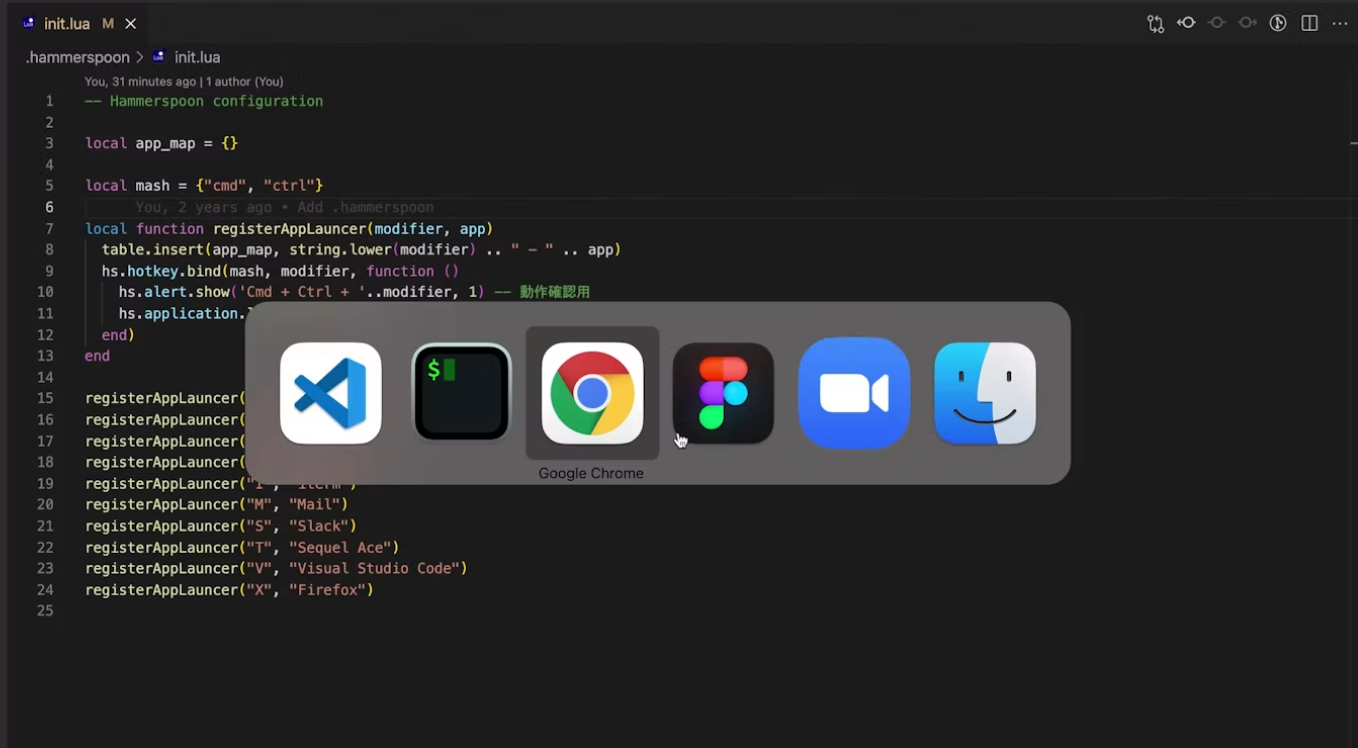
The Five-Line Hammerspoon App Switch
1. Install Hammerspoon. Download it from hammerspoon.org or run:
brew install --cask hammerspoonLaunch it once. It asks for Accessibility access — System Settings → Privacy & Security → Accessibility → turn Hammerspoon on. Without this it can’t see global keystrokes, and nothing below will fire.
2. Create the config. Hammerspoon reads ~/.hammerspoon/init.lua. Put this in it:
hs.hotkey.bind({"ctrl", "alt"}, "1", function()
  hs.application.launchOrFocus("Visual Studio Code")
end)
3. Reload. Click the Hammerspoon menu bar icon → Reload Config. Press Ctrl+Alt+1. VS Code launches if it’s closed, comes to the front if it’s open.
That’s the whole mechanism. hs.hotkey.bind registers a global shortcut; hs.application.launchOrFocus does the launch-or-raise. Every Hammerspoon app-switching setup on GitHub, however elaborate, is built on those two calls.
The Same Thing for Six Apps
Repeating the block six times works, but a table is cleaner and it’s still simple:
local apps = {
  ["1"] = "Visual Studio Code",
  ["2"] = "Terminal",
  ["3"] = "Google Chrome",
  ["4"] = "Slack",
  ["5"] = "Finder",
  ["6"] = "Notes",
}

for key, name in pairs(apps) do
  hs.hotkey.bind({"ctrl", "alt"}, key, function()
    hs.application.launchOrFocus(name)
  end)
end
One tip that saves a debugging session: the name has to match the app’s on-disk name, not the window title. "Visual Studio Code", not "Code". "iTerm", not "iTerm2". If a key does nothing, open the Hammerspoon Console from the menu bar icon — a wrong name shows up there as launchOrFocus returning false.
For most people, this is enough. Ten minutes, six apps, one keypress each. Stop here if it does what you need.
What That Setup Actually Cost You
Read the steps above again as a checklist rather than a tutorial:
- Install a Lua runtime with system-wide hooks
- Grant it Accessibility access
- Create a dotfile in your home directory
- Write Lua — get the syntax right, get the app’s on-disk name right
- Reload the config, and reload again after every edit
- Open a console to find out why a key does nothing
And that’s before the first real-world snag. Ctrl+Alt+1 was chosen above because it’s mostly free; Cmd+1 would be the natural choice, but Chrome, Safari and VS Code use it for tab switching, and a global Hammerspoon binding silently wins that fight. The standard fix is a Hyper key — remap Caps Lock to Cmd+Ctrl+Alt+Shift with Karabiner-Elements so nothing collides — which is what the Karabiner hyper key guide walks through. Now it’s two apps and two config files to reach Terminal. Add the Accessibility permission occasionally resetting after an update, and the “five-line setup” is a small project you maintain.
None of this is hard for a developer. It’s just a lot of ceremony for “press a key, get an app.”
The Same Result in Two Minutes
SnapHotkey does the same launch-or-focus with no file, no Lua, and no reload:
- Download it, drag to Applications, launch. A lightning-bolt icon appears in the menu bar.
- Click the icon → Preferences… → +, pick the app, record the key.
- Press the key.
The app list is a picker, so there’s no name to mistype. The shortcut is recorded from a keypress, so there’s no syntax. Changes apply the moment you close the sheet. Ten apps take about two minutes, and the whole configuration is a screen you can look at rather than a file you have to read.
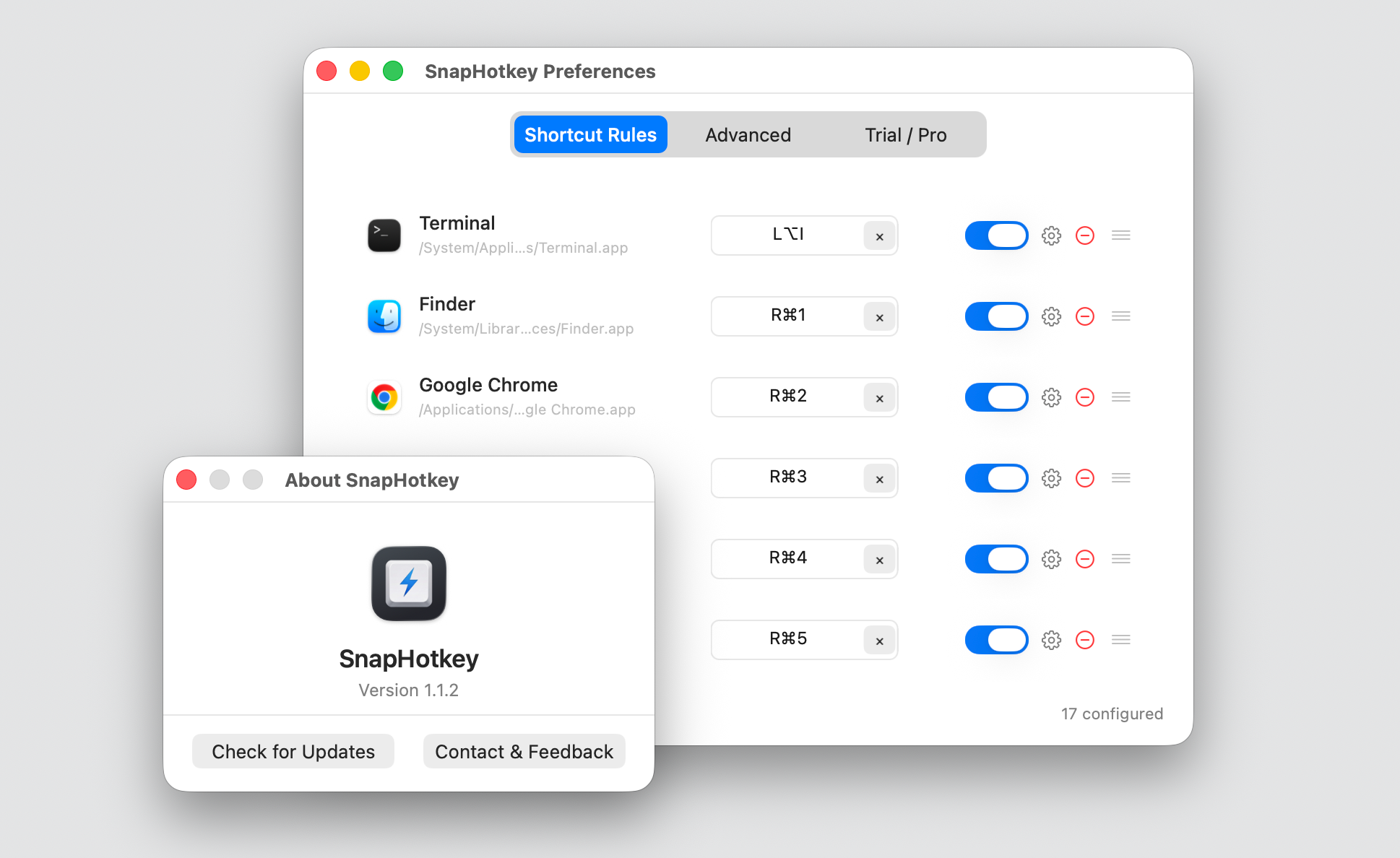
Side by side, for the basic job — one key, one app:
| Hammerspoon | SnapHotkey | |
|---|---|---|
| Install | brew cask + Accessibility | drag to Applications + Accessibility |
| Configure | edit init.lua, Lua syntax | GUI picker + record a key |
| Add an app | new binding, reload | click + |
| Debug a dead key | Hammerspoon Console | nothing to debug — the app was picked from a list |
Avoid Cmd+1 collisions | Hyper key via Karabiner | use Right Cmd (see below) |
| Price | Free | $9.99 one-time, 15-day trial |
Hammerspoon’s price is the honest advantage. Everything else on the list is time.
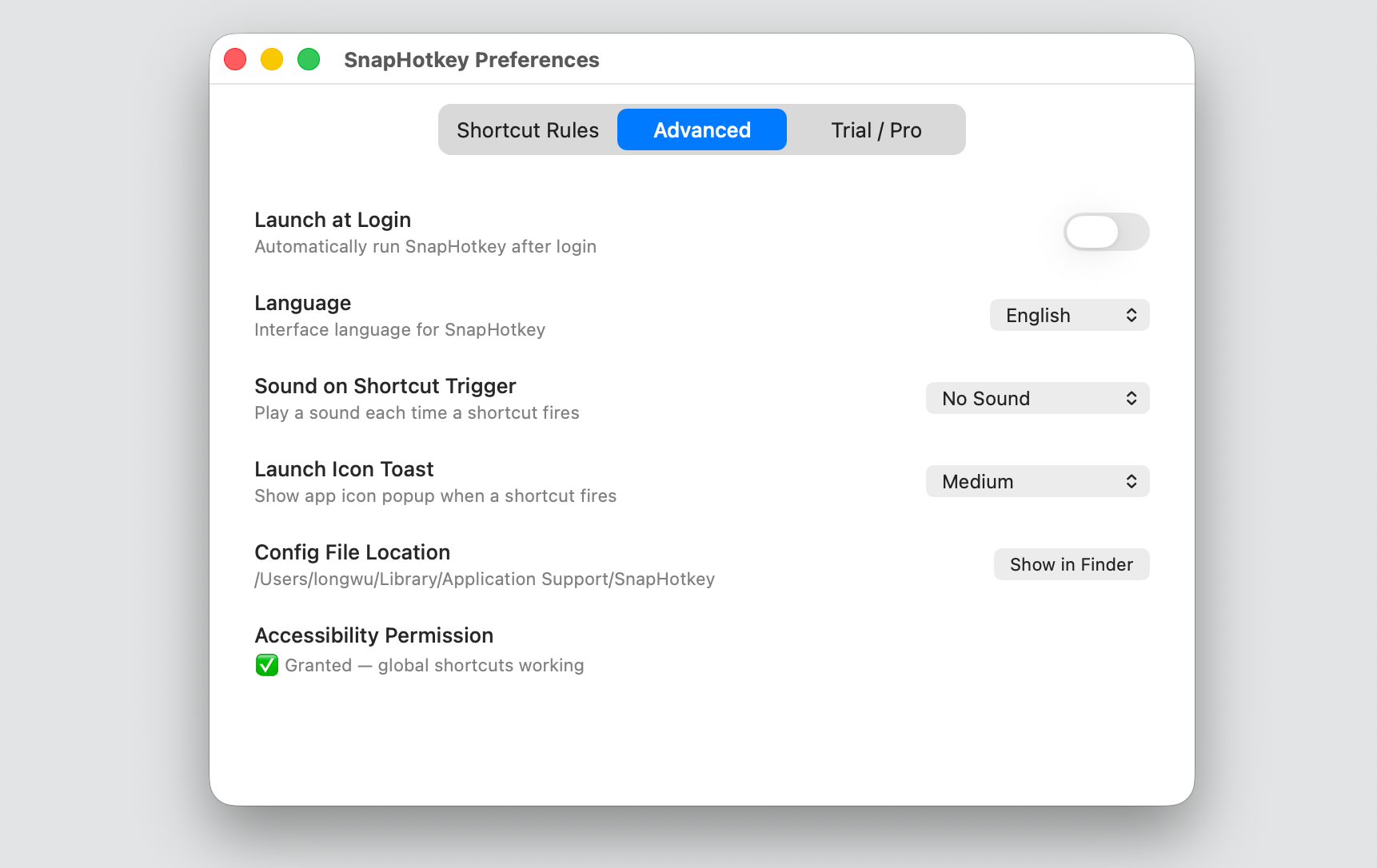
Even the one step both tools share — Accessibility access — is reported in-app: if a shortcut ever stops firing, the Advanced tab tells you why before you go looking.
The Part Hammerspoon Makes You Write Yourself
The five-line snippet stops at launch-or-focus. Use it for a week and you’ll want three more things — each of which SnapHotkey ships as an option on the rule and Hammerspoon leaves to you.
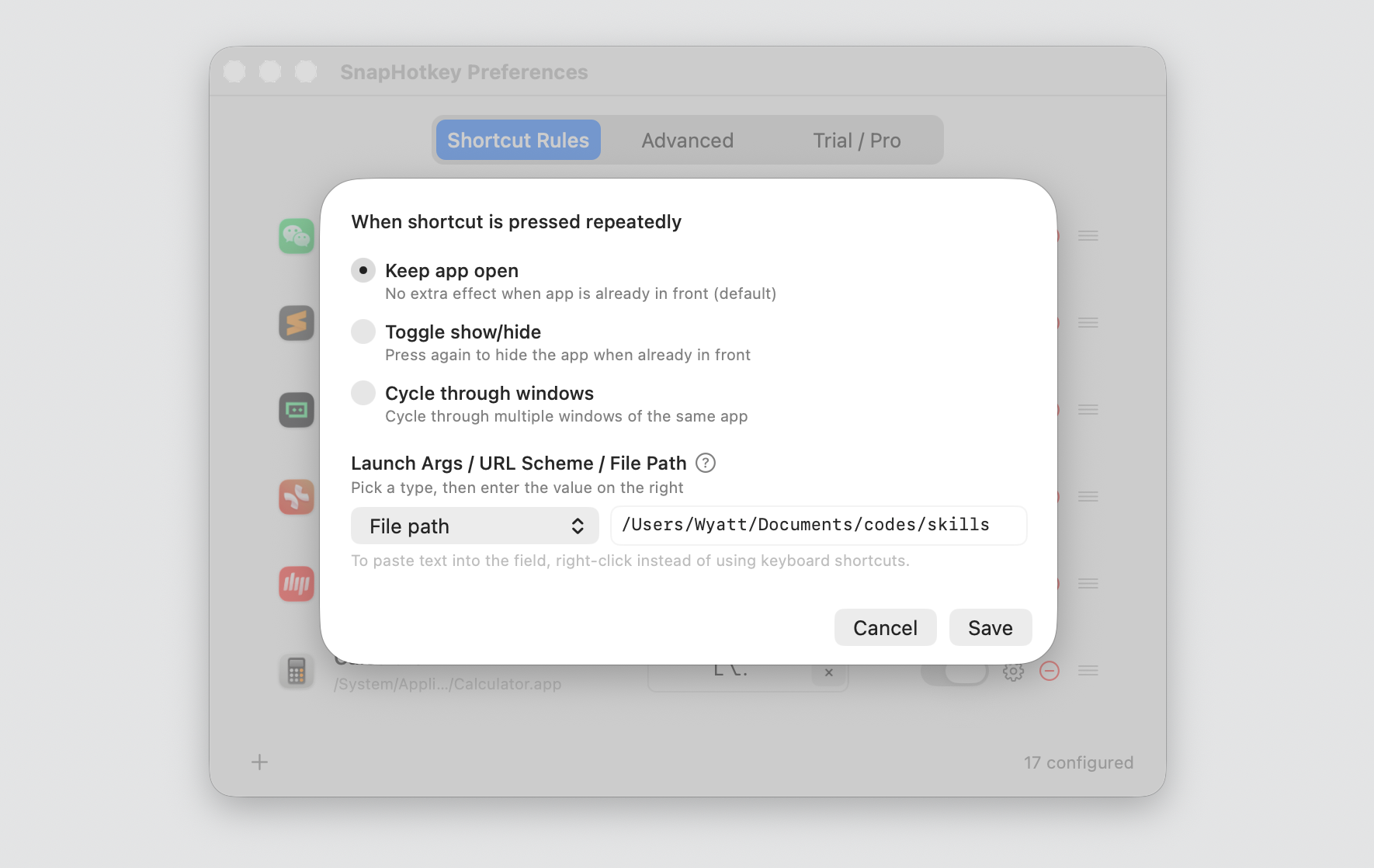
That sheet is the whole of this section. Everything below it is what the equivalent looks like in Lua.
Press again to hide. launchOrFocus has no opinion about an app that is already in front, so there’s no toggle: you can summon Terminal, but pressing the same key again does nothing. In Hammerspoon that’s a frontmost-app check and a :hide() call — about twelve lines per binding. In SnapHotkey it’s Toggle show/hide, one radio button on the rule.
Two Chrome windows, one key. With a work window and a personal window, Hammerspoon raises whichever was last in front; reaching the other one is Cmd+` again. Cycling windows on repeated presses needs hs.window.filter, an index you track between presses, and minimized-window handling — 30–50 lines, and the single most-asked-about snippet in Hammerspoon app-switching threads. SnapHotkey’s same-app window cycling does it out of the box: repeated presses walk through the app’s windows in order.
Left Cmd vs Right Cmd. They’re different keys at the hardware level, and Right Cmd+1 collides with nothing — no app binds it. But hs.hotkey.bind treats them as one modifier, so that entire free layer is unreachable without dropping to a raw hs.eventtap and decoding key flags yourself. SnapHotkey reads the physical key: put every app on Right Cmd, keep Cmd+1 tab switching, and skip the Hyper key entirely.
Deep Launch. The one that isn’t a snippet away in either tool by default: open an app at something — Terminal in a project directory, VS Code on a workspace, a URL in a specific Chrome profile — from the same rule. In SnapHotkey it’s a field on the rule.

Keep Hammerspoon, or Switch?
Keep the Lua if Hammerspoon is already doing other work for you — window tiling, a caffeine toggle, USB event hooks, a custom menu bar. App switching is then one more block in a file you maintain anyway, and the extra 40 lines for toggle and cycling are a fair price for keeping everything in one place.
Switch if app switching is the only reason Hammerspoon is installed. Then you’re running a Lua interpreter to do one job, and every gap you close costs another snippet from a GitHub thread. A dedicated tool does the whole job with no config file — and its Right Cmd layer gives you shortcuts Hammerspoon literally cannot bind.
Both can coexist. SnapHotkey takes the app layer on Right Cmd; Hammerspoon keeps whatever else it was doing. They only conflict if you bind the same combination in both.
Bottom Line
Five lines of Lua get you launch-or-focus in Hammerspoon, and for some people that’s plenty. But the five lines come with an install, a dotfile, a reload cycle and a console — and the moment you want the key to also hide the app, walk through its windows, or live on a modifier that doesn’t fight your editor, you’re writing the rest yourself. SnapHotkey is the two-minute version of the same idea, with those parts already built.
Further Reading
- Karabiner Hyper Key on Mac: Setup, Limits, and the Simpler Option — the Hyper key setup Hammerspoon users usually pair with this
- Left Command vs Right Command: The Shortcut Layer Most Devs Never Use — why Right Cmd is the collision-free modifier
- How to Switch Between Windows of the Same App on Mac — the multi-window problem in depth