SnapHotkey 1.2: A Redesigned Settings Window, Drag-and-Drop Rules, and a Launch Offer
TL;DR: SnapHotkey 1.2 rebuilds the Preferences window from scratch. Adding a rule, finding its advanced options and seeing what's wrong all take fewer clicks, and every pane now follows dark mode. It also fixes a rare bug that could freeze keyboard and mouse input across the system, and Pro is 50% off until February 10, 2027. ▶ Watch the 1-minute intro
You open SnapHotkey’s Preferences to add one more app. In 1.1 that meant finding the small + at the bottom of the window, picking the app from a list, and then hunting for the gear icon to change what a second press does. It worked, but the window had grown one feature at a time and it showed.
SnapHotkey 1.2 is a rebuild of that window. The engine that catches your keypress and brings the app forward is the same one you already rely on. Everything you look at and click to configure it is new.
It also fixes the most serious bug we’ve had reported: in rare cases, SnapHotkey could freeze keyboard and mouse input across the whole Mac until you quit it.
Here’s what changed, what got fixed, and the launch price.
The Short Version
Settings in 1.1 worked, but they were scattered: the add button sat at the bottom, advanced options were behind a gear icon, and a missing permission was easy to miss. 1.2 puts each of those where you’d look first. Under the hood, the keyboard listener now runs on its own thread and gets out of the way if macOS stops trusting it, so a permission change can no longer lock up your input.
What’s New in SnapHotkey 1.2
A cleaner Shortcuts tab
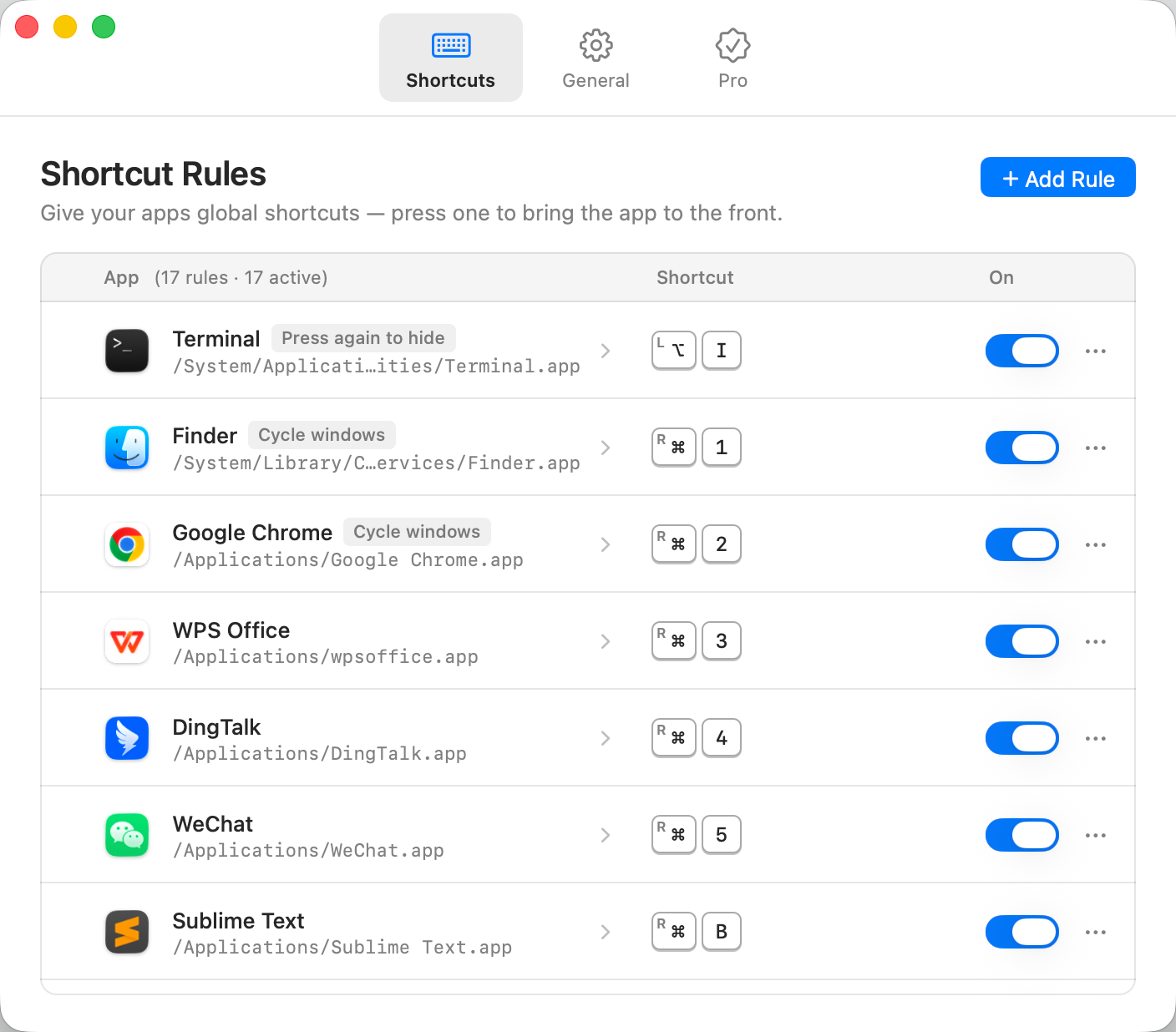
- Add Rule moved to the top right, next to the page title, where you’d expect it.
- Drag apps in from Finder. Drop one or several
.appbundles onto the list and SnapHotkey creates a rule for each. A dashed outline shows where they’ll land. - Shortcuts look like keys. Each rule shows its shortcut as keycaps, with a small L or R on every modifier, so
L⌘ 2andR⌘ 2are easy to tell apart at a glance. - One menu per rule. The … button at the end of each row holds Advanced Settings…, Record Shortcut Again and Delete…. Clicking the app’s name opens Advanced Settings directly.
- Tags tell you what’s special. A rule set to hide on a second press shows Press again to hide; one set to cycle windows shows Cycle windows.
- A new empty state. On first launch, the list tells you how to add your first rule instead of showing a blank table.
Advanced Settings in one panel
The per-rule panel is now two columns: When Pressed Again (keep in front, toggle show/hide, or cycle through windows) on one side, and Launch Options (Deep Launch arguments, a URL scheme, or a file path) on the other.
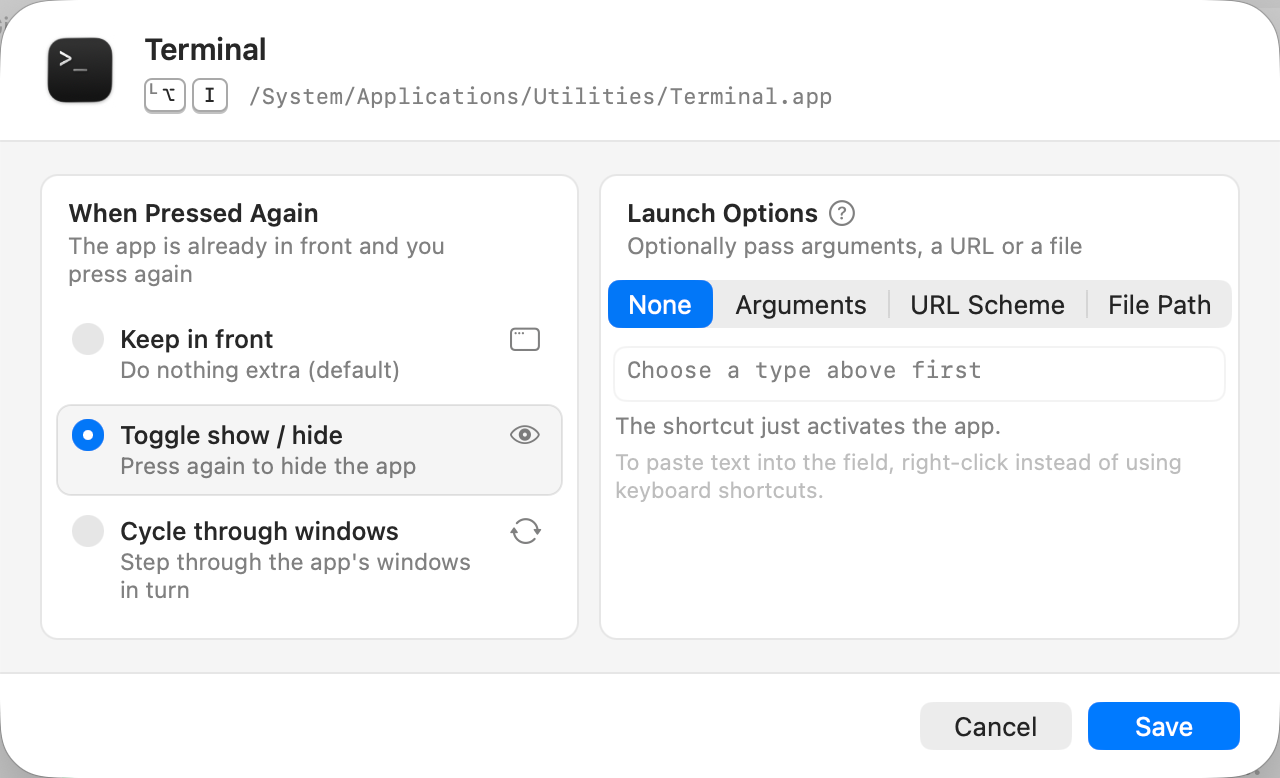
The help text is also more accurate now. With launch arguments set, every press starts a new instance of the app with those arguments, so the “when pressed again” choice doesn’t apply. 1.1 didn’t say that, and it confused people.
Problems show up at the top
A banner across the top of Preferences now covers the three situations that used to fail silently:
- Accessibility permission required. Global shortcuts can’t work until macOS grants it, and the banner takes you there.
- Restart SnapHotkey. macOS applies a newly granted permission per process, so a restart is sometimes needed. The banner says so instead of leaving you guessing.
- All shortcuts are paused. If you turned shortcuts off from the menu bar and forgot, Preferences reminds you.
If you’ve ever worked through Mac Keyboard Shortcut to Launch App Not Working? step by step, the first two banners cover the most common causes.
Notifications say where they come from
SnapHotkey’s small notifications usually pop up while you’re working in another app, and in 1.1 it wasn’t obvious which app they came from. They now look like standard macOS notifications: the SnapHotkey icon on the left and a small “SnapHotkey” heading above the message.
General and Pro tabs
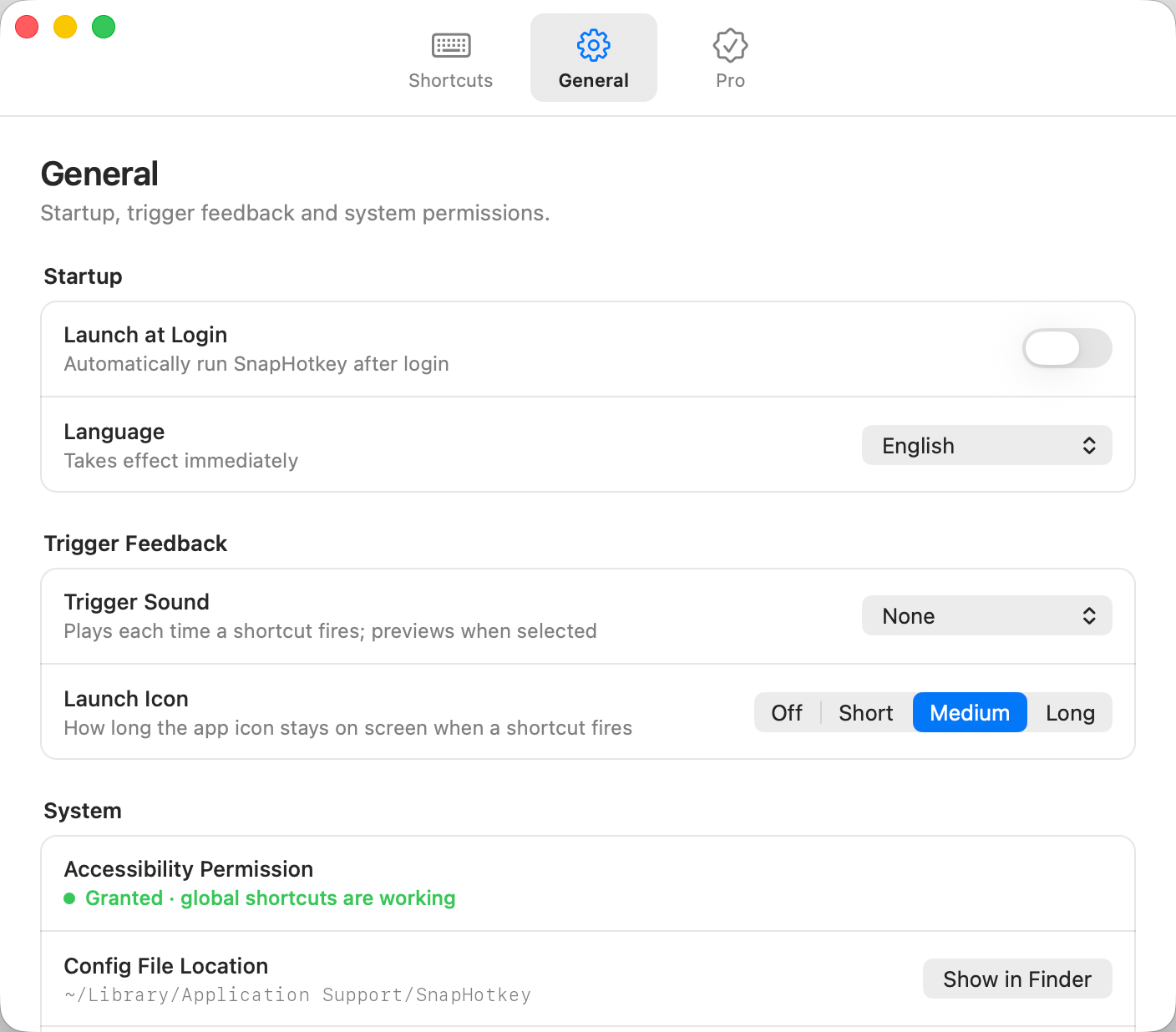
- The old Advanced tab is now General: startup, trigger feedback and permissions in grouped cards. The launch-icon duration is a segmented control (Off, Short, Medium, Long) instead of a dropdown.
- The Pro tab shows where you stand: Pro active, trial with a progress bar, or Free plan. There’s a feature comparison, and license entry moved into its own sheet.
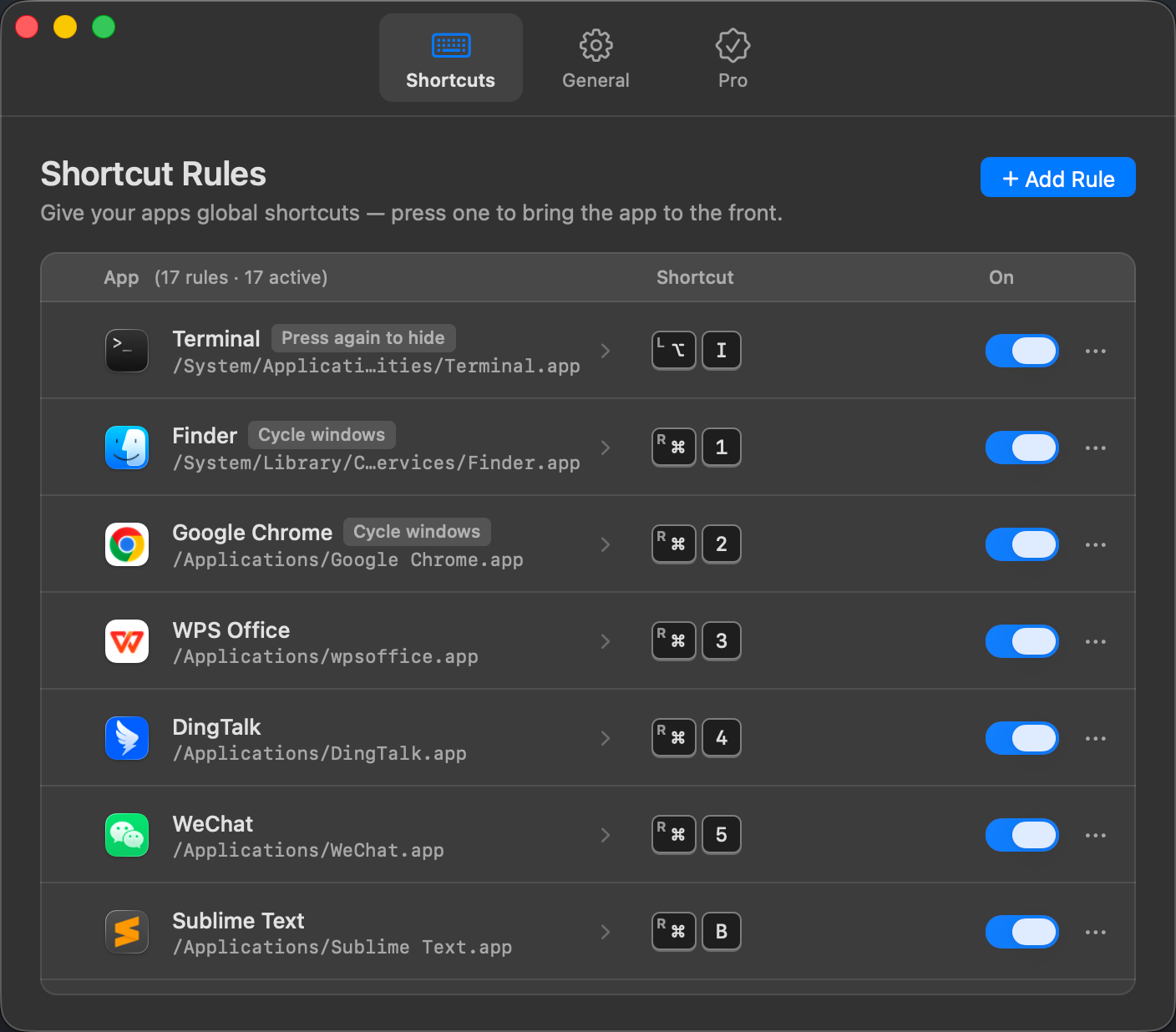
- Every pane uses system colors, so the whole window follows dark mode.
Fixes
- Keyboard and mouse input could freeze system-wide. This was the serious one. SnapHotkey sits on the path every keypress takes. If macOS stopped trusting the app while it was running (for example, if you turned off its Accessibility permission, or the app file was replaced during an update), your custom shortcuts still worked, but every other key and click was dropped until you quit SnapHotkey. Reading the license from the keychain during a keypress could stall input in the same way. In 1.2 a watchdog checks trust every two seconds and right after a keypress. If trust is lost, SnapHotkey removes its keyboard listener at once, so input comes back within two seconds, and reinstalls it when the permission returns. The license is read once at launch and cached, and the listener runs on its own thread, so a busy app can’t hold up your typing.
- A small memory leak on every keypress is fixed.
- Recording a new shortcut and then flipping the rule’s switch right away could restore the old shortcut. Fixed.
- When a shortcut was rejected because another rule already used it, the field kept showing the rejected combination. It now goes back to the saved one.
- Hover highlights on rule rows could get stuck after scrolling or switching windows. They now follow the pointer.
- Dragging an app from Finder onto the rules list didn’t add it in 1.1. It does now.
Anonymous Usage Statistics
1.2 adds anonymous usage statistics so we can see which features people actually use. Your Mac sends at most two events a day, and nothing on days you don’t use SnapHotkey:
- once ever, a note that the app was installed
- on the first use of each day, your plan (Free, trial or Pro), how many rules you have and how many are on, whether Accessibility permission is granted, whether shortcuts are paused, your interface language, and your sound and launch-icon settings
- with it, a summary of the previous day you used the app: how many times shortcuts fired, plus how many rules were added, deleted, toggled or re-recorded
It never sends app names, file paths, your shortcuts, launch arguments, license keys or anything you type. Counting happens locally, and sending runs in the background, so it never slows a shortcut down, even offline. The service we use, Aptabase, is open source and stores no device or user identifiers.
There’s no switch to turn it off in 1.2. Because it’s limited to the counts above, we decided a toggle wasn’t needed.
Launch Offer: Pro at 50% Off
Until February 10, 2027, SnapHotkey Pro is $5.00 instead of $9.99. It’s still a one-time purchase: no subscription, and every future update included. Open Preferences → Pro to see the offer and buy.
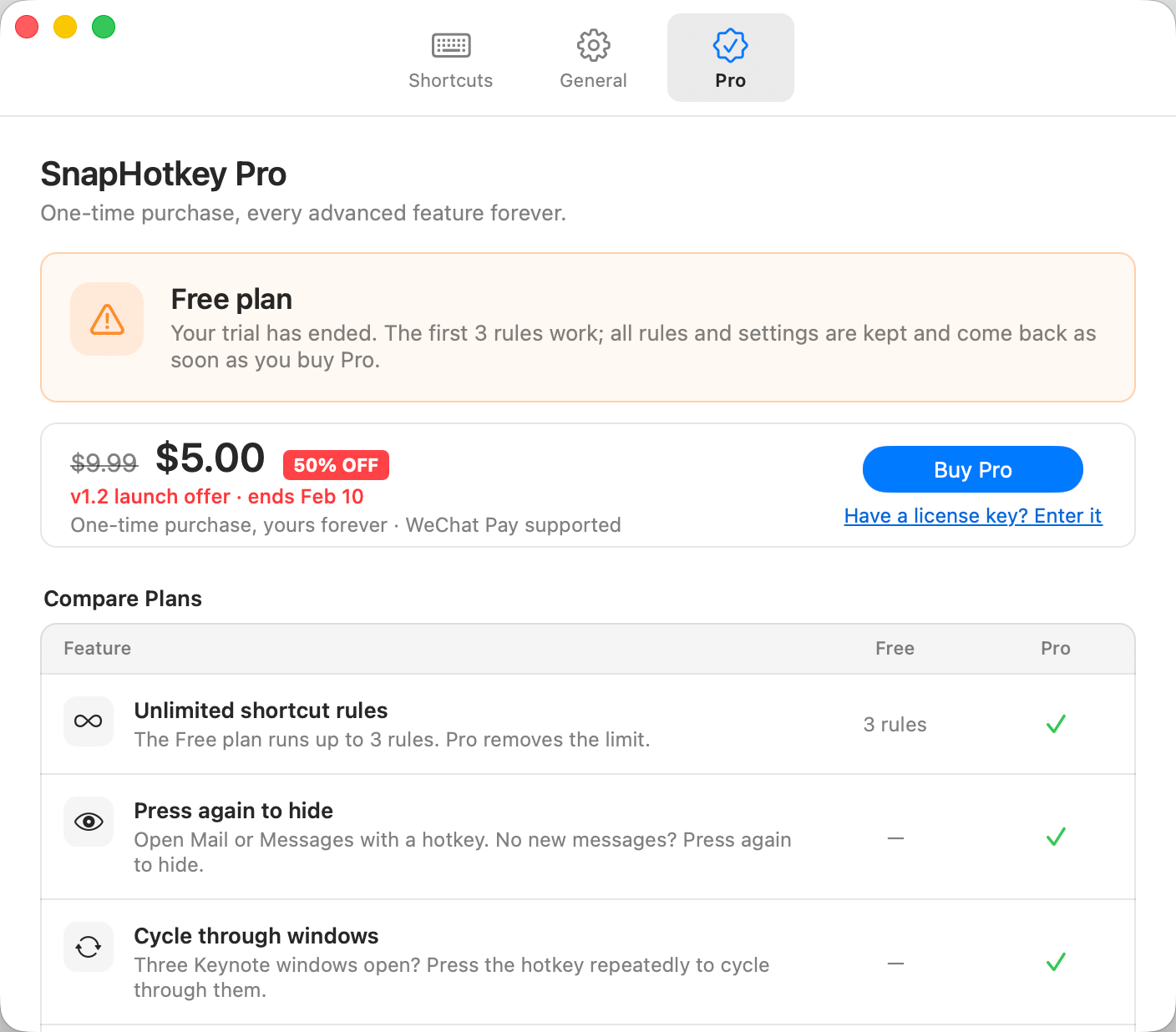
The 15-day full-feature trial hasn’t changed, so you can try everything before you decide. If you already own Pro, there’s nothing to do: 1.2 is a free update.
How to Update
- Download 1.2 from the download page.
- Quit SnapHotkey from the menu bar, then drag the new version into Applications and replace the old one.
- Open it. Your rules, settings and license carry over. If macOS asks for Accessibility permission again, grant it and restart SnapHotkey when the banner asks.
Bottom Line
SnapHotkey 1.2 doesn’t change what happens when you press a shortcut. It changes how quickly you can set one up, and how clearly the app tells you when something is in the way. If configuring rules ever felt like more work than using them, this release is for you.