Mac Equivalent of Alt+Tab: How to Switch Apps Like You Did on Windows
Mac equivalent of Alt+Tab is Cmd+Tab — but it has 3 catches. Here's how to switch apps faster by mapping your Win+Number muscle memory directly to your Mac.
You just switched to Mac. Day two, your fingers reach for Alt+Tab out of habit — and nothing happens. Option+Tab does nothing useful. Ctrl+Tab cycles browser tabs but not apps. Then you find it: Cmd+Tab is the Mac equivalent of Alt+Tab.
You try it for an hour. It… kind of works. But not the way Alt+Tab did.
Here’s what Cmd+Tab actually is, why it’s not a great Alt+Tab replacement once you have more than a few apps open, and the approach that beats Alt+Tab itself — by skipping the cycle entirely.
The Direct Answer: Cmd+Tab
Cmd+Tab is Mac’s Alt+Tab equivalent. Hold Cmd, press Tab to cycle to the next app, release. Same gesture, same MRU order, same overlay strip.
But there are three catches any Windows switcher hits quickly.
App-level only. Alt+Tab on Windows cycled windows — three Chrome windows each got their own Alt+Tab slot. Cmd+Tab cycles apps. If you have three Chrome windows open, Cmd+Tab lands you in Chrome but gives you no say in which window. You then need Cmd+` to cycle inside Chrome. Two steps for what Alt+Tab did in one.
MRU order doesn’t stick. Both Alt+Tab and Cmd+Tab show apps in most-recently-used order. With 3–4 apps open, that’s manageable. With 8+ apps open — typical for any focused workflow — the positions never stay still. Terminal was two presses away a minute ago; now it’s six. Muscle memory has nothing to anchor to.
Full Screen and Spaces break it. If your IDE is full screen and your browser is on a different Space, Cmd+Tab does something different than you expect — it might bring the app forward without leaving your current Space, or it might whisk you to wherever the app lives. The behavior feels inconsistent for new Mac users.
If you only used Alt+Tab for 3–4 apps on Windows, Cmd+Tab will pass. If you used it for everything, you’ll find it worse than Alt+Tab, not better.
The “Better Cmd+Tab” Path
There are several third-party tools that try to fix Cmd+Tab itself — adding window previews, cycling by window instead of app, fuzzy filters, visual indicators.
These help. The visual scan gets easier. But they don’t escape the fundamental problem: you’re still cycling. Press once, twice, six times. Multiply by 50 switches a day and you’re still spending hundreds of keypresses just on transit. A nicer cycler is still a cycler.
What If You Didn’t Cycle at All?
Here’s the move most Windows transitioners miss: Mac lets you do something Windows almost did, but better.
On Windows, you had a direct switch — Win+1, Win+2, Win+3. Each number jumped straight to the corresponding taskbar app, no cycling, no overlay. But it was tied to taskbar position, and you only got ten slots (1 through 0).
Mac gives you the same idea with two upgrades:
- Any modifier + any key, your choice — not just
Win+Number - Left vs Right Cmd are different keys — so
Left Cmd+1andRight Cmd+1map to different apps, doubling your usable namespace
The pattern: one key, one app, no cycle. Press Left Cmd+1 from anywhere → you’re in your browser. Press Left Cmd+2 → editor. Skip Alt+Tab entirely.
Map the Same Numbers You Used on Windows
The fastest migration is literal: keep the same number-to-app pairing you had on Windows.
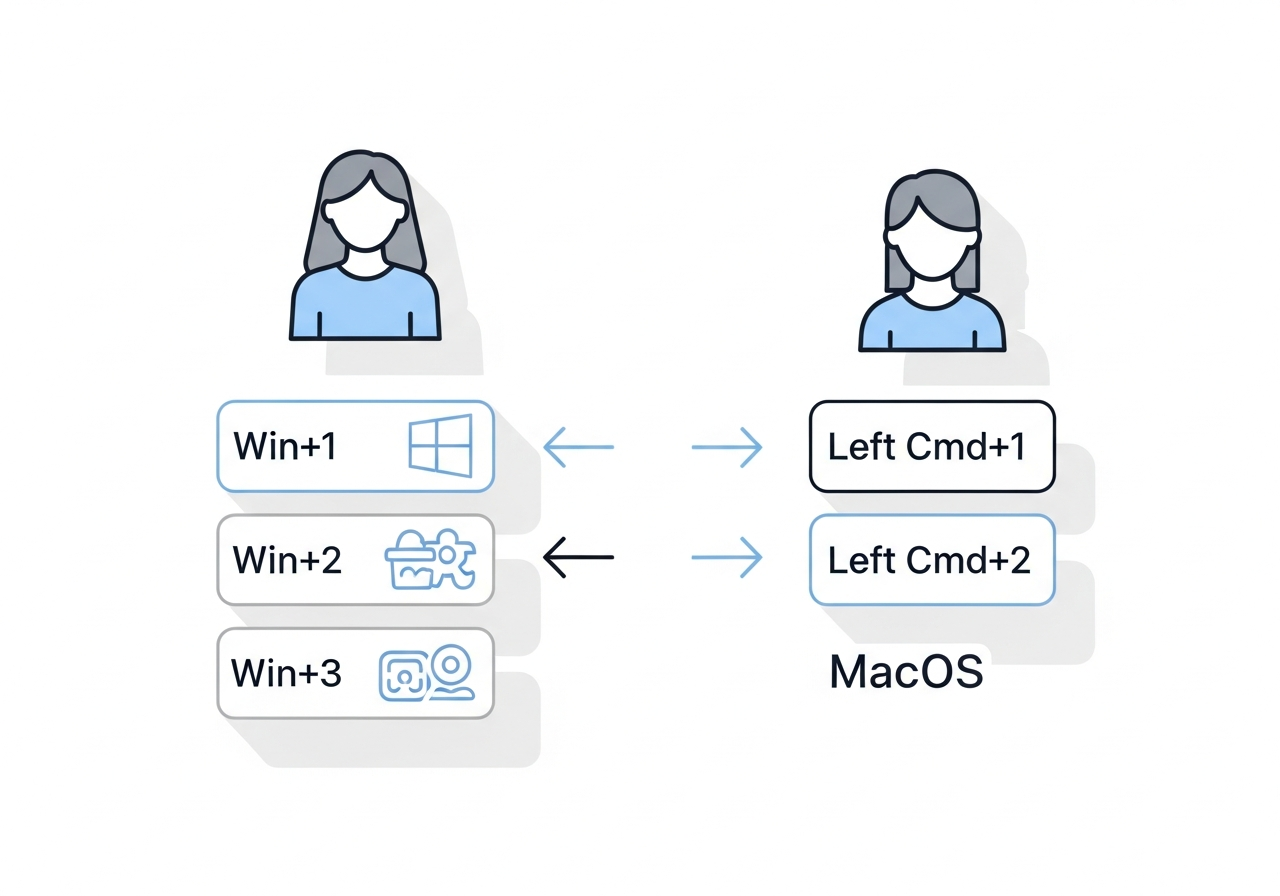
| Windows | Mac | App |
|---|---|---|
Win+1 | Left Cmd+1 | Browser |
Win+2 | Left Cmd+2 | Editor / IDE |
Win+3 | Left Cmd+3 | Terminal |
Win+4 | Left Cmd+4 | Slack / Messages |
Win+5 | Left Cmd+5 | Finder |
Your fingers don’t know which OS they’re on. The motion is identical — left-hand thumb on the modifier, index finger on the number. Muscle memory transfers, day one.
A few small upgrades along the way:
- You’re not bound to Dock order — bind
Left Cmd+1to your favorite app, not your “first” Dock app - You have a second namespace on
Right Cmdfor less-used apps - Add more —
Left Cmd+6for Notes,Left Cmd+7for Calendar, etc.
Set It Up in Three Steps
SnapHotkey is the simplest way to do this on Mac.
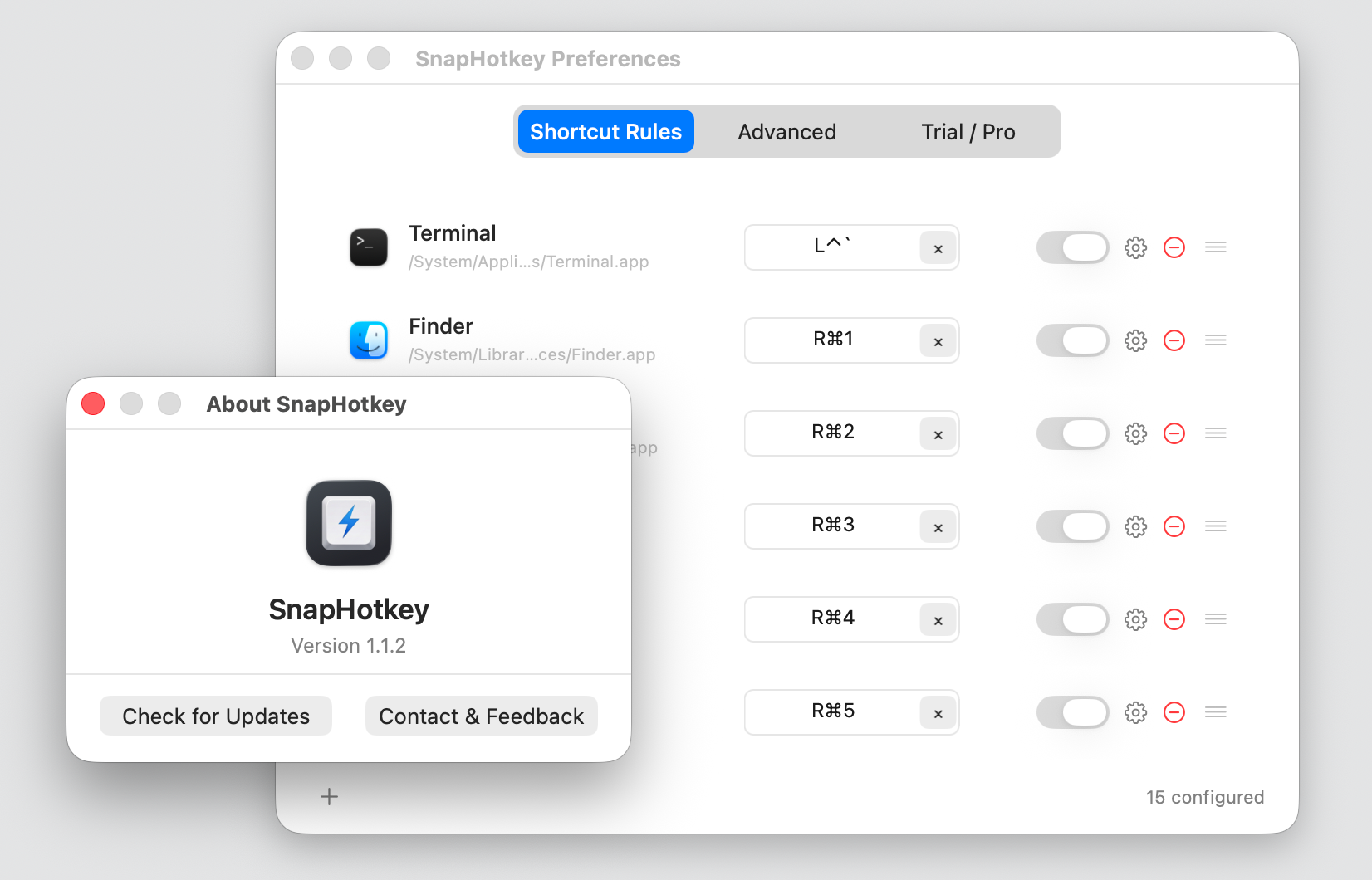
- Download SnapHotkey free, drag to Applications, launch.
- Click the menu bar icon → Preferences. Click +, pick an app, record the shortcut you want (e.g.,
Left Cmd+1). Repeat for your top 5–8 apps. - Press the shortcut. Done.
No JSON config, no scripting. About two minutes from install to ten apps mapped. $9.99 one-time, no subscription. The free download includes a 15-day full trial — every feature unlocked, no credit card.
Bottom Line
Cmd+Tab is technically the Mac equivalent of Alt+Tab. But if you ran more than four apps on Windows, you already know cycling-based switching gets worse the more you open.
Mac’s flexibility lets you skip cycling entirely. Map your Win+Number muscle memory to Left Cmd+Number and you’ll switch apps faster on Mac than you ever did on Windows.
Further Reading
- Windows to Mac: How to Get Taskbar-Style App Hotkeys — The full Win+Number → Mac transition with more keyboard examples.
- Mac App Switcher: Why Direct Hotkeys Beat Cmd+Tab Cycling — The four mac app switcher paradigms and why direct hotkeys win.
- Left Command vs Right Command: The Shortcut Layer Most Developers Miss — Why L/R modifier distinction doubles your shortcut space.