Launchpad Is Gone in macOS Tahoe — How to Open Apps by Shortcut Now
Launchpad's shortcut is F4 on macOS Sequoia and earlier. macOS Tahoe removed Launchpad — here's what to press instead, and a faster way to open any app.
You pressed F4 on your new macOS Tahoe Mac expecting the full-screen Launchpad grid, and nothing happened the way it used to. The rocket icon is gone from the Dock too. Apple removed Launchpad in macOS Tahoe (macOS 26) and replaced it with a new Apps view inside Spotlight.
Here are the four built-in Launchpad hotkey replacements on Tahoe — plus a faster way to skip the menu and land directly in a specific app.
Quick Answer: The Launchpad Shortcut by macOS Version
- macOS Sequoia (15) and earlier — the Launchpad keyboard shortcut is
F4. If your function keys are set to behave as standard F-keys, pressFn+F4instead. The Dock rocket icon and the thumb-and-three-finger trackpad pinch do the same thing. - macOS Tahoe (26) — Launchpad no longer exists. Press
Fn+Shift+Ato open Apps, the Spotlight pane that replaced it.
If you’re still on Sequoia or older, F4 is your answer and nothing has changed. If you’ve upgraded to Tahoe, read on.
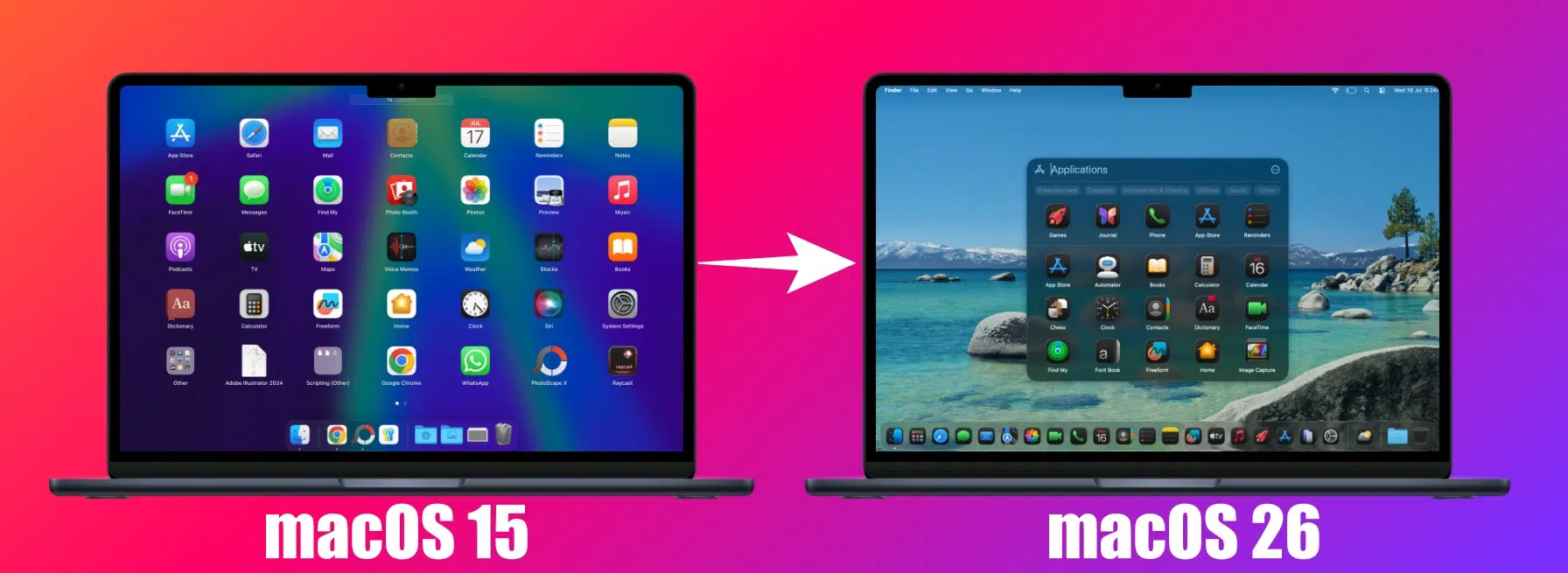
What Happened to Launchpad
Apple removed full-screen Launchpad in macOS Tahoe. The three-finger pinch gesture, the F4 key, and the Dock rocket icon all used to summon it. None of them open the original grid anymore.
The replacement is Apps — a new pane inside Spotlight that shows every installed app in a searchable list or grid view. It does most of what Launchpad did, but lives inside Spotlight instead of taking over the whole screen.
The 4 Launchpad Hotkey Replacements
There are four built-in ways to open the new Apps view on macOS Tahoe.
1. Fn+Shift+A — the dedicated direct shortcut. Press it from anywhere and Apps opens immediately. The fastest single-shortcut option Apple ships.
2. Cmd+Space then Cmd+1 — open Spotlight first, then switch to the Apps pane. Slightly more steps, but reuses the Cmd+Space muscle memory you already have.
3. Cmd+Space then Tab — same as above but using Tab to cycle through the Spotlight panes until Apps is selected.
4. F4 — the old Launchpad key. It still works, but instead of the full-screen grid, it now opens the Apps pane inside Spotlight.
Trackpad bonus: the classic three-finger pinch gesture also opens Apps view on Tahoe — same gesture, new destination.
Whichever method you pick, you land here — the new Apps view, organized by category:
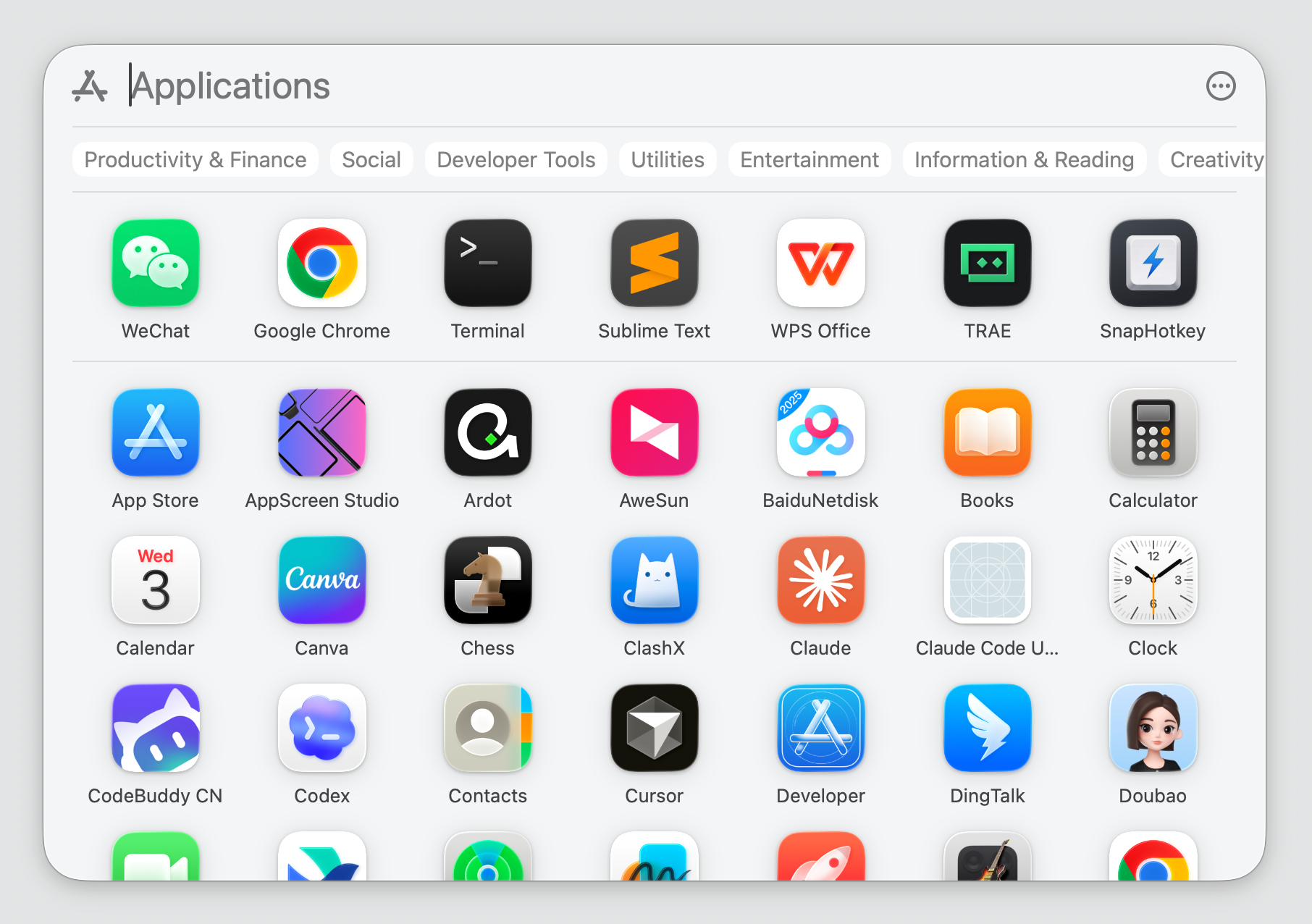
Start typing the app name, press Enter, and the app opens.
But This Is Still 2–3 Steps Every Time
For an app you open occasionally, Fn+Shift+A then typing a few letters is fine.
But for an app you reach for fifty times a day — your terminal, your editor, your browser — that’s three or four keypresses every single time:

Multiply by 50 launches and you’re spending two minutes a day on menu friction. The cost is invisible per-press, but it adds up — and worse, it breaks your typing flow each time.
So here’s the real question: is there a way to assign one keyboard shortcut directly to a specific app, so you press it from anywhere and the app appears — no menu, no typing, no scanning?
Direct Hotkey to a Specific App: SnapHotkey
SnapHotkey is a small Mac app that does exactly this. You map a keyboard shortcut to a specific app once — for example, Left Cmd+1 to Terminal — and from then on, pressing that shortcut from anywhere instantly puts Terminal in front. No Spotlight. No typing. No two-step menu.
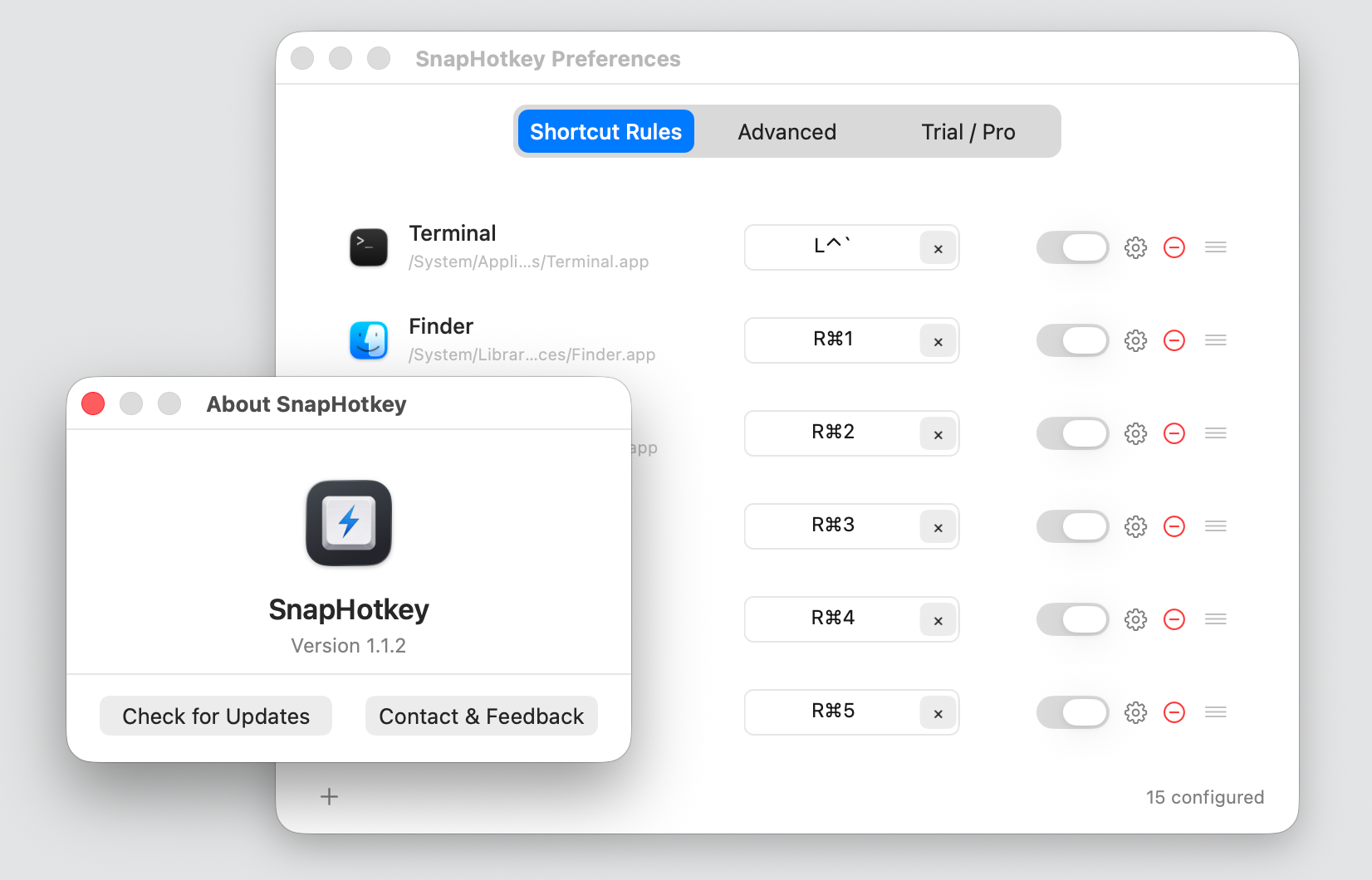
The whole pitch is simple configuration:
- Click the SnapHotkey menu bar icon → Preferences
- Click +, pick an app, record your shortcut
- Done
No JSON config file, no scripting language, no system extension to wrestle with. Two minutes from install to ten apps mapped.
And here’s the part that actually changes how your day feels: after a week of use, your fingers know the layout without thinking. Left Cmd+1 becomes no more conscious than Cmd+S to save — it’s pure muscle memory. Once you’re there, you stop opening menus to launch apps entirely. The Apps view becomes the thing you forgot existed.
Pricing: $9.99 one-time, no subscription. Download free and try every feature for 15 days first.
The Bottom Line
For occasional app launching on macOS Tahoe, Fn+Shift+A and the new Apps view are fine — Apple’s replacement is a workable Launchpad alternative.
But for the handful of apps you reach for all day, the menu step is wasted motion. Mapping a direct hotkey once and letting muscle memory do the rest is the real upgrade — and the part Apple’s built-in tools still don’t offer.
Further Reading
- Create a Keyboard Shortcut to Open Any App on Mac — Three-step tutorial for setting up your first SnapHotkey rule.
- Drop-Down Terminal on Mac: One Key to Summon Your Terminal — Apply the same hotkey pattern to your terminal for Quake-style behavior.